You can check your Jaybird RUN earbuds battery status and your charging case battery status in a few different ways. Here’s how you can view the earbuds and charge case individually.
Your Jaybird RUN earbuds
You can check your Jaybird RUN earbuds battery status in the following ways:
- Out of case you will hear a battery status notification as soon as the earbuds turn on.
- During use you will hear battery status notifications at 20% battery remaining and when the battery reaches less than 10%.
- The Jaybird App will indicate your left and right earbud battery status to within 1%.
- The right earbud is expected to lose battery faster than the left as the right controls the connection to the Bluetooth ® audio device as well as the left earbud. A full charge will still give you 4 hours of playtime.
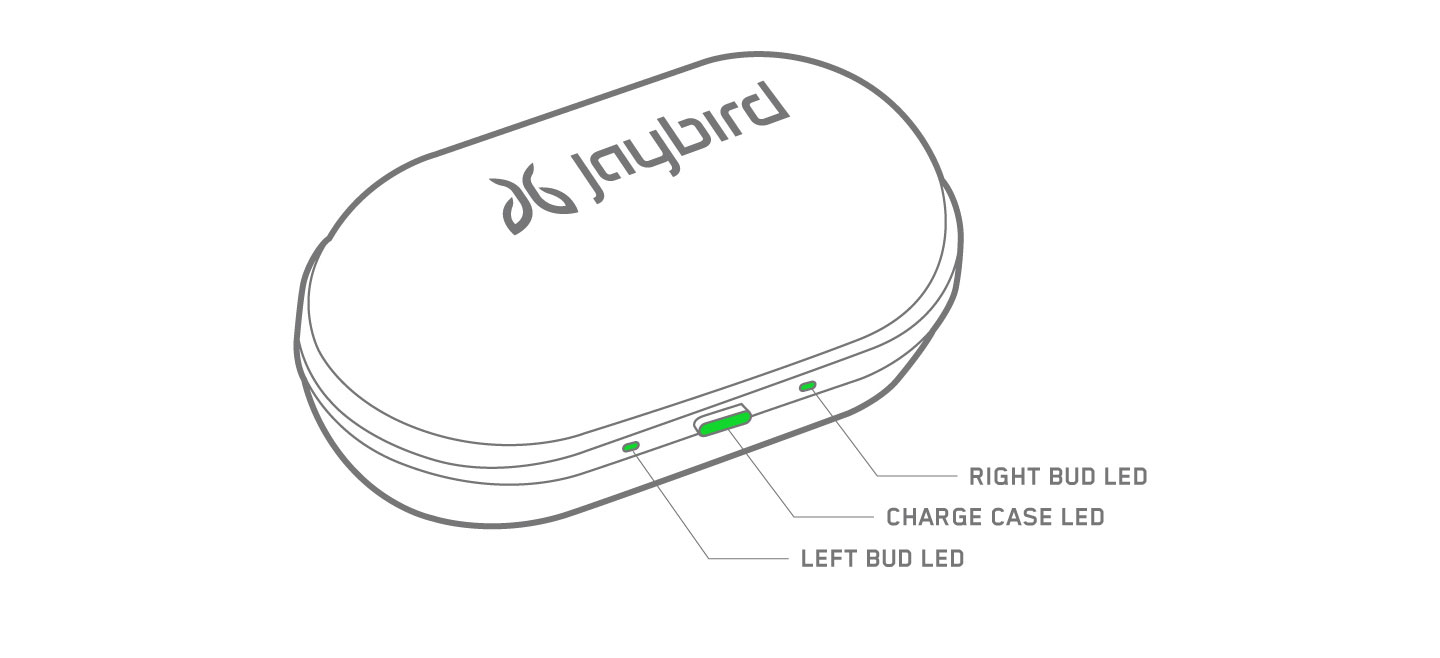
Your Jaybird RUN charging case
When your charge case is connected to power, the following LED indicators will display:
- Middle LED on case - Case battery status LED
- Green LED pulses = charging
- Green LED solid = fully charged
- Left and Right LED’s on case - Left and right earbud battery status LED’s if earbuds are in the case
- Green LED pulses = charging
- Green LED solid = fully charged
- Green LED pulses = charging
- Green LED solid = fully charged
When your charge case is not connected to power, on opening the case, the following LED indicators will display:
- Middle LED on case - Case battery status LED
- Green LED solid for 10 sec = Battery ok (more than 1h of playtime left in charge case)
- Red LED solid for 10 sec = Low battery (less than 1h of playtime left in charge case)
- Left and Right LED’s on case - Left and right earbud battery status LED’s if earbuds are in the case
- Green LED pulses = Charging
- Green LED solid = Fully charged
- Green LED solid for 10 sec = Battery ok (more than 1h of playtime left in charge case)
- Red LED solid for 10 sec = Low battery (less than 1h of playtime left in charge case)
- Green LED pulses = Charging
- Green LED solid = Fully charged
Important Notice: The Firmware Update Tool is no longer supported or maintained by Logitech. We highly recommend using Logi Options+ for your supported Logitech devices. We are here to assist you during this transition.
Important Notice: The Logitech Preference Manager is no longer supported or maintained by Logitech. We highly recommend using Logi Options+ for your supported Logitech devices. We are here to assist you during this transition.
Important Notice: The Logitech Control Center is no longer supported or maintained by Logitech. We highly recommend using Logi Options+ for your supported Logitech devices. We are here to assist you during this transition.
Important Notice: The Logitech Connection Utility is no longer supported or maintained by Logitech. We highly recommend using Logi Options+ for your supported Logitech devices. We are here to assist you during this transition.
Important Notice: The Unifying Software is no longer supported or maintained by Logitech. We highly recommend using Logi Options+ for your supported Logitech devices. We are here to assist you during this transition.
Important Notice: The SetPoint software is no longer supported or maintained by Logitech. We highly recommend using Logi Options+ for your supported Logitech devices. We are here to assist you during this transition.
Frequently Asked Questions
There are no products available for this section
There are no Downloads for this Product
There are no Downloads for this Version
Compatible Product
