You can program the Favorite buttons on your Harmony remote to tune automatically to your favorite channels. For example, if you program the Favorite 1 button on your remote to channel 26, your device will tune to channel 26 when you press it.
To create favorite channel shortcuts
Before you begin, connect your Harmony remote to your computer using the USB cable. Log in to your Harmony account and complete the following steps:
1. From the home page, click Add Favorite Channels. If you have more than one device that can change channels, you will be prompted to select the device you wish to create favorite channels for.
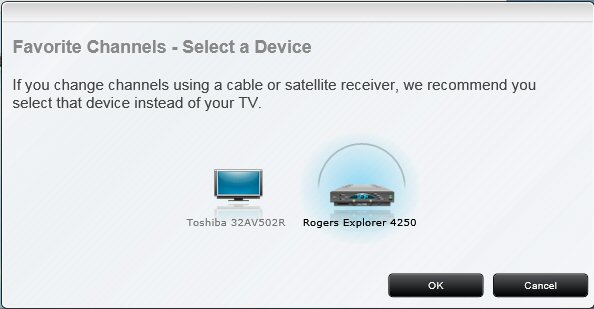
2. Select the device you use to change channels when you watch TV. If you have a cable or satellite receiver, then you should choose that device. Click OK. The following page appears.
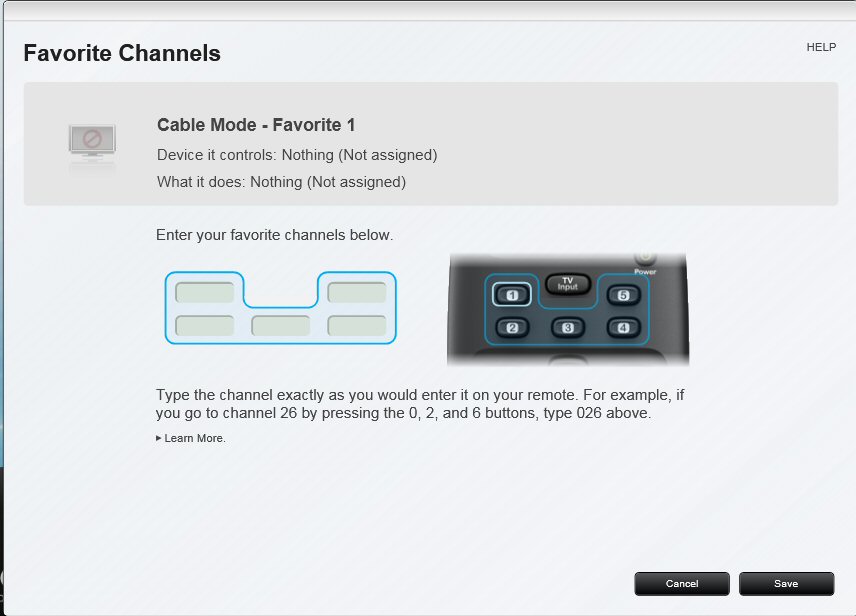
The Favorite Channels page shows information about what favorite channel assignments are currently mapped for the device you selected, including:
- A Favorite Channel Setup area with fields for entering your favorite channel assignments for each of the customizable buttons on your Harmony remote.
- An image of the remote showing the customizable favorite channel buttons on your Harmony remote. Move your mouse over a button to see the button name or click a button to see what favorite channel is currently assigned to it and what commands it sends to the current device.
3. Enter your favorite channel in the corresponding entry field. Type the channel exactly as you would enter it on your remote. For example, if you go to channel 26 by pressing the 0, 2, and 6 buttons, type 026 for your favorite.
4. Continue customizing the favorite channel assignments on your Harmony remote to suit your own preferences.
5. When you’ve finished entering your favorite channels, click Save to return to the Home page.
6. Click SYNC REMOTE to synchronize your Harmony remote with the updated favorite channel shortcuts.
Important Notice: The Firmware Update Tool is no longer supported or maintained by Logitech. We highly recommend using Logi Options+ for your supported Logitech devices. We are here to assist you during this transition.
Important Notice: The Logitech Preference Manager is no longer supported or maintained by Logitech. We highly recommend using Logi Options+ for your supported Logitech devices. We are here to assist you during this transition.
Important Notice: The Logitech Control Center is no longer supported or maintained by Logitech. We highly recommend using Logi Options+ for your supported Logitech devices. We are here to assist you during this transition.
Important Notice: The Logitech Connection Utility is no longer supported or maintained by Logitech. We highly recommend using Logi Options+ for your supported Logitech devices. We are here to assist you during this transition.
Important Notice: The Unifying Software is no longer supported or maintained by Logitech. We highly recommend using Logi Options+ for your supported Logitech devices. We are here to assist you during this transition.
Important Notice: The SetPoint software is no longer supported or maintained by Logitech. We highly recommend using Logi Options+ for your supported Logitech devices. We are here to assist you during this transition.
Frequently Asked Questions
There are no products available for this section
There are no Downloads for this Product
There are no Downloads for this Version
Compatible Product
