-
Make sure you're using the latest version of Logitech Options. You should be using version 6.70.2044 or later. Earlier versions of Logitech Options don't support Adobe CC 2018.
-
After you've updated Logitech Options, and you bring a supported Adobe application to the foreground, Logitech Options will automatically set up profiles for the 2018 apps, with the exception of Adobe Illustrator:
- The first time you launch Adobe Illustrator CC 2018 after upgrading to Adobe 2018 and with the latest Logitech Options installed, you will be prompted to enter a password in Logitech Options to install the correct plugins for Crown functionality.
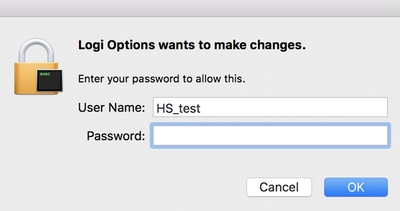
- The first time you launch Adobe Illustrator CC 2018 after upgrading to Adobe 2018 and with the latest Logitech Options installed, you will be prompted to enter a password in Logitech Options to install the correct plugins for Crown functionality.
-
If you're still having a problem with Crown functionality in an Adobe 2018 application, you'll need to remove the profile for that application and then add it back again. Here's how:
- Launch Logitech Options and select the Craft Advanced Keyboard.
- In the upper right corner, click All Applications and then hover over the application that you need to remove the profile for.
- Click on the "x" and then click OK in the confirmation dialog.
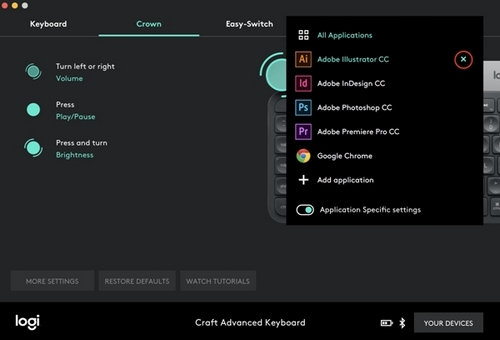
- Click + Add application to add the profile and then select the supported applications to create the profile for. Follow the on-screen instructions on onboarding to install the profile again.
-
If you're using Adobe 2017 and the Crown functions stopped working after you upgraded to the latest version of Logitech Options, you'll need to restart any supported Adobe 2017 applications that were open during the Logitech Options installation. Crown functionality should be restored.
-
If you have both Adobe 2017 and Adobe 2018 installed, the Crown functions only work in the version that was launched first, in case you have both versions running. The Crown supports both 2017 and 2018 versions of Adobe (Ps, Ai, Id, Pr), but only one version of the application is supported at a time.
-
If you have Craft Crown profiles set up for Adobe 2018 and would like to also install Adobe 2017 and add profiles for it, you'll need to first remove the profile for the specific application for which you have both 2017 and 2018 versions, and then add the profile again. Use the steps above to remove the profile and add it back again.
Important Notice: The Firmware Update Tool is no longer supported or maintained by Logitech. We highly recommend using Logi Options+ for your supported Logitech devices. We are here to assist you during this transition.
Important Notice: The Logitech Preference Manager is no longer supported or maintained by Logitech. We highly recommend using Logi Options+ for your supported Logitech devices. We are here to assist you during this transition.
Important Notice: The Logitech Control Center is no longer supported or maintained by Logitech. We highly recommend using Logi Options+ for your supported Logitech devices. We are here to assist you during this transition.
Important Notice: The Logitech Connection Utility is no longer supported or maintained by Logitech. We highly recommend using Logi Options+ for your supported Logitech devices. We are here to assist you during this transition.
Important Notice: The Unifying Software is no longer supported or maintained by Logitech. We highly recommend using Logi Options+ for your supported Logitech devices. We are here to assist you during this transition.
Important Notice: The SetPoint software is no longer supported or maintained by Logitech. We highly recommend using Logi Options+ for your supported Logitech devices. We are here to assist you during this transition.
Frequently Asked Questions
There are no products available for this section
There are no Downloads for this Product
There are no Downloads for this Version
Compatible Product
