To connect a DVD or Blueray player to your Z906 speakers, first choose:
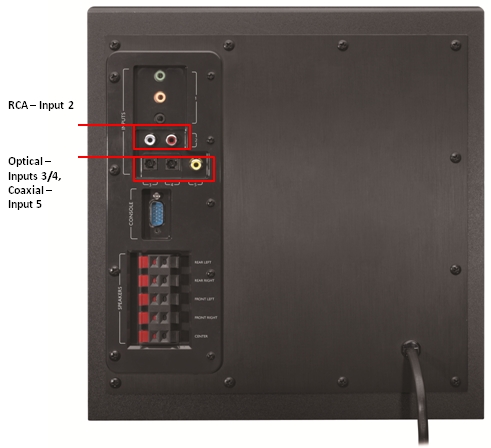
The Z906 speakers have three (3) digital inputs available to connect a DVD or Blueray player for 5.1 surround sound: two (2) optical and one (1) digital coax.
To use a digital connection with your Z906 speakers:
-
Connect your DVD or Blueray player to the Z906 subwoofer using one of the three available digital inputs.
-
Make sure your DVD or Blueray player is configured to output one of the following digital formats:
NOTE: You may need to refer to your DVD or Blueray player support documentation for more information.
- Dolby Digital 5.1
- DTS 5.1
-
Make sure the media content audio setting is set to the desired digital format.
NOTE: If the media content doesn't have a Dolby/DTS digital output format, the Decode light won't illuminate. If this is the case, the Z906 should default to simulate surround sound and the light next to 3D under Stereo will be lit. If not, you can manually set this effect by pressing the Effect button until the LED cycles to 3D.
If you prefer, you can connect your DVD or Blueray player to the Z906 subwoofer using an RCA cable.
To use an analog connection with your Z906 speakers, connect your DVD or Blueray player to Input 2 on the back of your subwoofer and select Input 2 on the Control Console.
NOTE: If either or both the DVD/Blueray player and the media you're playing aren't in a surround sound format, the Z906 can simulate surround sound. See Knowledge Base article 23020 for more information.
Important Notice: The Firmware Update Tool is no longer supported or maintained by Logitech. We highly recommend using Logi Options+ for your supported Logitech devices. We are here to assist you during this transition.
Important Notice: The Logitech Preference Manager is no longer supported or maintained by Logitech. We highly recommend using Logi Options+ for your supported Logitech devices. We are here to assist you during this transition.
Important Notice: The Logitech Control Center is no longer supported or maintained by Logitech. We highly recommend using Logi Options+ for your supported Logitech devices. We are here to assist you during this transition.
Important Notice: The Logitech Connection Utility is no longer supported or maintained by Logitech. We highly recommend using Logi Options+ for your supported Logitech devices. We are here to assist you during this transition.
Important Notice: The Unifying Software is no longer supported or maintained by Logitech. We highly recommend using Logi Options+ for your supported Logitech devices. We are here to assist you during this transition.
Important Notice: The SetPoint software is no longer supported or maintained by Logitech. We highly recommend using Logi Options+ for your supported Logitech devices. We are here to assist you during this transition.
Frequently Asked Questions
There are no products available for this section
There are no Downloads for this Product
There are no Downloads for this Version
Compatible Product
