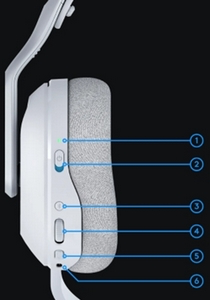
- Status Indicator (LED) Battery and connection status
- Status Indicator (LED) Power status (ON/OFF)
- Bluetooth Button
- Volume Wheel
- Mic Mute Toggle and Boom Mic
- USB-C Port
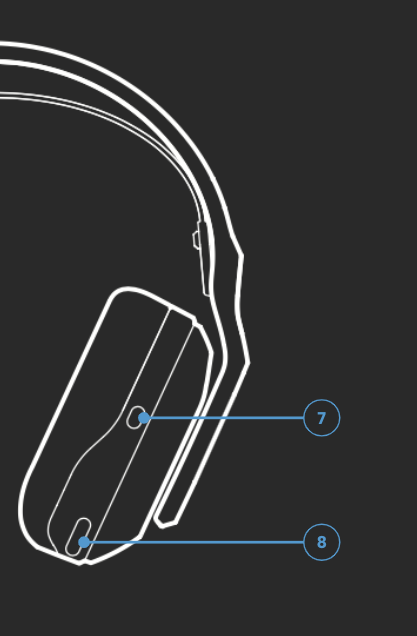
- PLAYSYNC Button (right ear cup)
- MIXAMP™ Game/Chat Rocker (right ear cup)
Status Indicator (LED) Battery and connection status
Keep track of your battery status and wireless connection status.
When the power is on, the LED will glow solid green for five seconds when the battery power is >= 30%. If the battery power is <=30%, the LED glows red for five seconds. To save battery life, the headset will power down automatically if there is no audio after 30 minutes. To resume use, power OFF, then back ON again. The timeout value can be adjusted in G HUB.
Status Indicator (LED) Power status
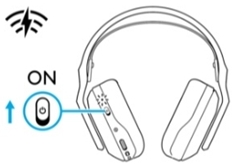
Slide to power ON/OFF. The headset is in the power ON state when the blue mark is visible, and in the power OFF state when the red mark is visible.
-
Turn ON the headset by sliding the power switch up.
-
Out of the box, the headset will be in LIGHTSPEED wireless mode by default.
-
The Status Indicator will be white indicating USB wireless mode.
Bluetooth Button
Pair up to 10 devices, and have A20 X switch between each automatically.
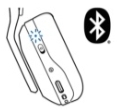
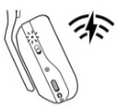
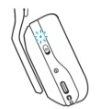
Press to toggle between Bluetooth and LIGHTSPEED modes. The LED indicator glows steady blue for five seconds while in Bluetooth mode, white for five seconds while in LIGHTSPEED mode, or cyan in USB wired mode.
Short press the Bluetooth button — the LED indicator shows which mode the headset is in:
|
Blue = Bluetooth mode |
|
|
White = LIGHTSPEED wireless mode |
|
|
Cyan = USB wired mode |
|
NOTE: Headset will only switch to USB wired mode when connected via a USB cable. LIGHTSPEED wireless mode cannot be switched to or used while the headset is connected via USB cable.
Volume Wheel
Adjusts the headset volume
- Rotate up to increase the volume of the headset
- Rotate down to decrease the volume of the headset
NOTE: By design, the A20 X headset volume is managed separately from the device such as a Console or PC. The headset’s volume does not sync with the device’s operating system. Take care to adjust both and ensure a comfortable level before use.
Mic Mute Toggle and Boom Mic
The button Mutes/Unmutes the boom mic. Mute status can be viewed with the Red LED indicator located at the tip of the boom mic. When the mic is muted, the indicator will be lit and visible.
For optimal voice pickup, place the end of the mic boom approximately two fingers’ width from the corner of your mouth.
Blue VO!CE functionality can be enabled using G HUB software.
USB-C Port
Used for recharging or simultaneously recharging the headset.
If the headset is plugged into a PC or console using a wired USB cable, the headset will automatically switch to USB wired audio mode.
PLAYSYNC Button (right ear cup)
Press to switch between the connected Console / PC inputs.
MIXAMP™ Game/Chat Rocker (right ear cup)
For precise on-the-fly game/chat mix control for Xbox and PC
Important Notice: The Firmware Update Tool is no longer supported or maintained by Logitech. We highly recommend using Logi Options+ for your supported Logitech devices. We are here to assist you during this transition.
Important Notice: The Logitech Preference Manager is no longer supported or maintained by Logitech. We highly recommend using Logi Options+ for your supported Logitech devices. We are here to assist you during this transition.
Important Notice: The Logitech Control Center is no longer supported or maintained by Logitech. We highly recommend using Logi Options+ for your supported Logitech devices. We are here to assist you during this transition.
Important Notice: The Logitech Connection Utility is no longer supported or maintained by Logitech. We highly recommend using Logi Options+ for your supported Logitech devices. We are here to assist you during this transition.
Important Notice: The Unifying Software is no longer supported or maintained by Logitech. We highly recommend using Logi Options+ for your supported Logitech devices. We are here to assist you during this transition.
Important Notice: The SetPoint software is no longer supported or maintained by Logitech. We highly recommend using Logi Options+ for your supported Logitech devices. We are here to assist you during this transition.
Frequently Asked Questions
There are no products available for this section
There are no Downloads for this Product
There are no Downloads for this Version
Compatible Product
