iRacing has full support for TRUEFORCE through the game’s integration. You will first need to decide which type of TRUEFORCE effects you prefer to use and then edit one of the game’s files to alter this setting.
iRacing has two types of TRUEFORCE effects:
- Physics-based effects, such as a pulse that you feel when hitting the rev limiter or vibrations from tire scrub as you slide
- Engine note effects
You can only have one of these effects active at a time. Please follow the instructions below to help you choose and adjust your selected TRUEFORCE effect.
Choose and Adjust TRUEFORCE Effects
- Navigate to the folder C:\Users\{USERNAME}\Documents\iRacing. You will see a file called app.ini.
- Right-click on that file, hover over Open With and then click Notepad.
- In the Notepad window, scroll down the settings list until you find the section titled [Force Feedback]. There are two settings at the bottom of the section:
- trueForceVibeGain_dB=
- trueForceVibePhysics=
- For trueForceVibePhysics=, you can choose which type of TRUEFORCE effect to use by editing the number at the end of the line.
- To enable Engine Note effects, change it to 0.
- To allow Physics-based effects, change it to 1.
- The trueForceVibeGain_dB= setting lets you control the intensity of the TRUEFORCE effects by altering its value. This value can range from -90 to 20. Our recommendation is to keep this setting somewhere between -40 (weak) and 5 (strong), depending on your preference.
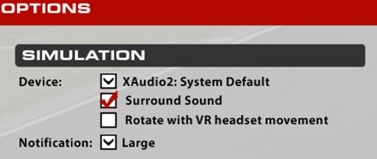
Additionally, our recommendation is to use XAudio2 for your chosen audio device in iRacing’s Options menu on the Sound tab. The combination of TRUEFORCE and XAudio2 will help create a more immersive experience.
Remarque importante : L’outil de mise à jour du micrologiciel n’est plus pris en charge ni maintenu par Logitech. Nous recommandons vivement d’utiliser Logi Options+ pour les dispositifs Logitech pris en charge. Nous sommes là pour vous aider pendant cette transition.
Remarque importante : Logitech Preference Manager n’est plus pris en charge ni maintenu par Logitech. Nous recommandons vivement d’utiliser Logi Options+ pour les dispositifs Logitech pris en charge. Nous sommes là pour vous aider pendant cette transition.
Remarque importante : Logitech Control Center n’est plus pris en charge ni maintenu par Logitech. Nous recommandons vivement d’utiliser Logi Options+ pour les dispositifs Logitech pris en charge. Nous sommes là pour vous aider pendant cette transition.
Remarque importante : L’utilitaire de connexion Logitech n’est plus pris en charge ni maintenu par Logitech. Nous recommandons vivement d’utiliser Logi Options+ pour les dispositifs Logitech pris en charge. Nous sommes là pour vous aider pendant cette transition.
Remarque importante : Le logiciel Unifying n’est plus pris en charge ni maintenu par Logitech. Nous recommandons vivement d’utiliser Logi Options+ pour les dispositifs Logitech pris en charge. Nous sommes là pour vous aider pendant cette transition.
Remarque importante : Le logiciel SetPoint n'est plus pris en charge ni entretenu par Logitech. Nous recommandons vivement d’utiliser Logi Options+ pour les dispositifs Logitech pris en charge. Nous sommes là pour vous aider pendant cette transition.
Questions fréquentes
Aucun produit n'est disponible pour cette section
Aucun téléchargement n'est associé à ce produit
Aucun téléchargement n’est associé à cette version.
Compatible Product
