You can connect your keyboard to an iPad running iOS 13.1 or later or iPhone running iOS 13 or later. Here's how:
- With your iPad or iPhone turned on, tap the Settings icon.

- In Settings, tap General and then Bluetooth.
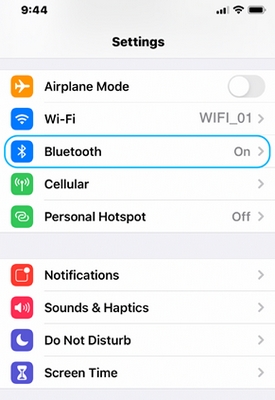
- If the on-screen switch beside Bluetooth doesn't currently show as ON, tap it once to enable it.

- Remove the pull-tab from the back of the keyboard and it will be turned ON.
- Long press channel 1, 2, or 3 for three seconds to enter pairing mode. The LED on top of the channel key will start blinking. You can save up to three devices to memory on the keyboard.
- On your iPad or iPhone, in the Devices list, tap K380 for Mac to pair it.

- Your keyboard will request a PIN code to complete the connection. On your keyboard, type the code shown on-screen, and then press the Return or Enter key.
NOTE: Each connect code is randomly generated. Make sure you enter the one shown on your iPad or iPhone screen. - Once you press Enter (if required), the pop-up will disappear, and Connected will appear beside your keyboard in the Devices list. The LED on your keyboard will stop blinking and remain ON for 10 seconds.
- Your keyboard should now be connected to your iPad or iPhone.
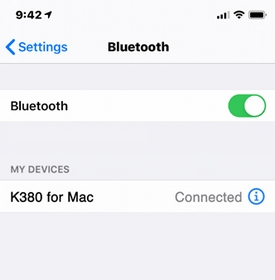
NOTE: If the K380 for Mac is already paired but having problems connecting, remove it from the Devices list and then follow the instructions above to connect it.
Remarque importante : L’outil de mise à jour du micrologiciel n’est plus pris en charge ni maintenu par Logitech. Nous recommandons vivement d’utiliser Logi Options+ pour les dispositifs Logitech pris en charge. Nous sommes là pour vous aider pendant cette transition.
Remarque importante : Logitech Preference Manager n’est plus pris en charge ni maintenu par Logitech. Nous recommandons vivement d’utiliser Logi Options+ pour les dispositifs Logitech pris en charge. Nous sommes là pour vous aider pendant cette transition.
Remarque importante : Logitech Control Center n’est plus pris en charge ni maintenu par Logitech. Nous recommandons vivement d’utiliser Logi Options+ pour les dispositifs Logitech pris en charge. Nous sommes là pour vous aider pendant cette transition.
Remarque importante : L’utilitaire de connexion Logitech n’est plus pris en charge ni maintenu par Logitech. Nous recommandons vivement d’utiliser Logi Options+ pour les dispositifs Logitech pris en charge. Nous sommes là pour vous aider pendant cette transition.
Remarque importante : Le logiciel Unifying n’est plus pris en charge ni maintenu par Logitech. Nous recommandons vivement d’utiliser Logi Options+ pour les dispositifs Logitech pris en charge. Nous sommes là pour vous aider pendant cette transition.
Remarque importante : Le logiciel SetPoint n’est plus pris en charge ou maintenu par Logitech. Nous recommandons vivement d’utiliser Logi Options+ pour les dispositifs Logitech pris en charge. Nous sommes là pour vous aider pendant cette transition.
Questions fréquentes
Aucun produit n'est disponible pour cette section
Aucun téléchargement n'est associé à ce produit
Aucun téléchargement n’est associé à cette version.
Compatible Product
