Insérer votre iPad
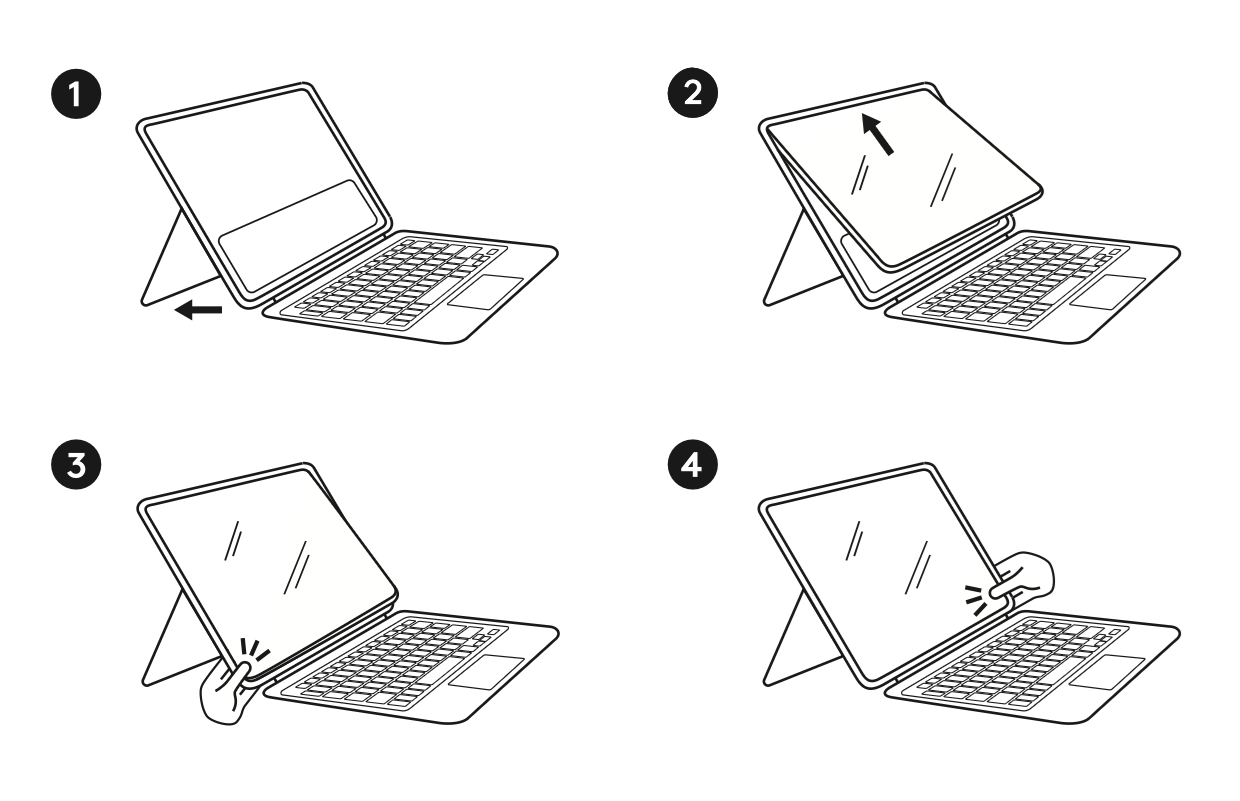
- Dépliez la béquille. Cela permet au support Rugged Combo de se replier plus facilement lors de l’insertion.
- Insérez d’abord le coin supérieur gauche (bouton d’alimentation) de l’iPad, suivi du coin supérieur droit de l’iPad. Cette étape devrait être facile, car le bas de l’iPad n’est pas encore dans le support.
- Descendez le long du côté gauche, en poussant l’écran de l’iPad vers l’intérieur du Rugged Combo.
-
Une fois trois des coins insérés, progressez sur le bord inférieur et poussez fermement le dernier coin, en bas à droite, dans le rebord du support.
- Conseil: prenez le coin inférieur du support à deux mains et utilisez vos deux pouces pour pousser fermement l’écran de l’iPad dans ce coin.
- Vérifiez que le rebord du support est correctement placé tout autour de l’écran de l’iPad.
Retirer votre iPad
- Pour retirer l’iPad, commencez par ouvrir la béquille pour donner un peu plus de flexibilité au support.
- Prenez le bord inférieur droit de l’écran de l’iPad à deux mains et utilisez vos deux pouces pour pousser le côté du Rugged Combo 4 vers l’arrière et exposer le bord de l’iPad.
- Glissez votre doigt le long du bord inférieur pour séparer l’iPad des coins inférieurs du support.
- Une fois que les deux bords inférieurs sont libres, l’iPad devrait sortir par le haut.
Remarque importante : L’outil de mise à jour du micrologiciel n’est plus pris en charge ni maintenu par Logitech. Nous recommandons vivement d’utiliser Logi Options+ pour les dispositifs Logitech pris en charge. Nous sommes là pour vous aider pendant cette transition.
Remarque importante : Logitech Preference Manager n’est plus pris en charge ni maintenu par Logitech. Nous recommandons vivement d’utiliser Logi Options+ pour les dispositifs Logitech pris en charge. Nous sommes là pour vous aider pendant cette transition.
Remarque importante : Logitech Control Center n’est plus pris en charge ni maintenu par Logitech. Nous recommandons vivement d’utiliser Logi Options+ pour les dispositifs Logitech pris en charge. Nous sommes là pour vous aider pendant cette transition.
Remarque importante : L’utilitaire de connexion Logitech n’est plus pris en charge ni maintenu par Logitech. Nous recommandons vivement d’utiliser Logi Options+ pour les dispositifs Logitech pris en charge. Nous sommes là pour vous aider pendant cette transition.
Remarque importante : Le logiciel Unifying n’est plus pris en charge ni maintenu par Logitech. Nous recommandons vivement d’utiliser Logi Options+ pour les dispositifs Logitech pris en charge. Nous sommes là pour vous aider pendant cette transition.
Remarque importante : Le logiciel SetPoint n’est plus pris en charge ou maintenu par Logitech. Nous recommandons vivement d’utiliser Logi Options+ pour les dispositifs Logitech pris en charge. Nous sommes là pour vous aider pendant cette transition.
Questions fréquentes
Aucun produit n'est disponible pour cette section
Aucun téléchargement n'est associé à ce produit
Aucun téléchargement n’est associé à cette version.
Compatible Product
