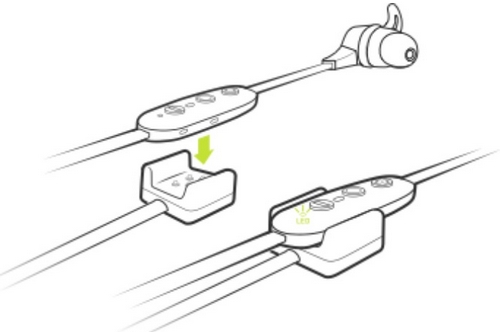
Your Jaybird X4 buds come with a directional charging clip. To charge, follow the steps below.
- Connect the charging clip to the inline remote on your X4 buds with the Micro USB connector facing away from the earpiece. You’ll notice the charging clip is tapered just like the inline remote. The wider section of the charging clip aligns with the wider section of the remote.
- Connect the other end of the USB charging cable to a USB power source.
- Limit the charge time to 2.5 hours. To get the most out of your battery it is recommended to charge the buds when you hear the ‘Charge Me’ voice prompt (about 10% battery remaining). If you’re pressed for time and only have time to partially charge your buds, you’ll get around an hour of playtime for every 10 minutes of charge. When turned on and not playing music, pressing Volume + or Volume – will announce the battery level. If you download and connect to the Jaybird app you will be able to see your battery level to within 1%.
NOTE: Make sure to check the charging source before you begin charging. We recommend using a computer as it’s the best and safest method. Anything 1 amp or less is safe. Some chargers can produce a lot more power than is needed to charge your buds, so try and avoid them.
Nota importante: lo strumento di aggiornamento del firmware non è più supportato o gestito da Logitech. Si consiglia vivamente di utilizzare Logi Options+ per i dispositivi Logitech supportati. Siamo qui per assisterti durante questa transizione.
Nota importante: Logitech Preference Manager non è più supportato o gestito da Logitech. Si consiglia vivamente di utilizzare Logi Options+ per i dispositivi Logitech supportati. Siamo qui per assisterti durante questa transizione.
Nota importante: Logitech Control Center non è più supportato o gestito da Logitech. Si consiglia vivamente di utilizzare Logi Options+ per i dispositivi Logitech supportati. Siamo qui per assisterti durante questa transizione.
Nota importante: l'utilità di connessione Logitech non è più supportata o gestita da Logitech. Si consiglia vivamente di utilizzare Logi Options+ per i dispositivi Logitech supportati. Siamo qui per assisterti durante questa transizione.
Nota importante: il software Unifying non è più supportato o gestito da Logitech. Si consiglia vivamente di utilizzare Logi Options+ per i dispositivi Logitech supportati. Siamo qui per assisterti durante questa transizione.
Nota importante: Il software SetPoint non è più supportato o gestito da Logitech. Si consiglia vivamente di utilizzare Logi Options+ per i dispositivi Logitech supportati. Siamo qui per assisterti durante questa transizione.
Domande frequenti
Non ci sono prodotti disponibili per questa sezione
Non ci sono download per questo prodotto
Non sono disponibili download per questa versione.
Compatible Product
