If your Logitech device has Bluetooth connection issues on Windows, follow these troubleshooting steps and test your device after each step to see if it works.
Windows 11
1. Adjust Bluetooth device discovery (Windows 11 specific)
- Navigate to Bluetooth & devices > Devices > Device Settings > Bluetooth Devices Discovery.
- Change the setting from Default to Advanced.
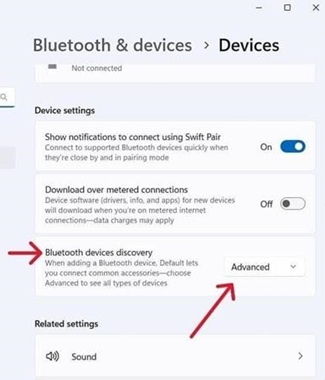
- This should allow your Logitech device to be discoverable in the Bluetooth list.
2. Make sure you have the latest version of Windows 11
Microsoft regularly improves how Windows handles Bluetooth devices. Check to make sure you have installed the latest updates:
-
Lenovo computers
- Click Start, and then go to Lenovo Vantage (formerly Lenovo Companion), and select System Update. Then select Check for Updates.
- If there is an update available, click Install selected. Optional updates are not required but are recommended. Click here for more details on how to update your Lenovo computer.
-
HP computers
- Click Start > All apps and then go to HP Support Assistant or search for support assistant. If it is not installed you can install it from the HP site here.
- In the Devices window, select your HP computer and click on Updates. Optional updates are not required but are recommended. Click here for more details on how to update your HP computer.
-
Dell computers
- Click Start, and then go to Dell Command | Update and select Check. You can also go to the Dell support page here and scan your system for new updates.
- If there is an update available, select Install. Optional updates are not required but are recommended.
-
Other computers
- Check the product support page of your computer manufacturer's website to see how to update your system.
3. Make sure Bluetooth is turned ON
- Click Start, then select Settings > Bluetooth & devices.
- Make sure the Bluetooth toggle is turned On.
- If you are using a laptop with a physical Bluetooth switch or keyboard hotkey, ensure it is enabled.

4. Restart Bluetooth on your computer
- Click Start > Settings > Bluetooth & devices.
- Click on the Bluetooth switch to turn Bluetooth Off.

- Wait a few seconds, then click the switch again to turn Bluetooth back On.
- Check to see if your Logitech Bluetooth device connects. If not, proceed to the next step.
5. Remove your Logitech device and pair again
- Click Start > Settings > Bluetooth & devices.
- Locate your device, click on the three dots menu icon (
 ) in the right corner, and select Remove device.

- When prompted with "Are you sure you want to remove this device?", click Yes.

- Re-pair your device by clicking Add device > Bluetooth, putting your Logitech device into pairing mode, and following the on-screen prompts (see our full pairing guide).
6. Run the Windows Bluetooth Troubleshooter
- Click Start > Settings > System > Troubleshoot > Other troubleshooters. Under Other, locate Bluetooth, click Run, and follow the on-screen instructions.
7. Advanced: Try to change Bluetooth parameters
- In Device Manager, change the Bluetooth wireless adapter power settings:
- In the search box on the taskbar, type Device Manager, then select from the menu.
- In Device Manager, expand Bluetooth, right-click on the Bluetooth wireless adapter (For example, “Dell Wireless XYZ adapter”, or “Intel(R) Wireless Bluetooth”), and then click Properties.
- In the Properties window, click the Power Management tab and uncheck Allow the computer to turn off this device to save power.
- Click OK.
- Restart your computer to apply the change.
Windows 10
1. Make sure you have the latest version of Windows 10
Microsoft regularly improves the way Windows handles Bluetooth devices. Check to make sure you have installed the latest updates:
- Lenovo computers
- Click Start, and then go to Lenovo Vantage (formerly Lenovo Companion), and select System Update. Then select Check for Updates.
- If there is an update available, click Install selected. Optional updates are not required but are recommended. Click here for more details on how to update your Lenovo computer.
- HP computers
- Click Start, and then go to HP Support Assistant or search for support assistant. If it is not installed you can install it from HP site here.
- In the Devices window, select your HP computer and click on Updates. Optional updates are not required but are recommended. Click here for more details on how to update your HP computer.
- Dell computers
- Click Start, and then go to Dell Command | Update and select Check. You can also go to the Dell support page here and scan your system for new updates.
- If there is an update available, select Install. Optional updates are not required but are recommended.
- Other computers
- Check the product support page of your computer manufacturer's website to see how to update your system.
- Check the product support page of your computer manufacturer's website to see how to update your system.
2. Make sure Bluetooth is turned ON
- Click Start > Settings > Devices > Bluetooth & other devices.
- Make sure the Bluetooth toggle is turned On.
- If you are using a laptop with a Bluetooth switch, ensure it is switched On.

3. Restart Bluetooth on your computer
- Click Start > Settings > Devices > Bluetooth & other devices.
- Click on the Bluetooth switch to turn Bluetooth Off.

- Wait a few seconds and click the switch again to turn Bluetooth On.

- Check to see if your Logitech Bluetooth device connects. If not, continue to the next step.
4. Remove your Logitech device and pair again
- Click Start > Settings > Devices > Bluetooth & other devices.
- Locate your Logitech device under Mouse, keyboard, & pen or Other devices, click on it, and click Remove device.


- Confirm removal when prompted.
- Re-pair your device by clicking Add Bluetooth or other device > Bluetooth, placing your Logitech accessory into discovery mode, and finishing the on-screen steps (see our full pairing guide).
5. Run the Windows Bluetooth Troubleshooter
Click Start > Settings > Update & Security > Troubleshoot. Under Find and fix other problems, select Bluetooth, click Run the troubleshooter, and follow the onscreen directions.
6. Advanced: Try to change Bluetooth parameters
- In Device Manager, change the Bluetooth wireless adapter power settings:
- In the search box on the taskbar, type Device Manager, then select from the menu.
- In Device Manager, expand Bluetooth, right-click on the Bluetooth wireless adapter (For example, “Dell Wireless XYZ adapter”, or “Intel(R) Wireless Bluetooth”), and then click Properties.
- In the Properties window, click the Power Management tab and uncheck Allow the computer to turn off this device to save power.
- Click OK.
- Restart your computer to apply the change.
Nota importante: lo strumento di aggiornamento del firmware non è più supportato o gestito da Logitech. Si consiglia vivamente di utilizzare Logi Options+ per i dispositivi Logitech supportati. Siamo qui per assisterti durante questa transizione.
Nota importante: Logitech Preference Manager non è più supportato o gestito da Logitech. Si consiglia vivamente di utilizzare Logi Options+ per i dispositivi Logitech supportati. Siamo qui per assisterti durante questa transizione.
Nota importante: Logitech Control Center non è più supportato o gestito da Logitech. Si consiglia vivamente di utilizzare Logi Options+ per i dispositivi Logitech supportati. Siamo qui per assisterti durante questa transizione.
Nota importante: l'utilità di connessione Logitech non è più supportata o gestita da Logitech. Si consiglia vivamente di utilizzare Logi Options+ per i dispositivi Logitech supportati. Siamo qui per assisterti durante questa transizione.
Nota importante: il software Unifying non è più supportato o gestito da Logitech. Si consiglia vivamente di utilizzare Logi Options+ per i dispositivi Logitech supportati. Siamo qui per assisterti durante questa transizione.
Nota importante: Il software SetPoint non è più supportato o gestito da Logitech. Si consiglia vivamente di utilizzare Logi Options+ per i dispositivi Logitech supportati. Siamo qui per assisterti durante questa transizione.
Domande frequenti
Non ci sono prodotti disponibili per questa sezione
Non ci sono download per questo prodotto
Non sono disponibili download per questa versione.
Compatible Product
