What is Spotlight Effects for Mouse?
Spotlight Effects for Mouse is a feature in the Logi Options+ App that lets you map the Spotlight/ Highlight/Digital Laser effects to a mouse button, enabling you to have an improved user experience while presenting in a virtual/ hybrid setup.
How do I enable this feature?
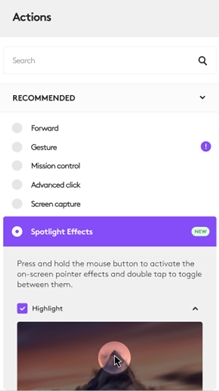
You can select Spotlight Effects as an action from the list of actions and assign it to any mouse button. Select your preferred effect(s) by ticking the checkboxes.
What are the different Spotlight effects?
There are three effects:
- Highlight — The area you want to show is in the spotlight. The rest of the slide is in the dark.
- Magnifier — Zoom in on the area you want to show.
- Digital Laser — A colored dot or circle, that looks like a digital laser.
The highlight effect is enabled by default. You can choose to enable the other two effects by ticking the checkbox.
For each of these effects, it is possible to change the color and size. Once you select the effect, you can move the sliders provided to change the color and size.
How do I trigger the effect(s)?
Once the Spotlight Effects action has been assigned to a button, press and hold the button to see the effect on the screen and simultaneously move your device to move the effect on the screen.
How can I switch between the effects if more than one is enabled/active?
If you have more than one effect enabled, double-click and hold the button to switch between the effects and see them on the screen.
Why am I unable to switch between the different effects on double click of the button?
When double clicking, ensure that your device is steady (not moving), and hold to switch between the effects and see them on the screen.
The participants on a video call cannot see the effect on the shared screen
If you have this issue during a video call, select to share your entire desktop in the video call and not only a specific window. This will ensure remote participants can also see the highlight effect.
Why is the Magnifier effect not working properly? What permissions are needed for the Spotlight effects to function properly?
Make sure that all the required permissions have been provided in macOS to enable the feature to work seamlessly. You can find the list of required permissions here: Logi Options+ permissions on macOS
Nota importante: lo strumento di aggiornamento del firmware non è più supportato o gestito da Logitech. Si consiglia vivamente di utilizzare Logi Options+ per i dispositivi Logitech supportati. Siamo qui per assisterti durante questa transizione.
Nota importante: Logitech Preference Manager non è più supportato o gestito da Logitech. Si consiglia vivamente di utilizzare Logi Options+ per i dispositivi Logitech supportati. Siamo qui per assisterti durante questa transizione.
Nota importante: Logitech Control Center non è più supportato o gestito da Logitech. Si consiglia vivamente di utilizzare Logi Options+ per i dispositivi Logitech supportati. Siamo qui per assisterti durante questa transizione.
Nota importante: l'utilità di connessione Logitech non è più supportata o gestita da Logitech. Si consiglia vivamente di utilizzare Logi Options+ per i dispositivi Logitech supportati. Siamo qui per assisterti durante questa transizione.
Nota importante: il software Unifying non è più supportato o gestito da Logitech. Si consiglia vivamente di utilizzare Logi Options+ per i dispositivi Logitech supportati. Siamo qui per assisterti durante questa transizione.
Nota importante: Il software SetPoint non è più supportato o gestito da Logitech. Si consiglia vivamente di utilizzare Logi Options+ per i dispositivi Logitech supportati. Siamo qui per assisterti durante questa transizione.
Domande frequenti
Non ci sono prodotti disponibili per questa sezione
Non ci sono download per questo prodotto
Non sono disponibili download per questa versione.
Compatible Product
