iPad の挿入
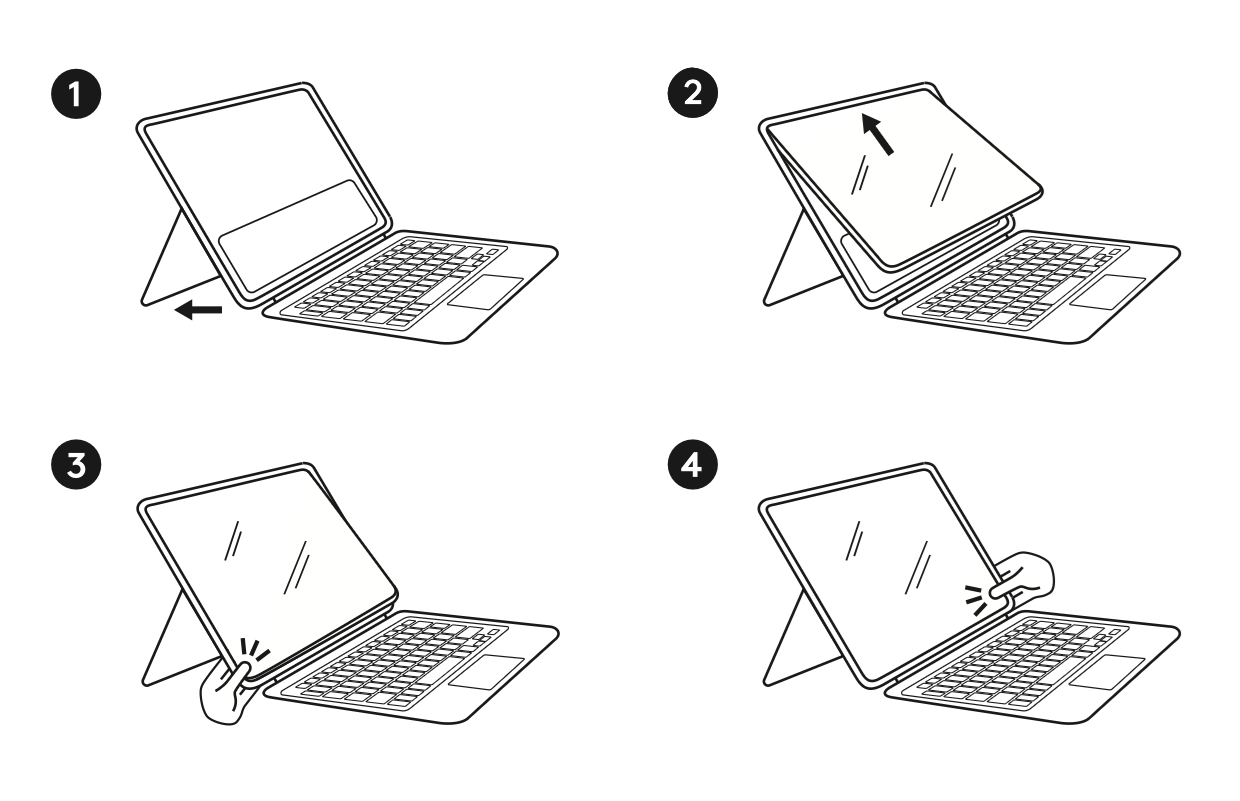
- キックスタンドを開きます。これにより、iPad を挿入する際に、Rugged Combo ホルダーが柔軟にしなりやすくなります。
- iPad は左上(電源ボタン)側、右上側の順にはめ込みます。iPad の下側はまだホルダーにはめ込まれていないため、ここまでは簡単です。
- 左側を上から下へ順にはめ込むように、iPad の画面側を Rugged Combo に押し込みます。
-
3つの角が押し込まれたら、下の端に沿って進みながら最後の右下の角をホルダーの縁にしっかり押し込みます。
- ヒント:両手でホルダーの下の角をつかみ、両親指を使って iPad の画面をその角にしっかり押し込みます。
- ホルダーの縁が、iPad の画面の周囲全体で均等に掛かっていることを確認します。
iPad の取り外し
- iPad を取り外すには、まずキックスタンドを開いて、ホルダーに少し余裕を持たせます。
- 両手で iPad の画面の右下の端をつかみ、両親指を使って Rugged Combo 4の側面を押し広げ、iPad の端が見えるようにします。
- 指を iPad の下辺に沿って滑らせながら、ホルダー下部の両角から iPad を外します。
- 下の2つの角が外れたら、iPad は上からスライドさせて取り外せるはずです。
重要なお知らせ:ファームウェア更新ツールのロジクールによるサポートと保守は終了しました。Logi Options+をサポート対象のロジクールデバイスにご利用いただくことを強くお勧めします。この移行についてご質問等ございましたら、ロジクールまでお問い合わせください。
重要なお知らせ:ロジクール環境設定マネージャのロジクールによるサポートと保守は終了しました。Logi Options+をサポート対象のロジクールデバイスにご利用いただくことを強くお勧めします。この移行についてご質問等ございましたら、ロジクールまでお問い合わせください。
重要なお知らせ:ロジクール Control Center のロジクールによるサポートと保守は終了しました。Logi Options+をサポート対象のロジクールデバイスにご利用いただくことを強くお勧めします。この移行についてご質問等ございましたら、ロジクールまでお問い合わせください。
重要なお知らせ:ロジクール接続ユーティリティのロジクールによるサポートと保守は終了しました。Logi Options+をサポート対象のロジクールデバイスにご利用いただくことを強くお勧めします。この移行についてご質問等ございましたら、ロジクールまでお問い合わせください。
重要なお知らせ:Unifying ソフトウェアのロジクールによるサポートと保守は終了しました。Logi Options+をサポート対象のロジクールデバイスにご利用いただくことを強くお勧めします。この移行についてご質問等ございましたら、ロジクールまでお問い合わせください。
重要なお知らせ:SetPoint ソフトウェアのロジクールによるサポートと保守は終了しました。Logi Options+をサポート対象のロジクールデバイスにご利用いただくことを強くお勧めします。この移行についてご質問等ございましたら、ロジクールまでお問い合わせください。
よくある質問
このセクションでは利用可能な製品がありません
この製品用のダウンロードはありません
このバージョンのダウンロードはありません。
Compatible Product
