Rugged Lite is intentionally designed to pair with a single iPad. The keyboard will forget pairing with the first iPad if paired with a second iPad. The first iPad will still display the Rugged Lite Bluetooth connection; however, the connection will not be established until repaired.
When pairing, the last three digits of the Rugged Lite serial number will be appended to the Bluetooth name that’s shown under iPad Settings. This allows you to confirm pairing with the correct keyboard when in a classroom of many keyboards. The Rugged Lite serial number (or S/N) is etched into the back of the holder, to the right of the compliance information.
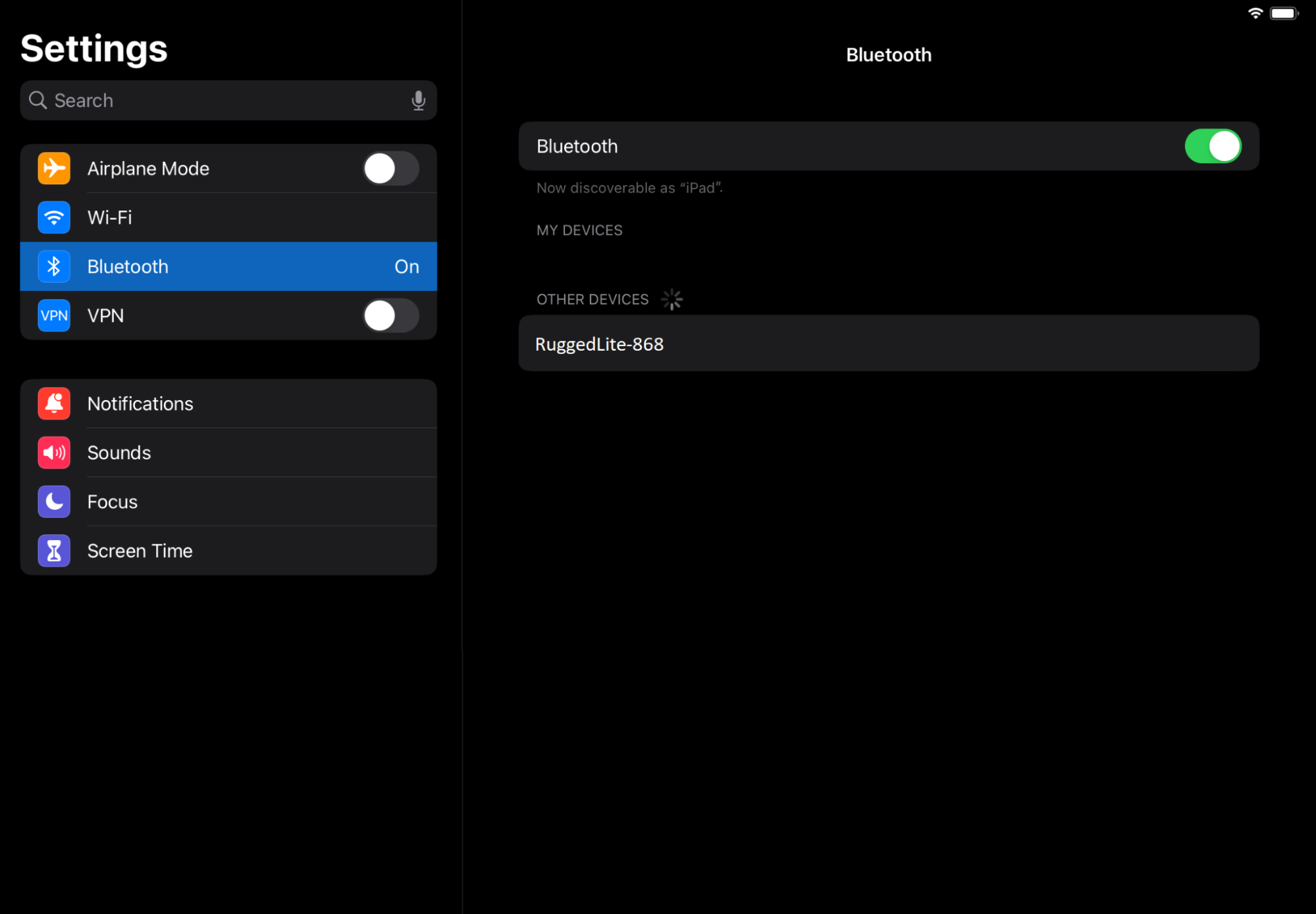
Pairing for the first time: Rugged Lite will automatically go into Bluetooth pairing mode the first time an iPad is inserted and placed into typing mode. Go to iPad Settings > Bluetooth and select Rugged Lite-XXX, then type the prompted digits on the keyboard and hit Enter.
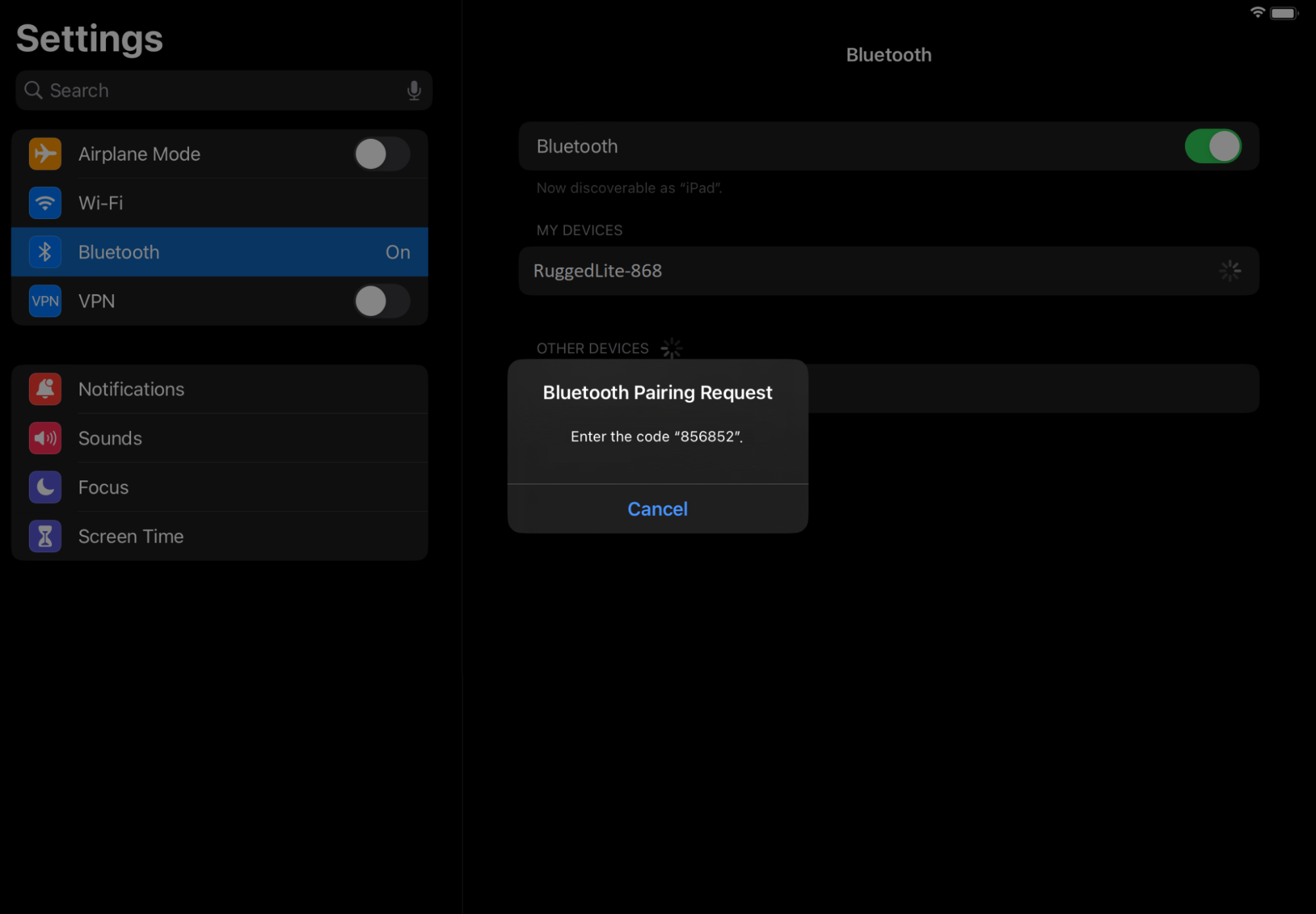
To re-initiate Bluetooth pairing, hold the keyboard Bluetooth button — located in the upper right corner of the keyboard — for two seconds. The LED should blink white quickly to indicate Bluetooth pairing is active.
중요 고지: Logitech은 펌웨어 업데이트 도구를 더 이상 지원하거나 유지보수하지 않습니다. 지원되는 Logitech 장치 에는 Logi Options+ 사용을 적극 권장합니다. 전환 과정에서 도움이 필요하시면 언제든지 도와드리겠습니다.
중요 고지: Logitech은 Logitech Preference Manager를 더 이상 지원하거나 유지보수하지 않습니다. 지원되는 Logitech 장치에는 Logi Options+ 사용을 적극 권장합니다. 전환 과정에서 도움이 필요하시면 언제든지 도와드리겠습니다.
중요 고지: Logitech은 Logitech Control Center를 더이상 지원하거나 유지보수하지 않습니다. 지원되는 Logitech 장치에는 Logi Options+ 사용을 적극 권장합니다. 전환 과정에서 도움이 필요하시면 언제든지 도와드리겠습니다.
중요 고지: Logitech은 Logitech Connection Utility를 더이상 지원하거나 유지보수하지 않습니다. 지원되는 Logitech 장치에는 Logi Options+ 사용을 적극 권장합니다. 전환 과정에서 도움이 필요하시면 언제든지 도와드리겠습니다.
중요 고지: Unifying 소프트웨어는 더 이상 Logitech에서 지원하거나 유지보수하지 않습니다. 지원되는 Logitech 장치에는 Logi Options+를 사용하는 것을 적극 권장합니다. 전환 과정에서 도움이 필요하시면 언제든지 도와드리겠습니다.
중요 고지: Logitech은 SetPoint 소프트웨어를 더 이상 지원하지 않습니다. 지원되는 Logitech 장치에는 Logi Options+ 사용을 적극 권장합니다. 전환 과정에서 도움이 필요하시면 언제든지 도와드리겠습니다.
FAQ(자주 묻는 질문)
이 섹션에 사용할 수있는 제품이 없습니다
이 제품에 대한 다운로드가 없습니다.
이 버전에 대한 다운로드가 없습니다.
Compatible Product
