You can check your Jaybird RUN earbuds battery status and your charging case battery status in a few different ways. Here’s how you can view the earbuds and charge case individually.
Your Jaybird RUN earbuds
You can check your Jaybird RUN earbuds battery status in the following ways:
- Out of case you will hear a battery status notification as soon as the earbuds turn on.
- During use you will hear battery status notifications at 20% battery remaining and when the battery reaches less than 10%.
- The Jaybird App will indicate your left and right earbud battery status to within 1%.
- The right earbud is expected to lose battery faster than the left as the right controls the connection to the Bluetooth ® audio device as well as the left earbud. A full charge will still give you 4 hours of playtime.
Your Jaybird RUN charging case
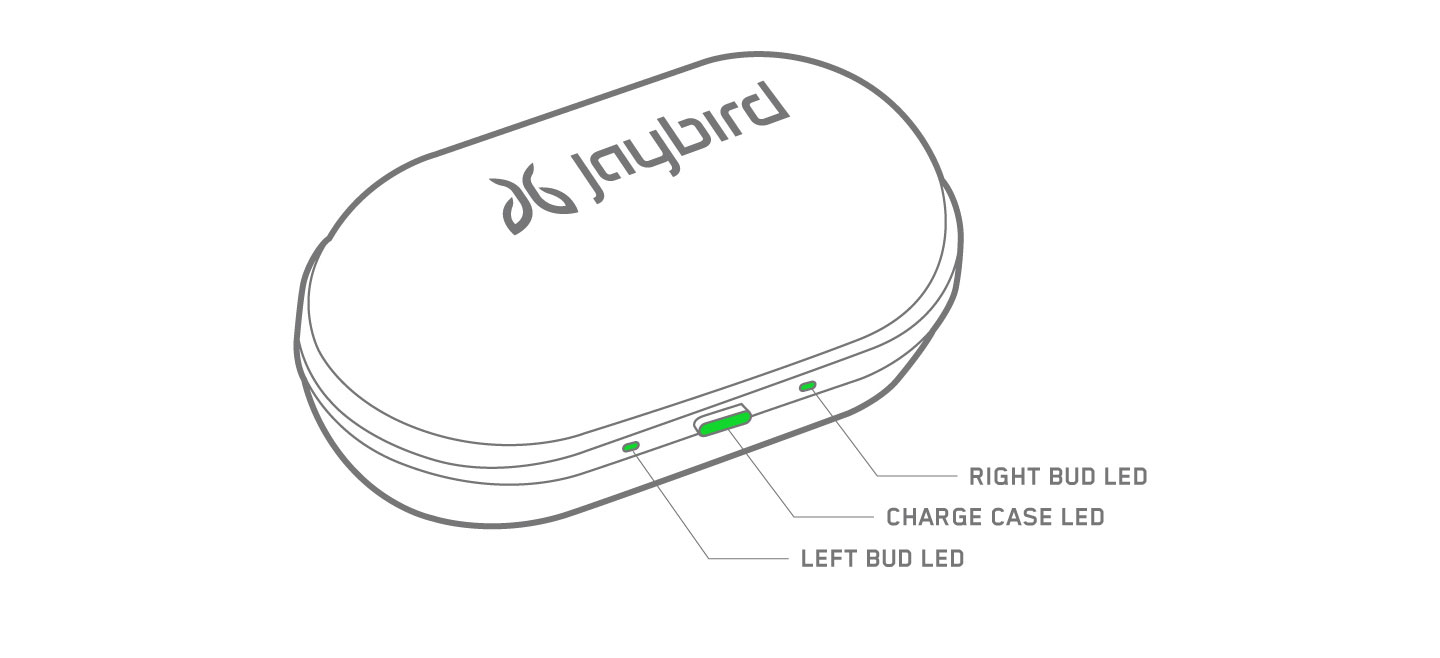
When your charge case is connected to power, the following LED indicators will display:
- Middle LED on case - Case battery status LED
- Green LED pulses = charging
- Green LED solid = fully charged
- Left and Right LED’s on case - Left and right earbud battery status LED’s if earbuds are in the case
- Green LED pulses = charging
- Green LED solid = fully charged
- Green LED pulses = charging
- Green LED solid = fully charged
When your charge case is not connected to power, on opening the case, the following LED indicators will display:
- Middle LED on case - Case battery status LED
- Green LED solid for 10 sec = Battery ok (more than 1h of playtime left in charge case)
- Red LED solid for 10 sec = Low battery (less than 1h of playtime left in charge case)
- Left and Right LED’s on case - Left and right earbud battery status LED’s if earbuds are in the case
- Green LED pulses = Charging
- Green LED solid = Fully charged
- Green LED solid for 10 sec = Battery ok (more than 1h of playtime left in charge case)
- Red LED solid for 10 sec = Low battery (less than 1h of playtime left in charge case)
- Green LED pulses = Charging
- Green LED solid = Fully charged
중요 고지: Logitech은 펌웨어 업데이트 도구를 더 이상 지원하거나 유지보수하지 않습니다. 지원되는 Logitech 장치 에는 Logi Options+ 사용을 적극 권장합니다. 전환 과정에서 도움이 필요하시면 언제든지 도와드리겠습니다.
중요 고지: Logitech은 Logitech Preference Manager를 더 이상 지원하거나 유지보수하지 않습니다. 지원되는 Logitech 장치에는 Logi Options+ 사용을 적극 권장합니다. 전환 과정에서 도움이 필요하시면 언제든지 도와드리겠습니다.
중요 고지: Logitech은 Logitech Control Center를 더이상 지원하거나 유지보수하지 않습니다. 지원되는 Logitech 장치에는 Logi Options+ 사용을 적극 권장합니다. 전환 과정에서 도움이 필요하시면 언제든지 도와드리겠습니다.
중요 고지: Logitech은 Logitech Connection Utility를 더이상 지원하거나 유지보수하지 않습니다. 지원되는 Logitech 장치에는 Logi Options+ 사용을 적극 권장합니다. 전환 과정에서 도움이 필요하시면 언제든지 도와드리겠습니다.
중요 고지: Unifying 소프트웨어는 더 이상 Logitech에서 지원하거나 유지보수하지 않습니다. 지원되는 Logitech 장치에는 Logi Options+를 사용하는 것을 적극 권장합니다. 전환 과정에서 도움이 필요하시면 언제든지 도와드리겠습니다.
중요 고지: Logitech은 SetPoint 소프트웨어를 더 이상 지원하지 않습니다. 지원되는 Logitech 장치에는 Logi Options+ 사용을 적극 권장합니다. 전환 과정에서 도움이 필요하시면 언제든지 도와드리겠습니다.
FAQ(자주 묻는 질문)
이 섹션에 사용할 수있는 제품이 없습니다
이 제품에 대한 다운로드가 없습니다.
이 버전에 대한 다운로드가 없습니다.
Compatible Product
