How do I power the MX Creative Console?
The MX Creative Keypad is powered by your computer using the USB-C to C (2.0) cable of 1.5m length available in the box.
If the USB-C to C cable is disconnected from either the computer or the device, the MX Creative Keypad will also power off.
The MX Creative Dialpad is powered by two AAA batteries. To turn on and off the device, use the ON/OFF switch located in the top right corner of the device.
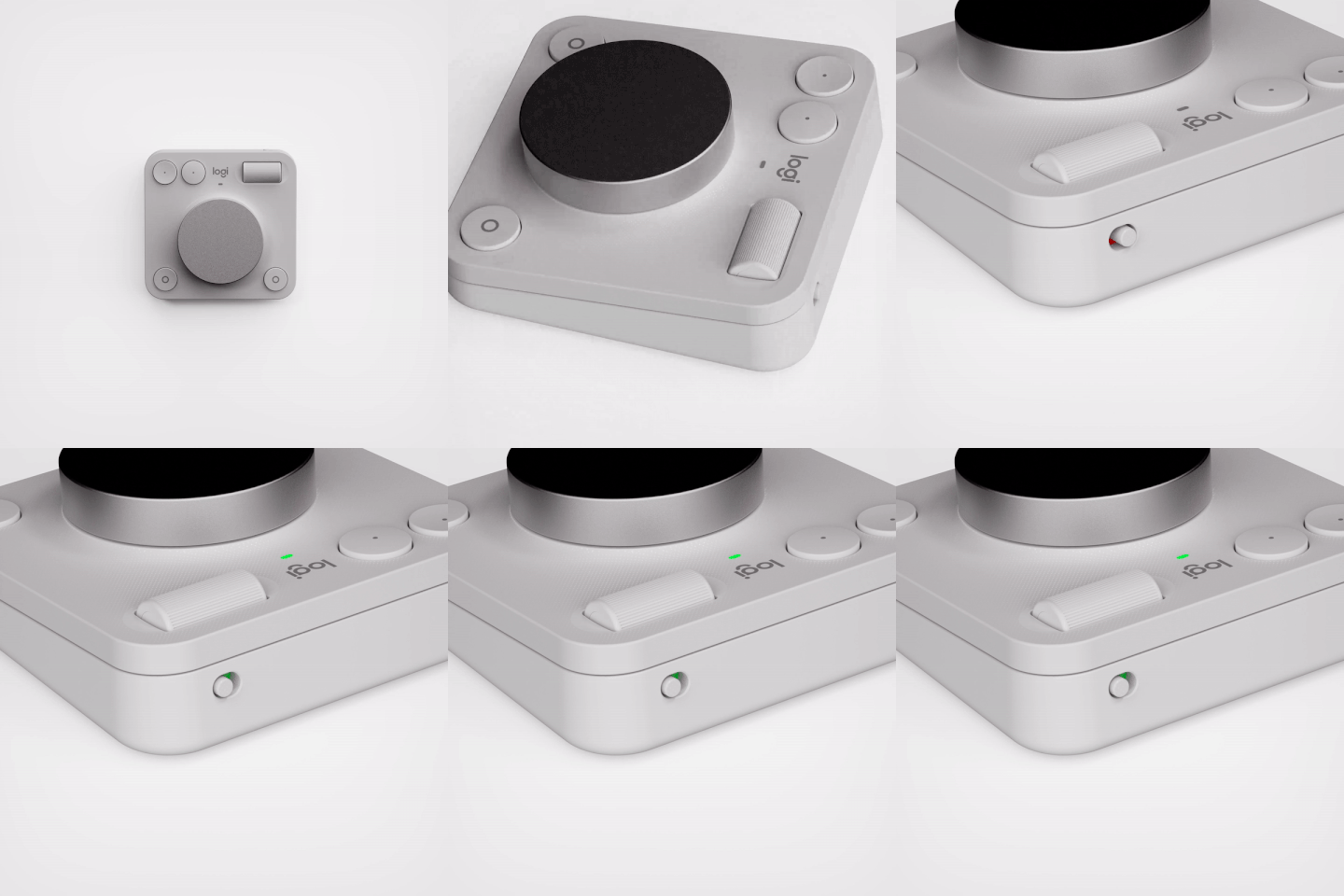
MX Creative Dialpad
How long does the battery of the MX Creative Dialpad last and how do I check the battery status?
The estimated battery life of the MX Creative Dial Pad is up to 18 months, with fully charged AAA batteries and under normal usage.
When you connect your MX Creative Console to Logi Options+ you’ll be able to see the battery status of the device in the home page.
Your MX Creative Dialpad will let you know when the battery is running low. From 100% to 15% the Battery Status LED will be green. When 15% is reached, the Battery Status LED will become red and you will get a low-on-battery notification on screen. You can continue using the MX Creative Dialpad for almost 30 days while it is in low battery.
How do I replace the MX Creative Dialpad batteries?
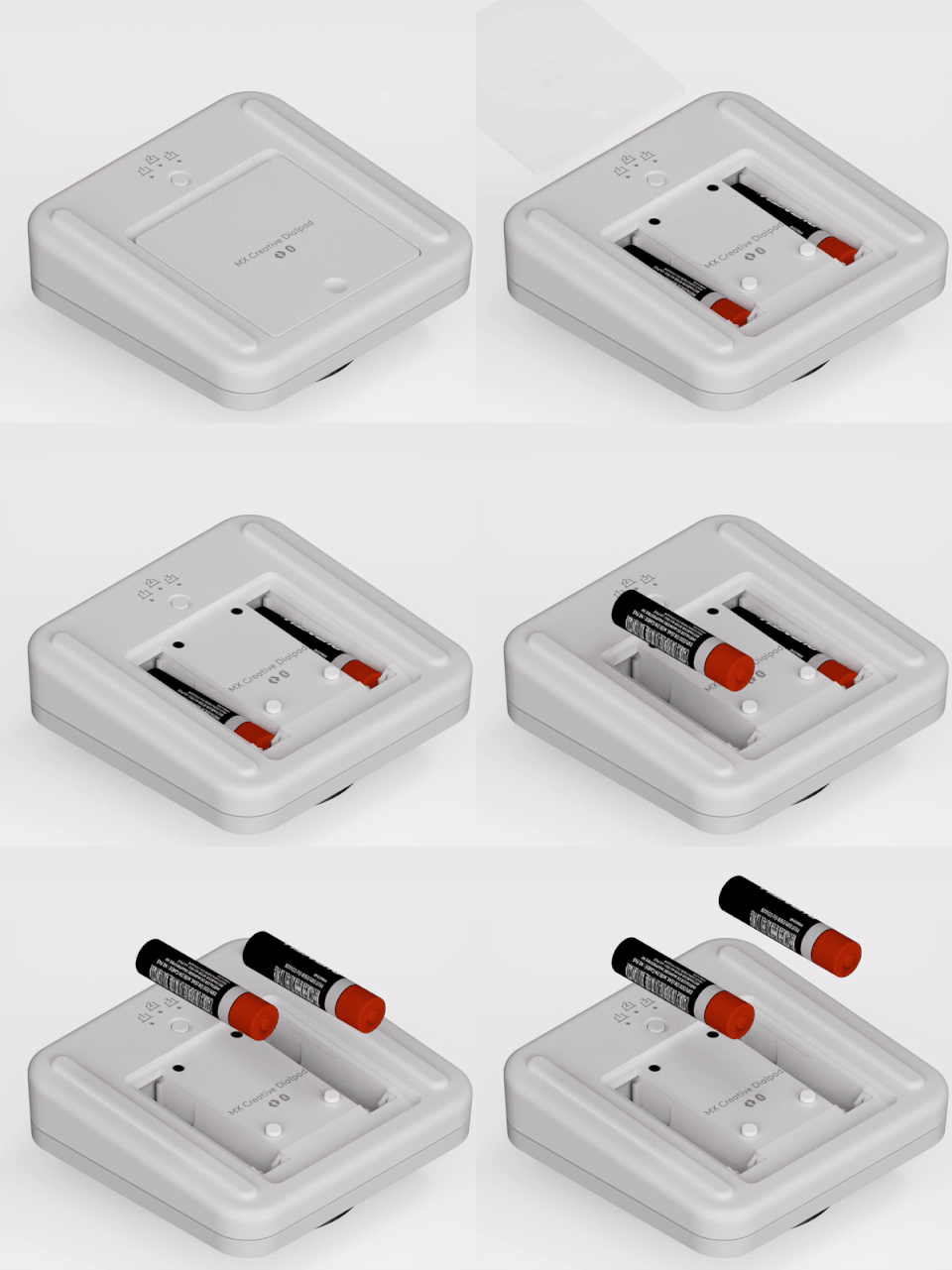
- Turn the MX Creative Dialpad over and remove the battery door by pushing it upwards.
- Once opened, remove the old batteries and replace them with new ones.
- Close the battery door and push it downwards to lock it properly.
MX Creative Keypad
What are the recommended USB specifications and connection options for the MX Creative Keypad?
The MX Creative Keypad should be connected to a USB port that can provide at least 500mA and support USB 2.0 High Speed communication. It's best to connect it to USB-A or USB-C ports on laptops, desktops, or self-powered USB hubs, rather than bus-powered USB hubs.
중요 고지: Logitech은 펌웨어 업데이트 도구를 더 이상 지원하거나 유지보수하지 않습니다. 지원되는 Logitech 장치 에는 Logi Options+ 사용을 적극 권장합니다. 전환 과정에서 도움이 필요하시면 언제든지 도와드리겠습니다.
중요 고지: Logitech은 Logitech Preference Manager를 더 이상 지원하거나 유지보수하지 않습니다. 지원되는 Logitech 장치에는 Logi Options+ 사용을 적극 권장합니다. 전환 과정에서 도움이 필요하시면 언제든지 도와드리겠습니다.
중요 고지: Logitech은 Logitech Control Center를 더이상 지원하거나 유지보수하지 않습니다. 지원되는 Logitech 장치에는 Logi Options+ 사용을 적극 권장합니다. 전환 과정에서 도움이 필요하시면 언제든지 도와드리겠습니다.
중요 고지: Logitech은 Logitech Connection Utility를 더이상 지원하거나 유지보수하지 않습니다. 지원되는 Logitech 장치에는 Logi Options+ 사용을 적극 권장합니다. 전환 과정에서 도움이 필요하시면 언제든지 도와드리겠습니다.
중요 고지: Unifying 소프트웨어는 더 이상 Logitech에서 지원하거나 유지보수하지 않습니다. 지원되는 Logitech 장치에는 Logi Options+를 사용하는 것을 적극 권장합니다. 전환 과정에서 도움이 필요하시면 언제든지 도와드리겠습니다.
중요 고지: Logitech은 SetPoint 소프트웨어를 더 이상 지원하지 않습니다. 지원되는 Logitech 장치에는 Logi Options+ 사용을 적극 권장합니다. 전환 과정에서 도움이 필요하시면 언제든지 도와드리겠습니다.
FAQ(자주 묻는 질문)
이 섹션에 사용할 수있는 제품이 없습니다
이 제품에 대한 다운로드가 없습니다.
이 버전에 대한 다운로드가 없습니다.
Compatible Product
