Supported software
MX Creative Console and MX Keypad are supported in the latest version of the Logi Options+ app and can be downloaded here.
Compatible versions
The MX Creative Console is compatible with Logi Options+ version 1.83 or later, while the MX Keypad is compatible with version 2.07 or later. They can be used on the following operating systems:
- Windows 10 and later (Note: Windows systems with ARM 64 processors are not supported)
- macOS 13 and later
What languages are available in Logi Options+? Can I change the language?
Logi Options+ supports 19 languages, but some languages may not be available for the MX Creative Console and MX Keypad configurator. We currently support English, French, German, Japanese, Italian, and Spanish.
Other languages are available for other devices supported by Logi Options+. You can select your preference in the software settings:
- On your computer, open Logi Options+.
- Access Settings — look for the Settings option (gear icon) in the right top corner of the home page of Logi Options+ app.
- Language Settings — in the Settings window, locate the language options. Use the dropdown menu to select your desired language.
- The changes will be reflected immediately once you have changed the language.
What happens if I uninstall Logi Options+?
Logitech software is required to support the use of the MX Creative Console and MX Keypad. If you uninstall the Logi Options+ app, you will only be able to use a very limited set of basic actions for the dialpad. The Keypad cannot be used without Logi Options+.
What is the Logi Plugin Service?
The Logi Plugin Service manages all the system that powers the MX Creative Console and MX Keypad, including all the plugins and the marketplace. Not that this service is only activated if you connect the MX Creative Console or the MX Keypad to your computer. In the future, we will expand the ability for the Logi Plugin Service to support more devices.
How do I create a Logi ID account?
There are several ways to create a Logi ID account. The easiest is to click on the Account icon in the top right corner of the main app.
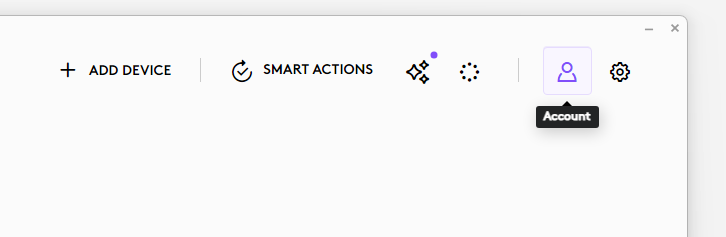
You will be prompted to log in:
- During the Device Feature tour
- Whenever you will click on the INSTALL button of any profile or plugin from the Marketplace
- When you add a new profile for an application
You can use the device with the default profile and all other actions from the system plugin (which is pre-installed). However, in order to download other plugins or install any other application profile, you’ll need to be logged in with your Logi ID.
중요 고지: Logitech은 펌웨어 업데이트 도구를 더 이상 지원하거나 유지보수하지 않습니다. 지원되는 Logitech 장치 에는 Logi Options+ 사용을 적극 권장합니다. 전환 과정에서 도움이 필요하시면 언제든지 도와드리겠습니다.
중요 고지: Logitech은 Logitech Preference Manager를 더 이상 지원하거나 유지보수하지 않습니다. 지원되는 Logitech 장치에는 Logi Options+ 사용을 적극 권장합니다. 전환 과정에서 도움이 필요하시면 언제든지 도와드리겠습니다.
중요 고지: Logitech은 Logitech Control Center를 더이상 지원하거나 유지보수하지 않습니다. 지원되는 Logitech 장치에는 Logi Options+ 사용을 적극 권장합니다. 전환 과정에서 도움이 필요하시면 언제든지 도와드리겠습니다.
중요 고지: Logitech은 Logitech Connection Utility를 더이상 지원하거나 유지보수하지 않습니다. 지원되는 Logitech 장치에는 Logi Options+ 사용을 적극 권장합니다. 전환 과정에서 도움이 필요하시면 언제든지 도와드리겠습니다.
중요 고지: Unifying 소프트웨어는 더 이상 Logitech에서 지원하거나 유지보수하지 않습니다. 지원되는 Logitech 장치에는 Logi Options+를 사용하는 것을 적극 권장합니다. 전환 과정에서 도움이 필요하시면 언제든지 도와드리겠습니다.
중요 고지: Logitech은 SetPoint 소프트웨어를 더 이상 지원하지 않습니다. 지원되는 Logitech 장치에는 Logi Options+ 사용을 적극 권장합니다. 전환 과정에서 도움이 필요하시면 언제든지 도와드리겠습니다.
FAQ(자주 묻는 질문)
이 섹션에 사용할 수있는 제품이 없습니다
이 제품에 대한 다운로드가 없습니다.
이 버전에 대한 다운로드가 없습니다.
Compatible Product
