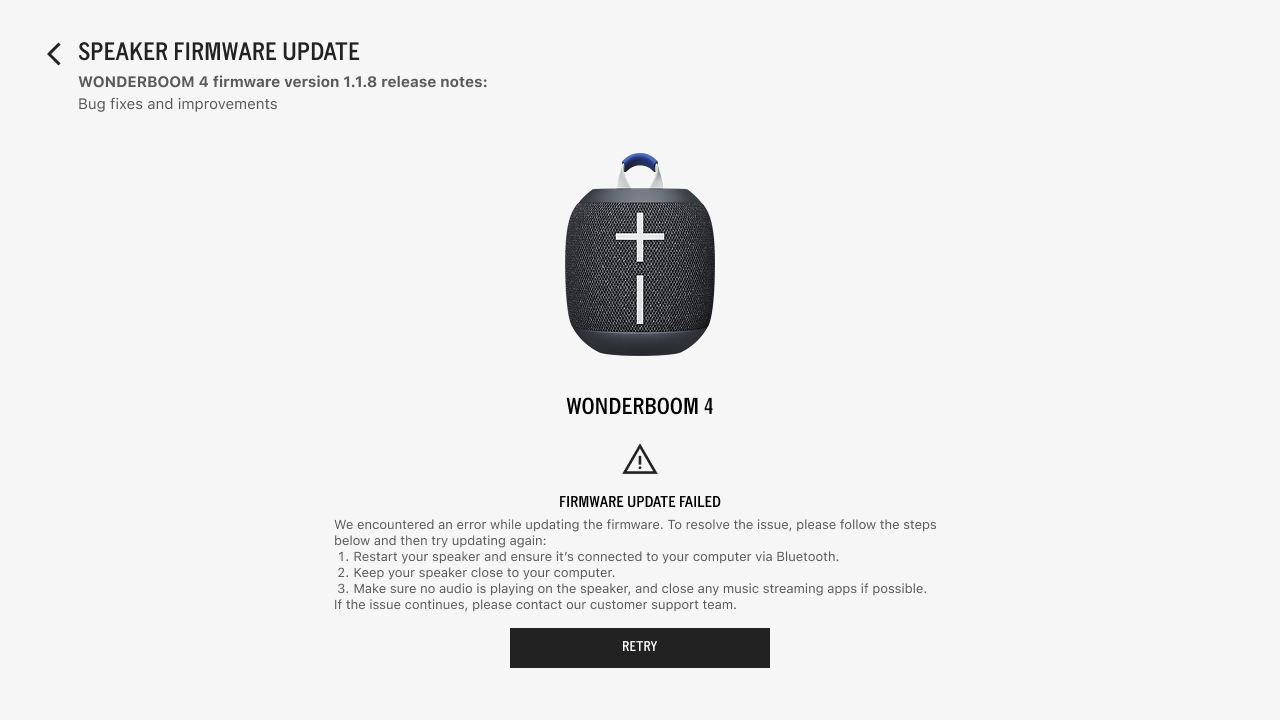
Why did the firmware update stop and fail on my MacBook?
If your firmware update failed on your MacBook, even after trying the troubleshooting steps shown on the screen (restart your speaker, ensure your speaker is near your Macbook, and stop all music streaming apps), you may need to restart your Bluetooth on your Macbook. (Not “Forget This Device”.)
To do this, navigate to your System Settings, and turn Bluetooth off and back on again. Then, reconnect your speaker to your MacBook before attempting the firmware update again.
If the issue persists, please reach out to the Logitech Support, and we’ll be happy to help.
중요 고지: Logitech은 펌웨어 업데이트 도구를 더 이상 지원하거나 유지보수하지 않습니다. 지원되는 Logitech 장치 에는 Logi Options+ 사용을 적극 권장합니다. 전환 과정에서 도움이 필요하시면 언제든지 도와드리겠습니다.
중요 고지: Logitech은 Logitech Preference Manager를 더 이상 지원하거나 유지보수하지 않습니다. 지원되는 Logitech 장치에는 Logi Options+ 사용을 적극 권장합니다. 전환 과정에서 도움이 필요하시면 언제든지 도와드리겠습니다.
중요 고지: Logitech은 Logitech Control Center를 더이상 지원하거나 유지보수하지 않습니다. 지원되는 Logitech 장치에는 Logi Options+ 사용을 적극 권장합니다. 전환 과정에서 도움이 필요하시면 언제든지 도와드리겠습니다.
중요 고지: Logitech은 Logitech Connection Utility를 더이상 지원하거나 유지보수하지 않습니다. 지원되는 Logitech 장치에는 Logi Options+ 사용을 적극 권장합니다. 전환 과정에서 도움이 필요하시면 언제든지 도와드리겠습니다.
중요 고지: Unifying 소프트웨어는 더 이상 Logitech에서 지원하거나 유지보수하지 않습니다. 지원되는 Logitech 장치에는 Logi Options+를 사용하는 것을 적극 권장합니다. 전환 과정에서 도움이 필요하시면 언제든지 도와드리겠습니다.
중요 고지: Logitech은 SetPoint 소프트웨어를 더 이상 지원하지 않습니다. 지원되는 Logitech 장치에는 Logi Options+ 사용을 적극 권장합니다. 전환 과정에서 도움이 필요하시면 언제든지 도와드리겠습니다.
FAQ(자주 묻는 질문)
이 섹션에 사용할 수있는 제품이 없습니다
이 제품에 대한 다운로드가 없습니다.
이 버전에 대한 다운로드가 없습니다.
Compatible Product
