How do I update my Muse?
- Download the Logi Options+ Mobile App from the Apple Vision Pro App Store.
-
Power on your Muse and make sure it’s paired via Bluetooth.
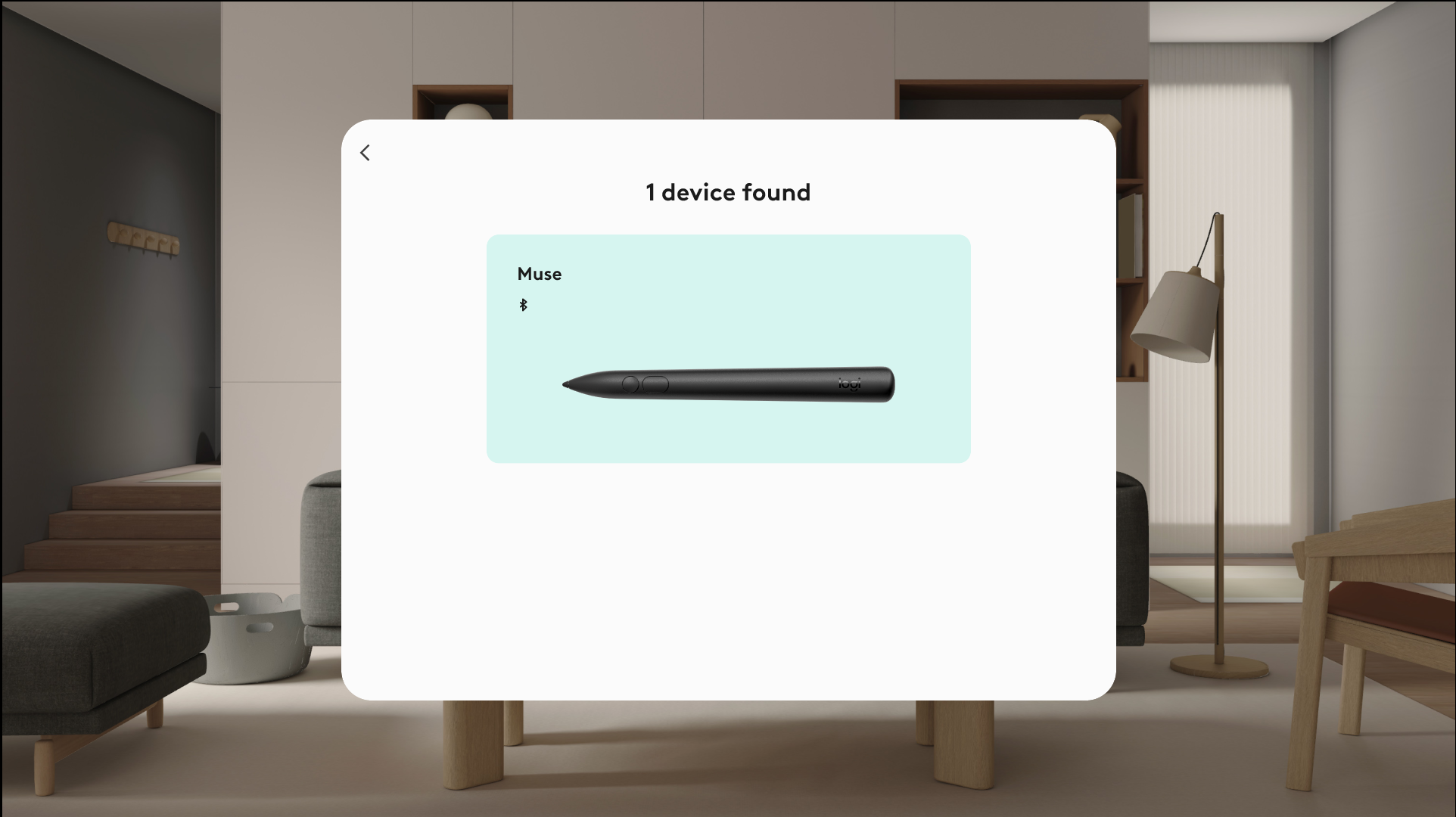
- Open the Options+ app, and it will automatically detect your Muse.
- Follow the on-screen instructions to install the latest firmware.
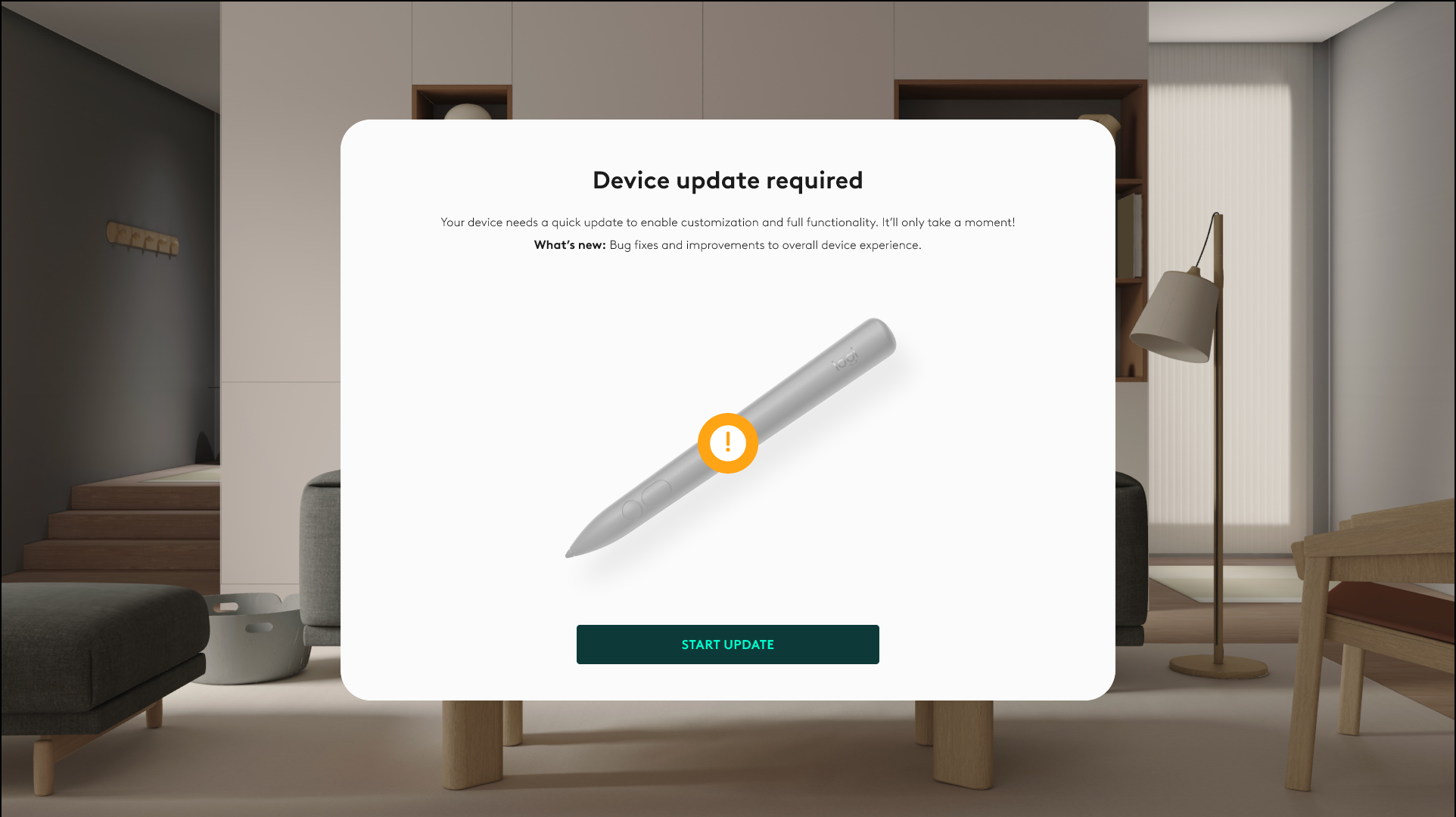
- Keep the device connected and within range during the update.
- Once the firmware is updated, wait for the pen to reboot and reconnect.
How long does the update take?
The firmware update typically takes less than a minute. Keep your Muse powered on and do not exit the app until the process completes.
What happens if the update is interrupted?
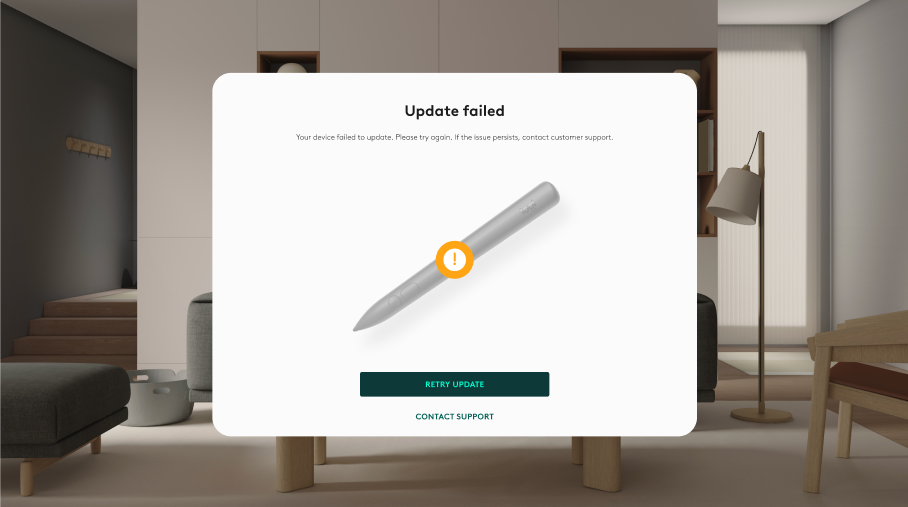
If the update fails or disconnects:
- Re-open the Logi Options+ Mobile App.
- Ensure Muse is on and connected.
- Simply restart the update process.
Do I need to update again in the future?
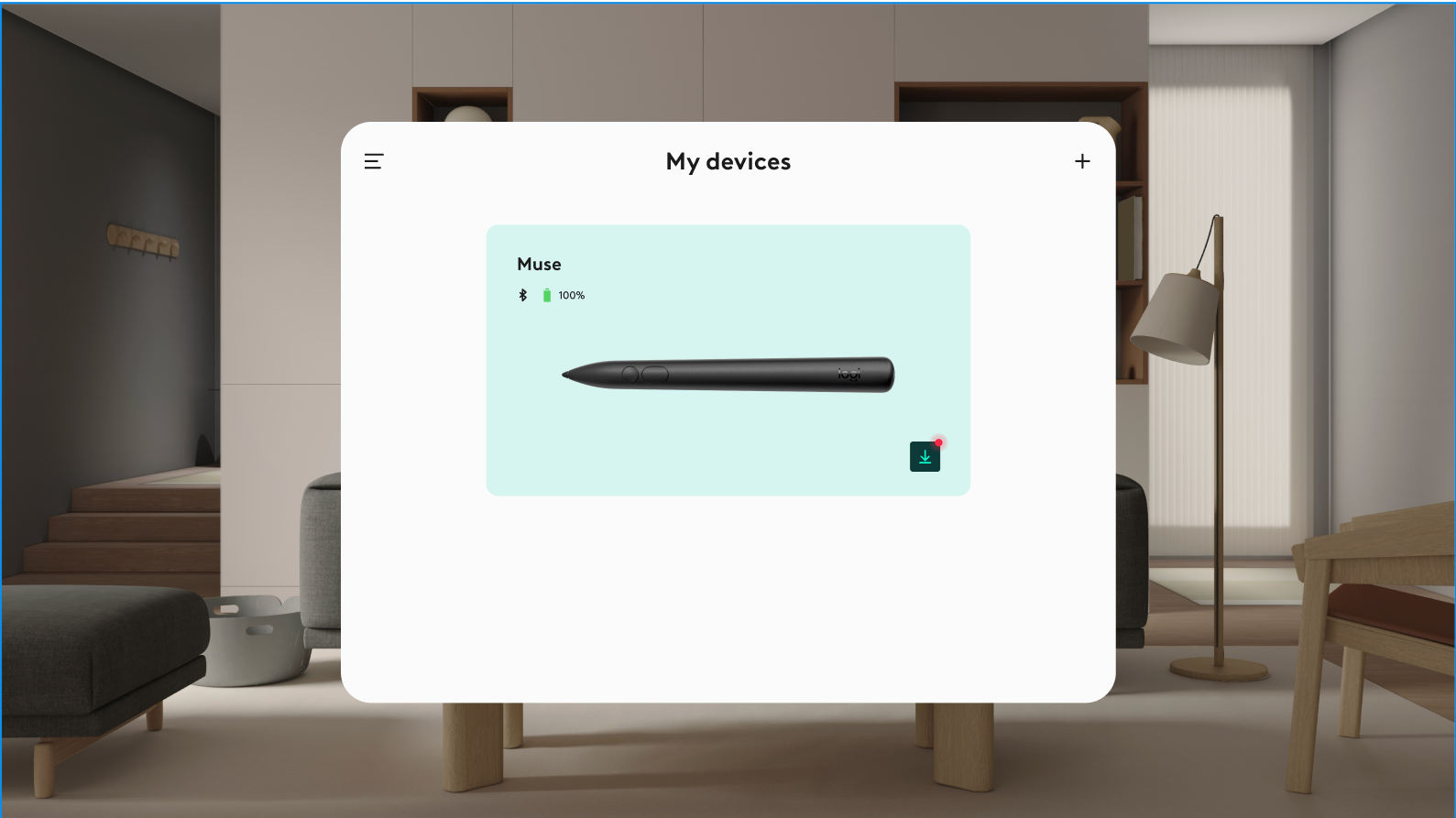
Occasionally, yes. Future updates may include performance improvements and new features. You’ll be notified in the Options+ Mobile App whenever an update is available.
중요 고지: Logitech은 펌웨어 업데이트 도구를 더 이상 지원하거나 유지보수하지 않습니다. 지원되는 Logitech 장치 에는 Logi Options+ 사용을 적극 권장합니다. 전환 과정에서 도움이 필요하시면 언제든지 도와드리겠습니다.
중요 고지: Logitech은 Logitech Preference Manager를 더 이상 지원하거나 유지보수하지 않습니다. 지원되는 Logitech 장치에는 Logi Options+ 사용을 적극 권장합니다. 전환 과정에서 도움이 필요하시면 언제든지 도와드리겠습니다.
중요 고지: Logitech은 Logitech Control Center를 더이상 지원하거나 유지보수하지 않습니다. 지원되는 Logitech 장치에는 Logi Options+ 사용을 적극 권장합니다. 전환 과정에서 도움이 필요하시면 언제든지 도와드리겠습니다.
중요 고지: Logitech은 Logitech Connection Utility를 더이상 지원하거나 유지보수하지 않습니다. 지원되는 Logitech 장치에는 Logi Options+ 사용을 적극 권장합니다. 전환 과정에서 도움이 필요하시면 언제든지 도와드리겠습니다.
중요 고지: Unifying 소프트웨어는 더 이상 Logitech에서 지원하거나 유지보수하지 않습니다. 지원되는 Logitech 장치에는 Logi Options+를 사용하는 것을 적극 권장합니다. 전환 과정에서 도움이 필요하시면 언제든지 도와드리겠습니다.
중요 고지: Logitech은 SetPoint 소프트웨어를 더 이상 지원하지 않습니다. 지원되는 Logitech 장치에는 Logi Options+ 사용을 적극 권장합니다. 전환 과정에서 도움이 필요하시면 언제든지 도와드리겠습니다.
FAQ(자주 묻는 질문)
이 섹션에 사용할 수있는 제품이 없습니다
이 제품에 대한 다운로드가 없습니다.
이 버전에 대한 다운로드가 없습니다.
Compatible Product
