- The Z407 may not support your source device — make sure that your device is updated to the latest version.
- Unplug the USB cable on your source device and then plug it back in again.
Troubleshooting on a Windows system:
- In Device Manager, under Sound, video and game controllers, make sure the audio driver is updated to the latest version:
Right-click “Logi Z407” and select Properties.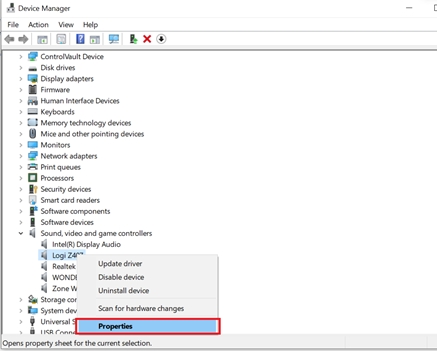
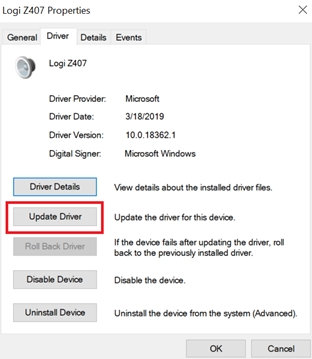
- Click Update Driver and choose Search automatically for updated driver software.
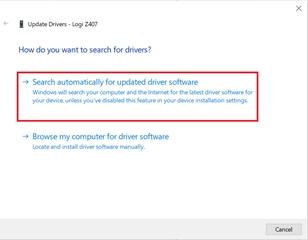
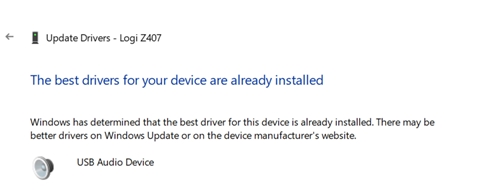
- Windows will search for and install the latest driver. If your driver is the latest version, it will appear as shown:
- Unplug your Z407. Reboot the computer and then power the Z407 back on.
- Play music from your computer to verify the music output.
중요 고지: Logitech은 펌웨어 업데이트 도구를 더 이상 지원하거나 유지보수하지 않습니다. 지원되는 Logitech 장치 에는 Logi Options+ 사용을 적극 권장합니다. 전환 과정에서 도움이 필요하시면 언제든지 도와드리겠습니다.
중요 고지: Logitech은 Logitech Preference Manager를 더 이상 지원하거나 유지보수하지 않습니다. 지원되는 Logitech 장치에는 Logi Options+ 사용을 적극 권장합니다. 전환 과정에서 도움이 필요하시면 언제든지 도와드리겠습니다.
중요 고지: Logitech은 Logitech Control Center를 더이상 지원하거나 유지보수하지 않습니다. 지원되는 Logitech 장치에는 Logi Options+ 사용을 적극 권장합니다. 전환 과정에서 도움이 필요하시면 언제든지 도와드리겠습니다.
중요 고지: Logitech은 Logitech Connection Utility를 더이상 지원하거나 유지보수하지 않습니다. 지원되는 Logitech 장치에는 Logi Options+ 사용을 적극 권장합니다. 전환 과정에서 도움이 필요하시면 언제든지 도와드리겠습니다.
중요 고지: Unifying 소프트웨어는 더 이상 Logitech에서 지원하거나 유지보수하지 않습니다. 지원되는 Logitech 장치에는 Logi Options+를 사용하는 것을 적극 권장합니다. 전환 과정에서 도움이 필요하시면 언제든지 도와드리겠습니다.
중요 고지: Logitech은 SetPoint 소프트웨어를 더 이상 지원하지 않습니다. 지원되는 Logitech 장치에는 Logi Options+ 사용을 적극 권장합니다. 전환 과정에서 도움이 필요하시면 언제든지 도와드리겠습니다.
FAQ(자주 묻는 질문)
이 섹션에 사용할 수있는 제품이 없습니다
이 제품에 대한 다운로드가 없습니다.
이 버전에 대한 다운로드가 없습니다.
Compatible Product
