If haptic feedback isn't working on your MX Master 4, check the following:
- Make sure you're using the latest version of Windows 11 that supports haptics (March 2026 release and later).
- Check that the latest firmware version of MX Master 4 is installed.
- If you're using a Logi Bolt receiver to connect your device, the receiver should also be on the latest firmware.
For more information on the MX Master 4 Firmware Update, please see:
- Background Device Firmware Update (DFU) - MX Master 4
- Troubleshoot the Background Device Firmware Update
If you're using a Logi Bolt receiver, use the following steps to update the Bolt firmware:
- Plug in your Logi Bolt receiver.
IMPORTANT: The receiver must remain connected throughout the process. Avoid interruptions. - Make sure your MX Master 4 is paired with the receiver.
- Open the Logi Options+ app and click Settings.
-
In the General Settings window, click CHECK FOR UPDATE.
You’ll be notified if an update is available.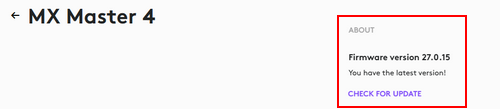
- Follow the on-screen prompts to apply the updates.
중요 고지: Logitech은 펌웨어 업데이트 도구를 더 이상 지원하거나 유지보수하지 않습니다. 지원되는 Logitech 장치 에는 Logi Options+ 사용을 적극 권장합니다. 전환 과정에서 도움이 필요하시면 언제든지 도와드리겠습니다.
중요 고지: Logitech은 Logitech Preference Manager를 더 이상 지원하거나 유지보수하지 않습니다. 지원되는 Logitech 장치에는 Logi Options+ 사용을 적극 권장합니다. 전환 과정에서 도움이 필요하시면 언제든지 도와드리겠습니다.
중요 고지: Logitech은 Logitech Control Center를 더이상 지원하거나 유지보수하지 않습니다. 지원되는 Logitech 장치에는 Logi Options+ 사용을 적극 권장합니다. 전환 과정에서 도움이 필요하시면 언제든지 도와드리겠습니다.
중요 고지: Logitech은 Logitech Connection Utility를 더이상 지원하거나 유지보수하지 않습니다. 지원되는 Logitech 장치에는 Logi Options+ 사용을 적극 권장합니다. 전환 과정에서 도움이 필요하시면 언제든지 도와드리겠습니다.
중요 고지: Unifying 소프트웨어는 더 이상 Logitech에서 지원하거나 유지보수하지 않습니다. 지원되는 Logitech 장치에는 Logi Options+를 사용하는 것을 적극 권장합니다. 전환 과정에서 도움이 필요하시면 언제든지 도와드리겠습니다.
중요 고지: Logitech은 SetPoint 소프트웨어를 더 이상 지원하지 않습니다. 지원되는 Logitech 장치에는 Logi Options+ 사용을 적극 권장합니다. 전환 과정에서 도움이 필요하시면 언제든지 도와드리겠습니다.
FAQ(자주 묻는 질문)
이 섹션에 사용할 수있는 제품이 없습니다
이 제품에 대한 다운로드가 없습니다.
이 버전에 대한 다운로드가 없습니다.
Compatible Product
