To pair your device to a second computer:
- Press and hold the Easy-SwitchTM button (F1-F3) that you will use for the second computer via wireless connectivity for three seconds. This will put your keyboard in pairing mode and the LED light will start blinking fast.
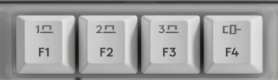
- Choose how you want to connect your keyboard to the second computer.
-
Via Bluetooth
Open the Bluetooth settings on your computer to complete the pairing. You may refer to Bluetooth - Pairing and Troubleshooting. -
Via Logi Bolt receiver
1. Plug the Logi Bolt receiver into the USB port of your computer. Open Logi Options+.
3. Click + ADD DEVICE and select Logi Bolt receiver.
4. Follow the on-screen instructions to pair.
-
Via Bluetooth
- You may also connect to your second computer via corded connectivity. You can trigger this automatically by plugging a cable to the Alto Keys and another side to your second computer.
- Once paired, a short press on the Easy-SwitchTM button will allow you to switch channels and F4 for the corded channel.
중요 고지: Logitech은 펌웨어 업데이트 도구를 더 이상 지원하거나 유지보수하지 않습니다. 지원되는 Logitech 장치 에는 Logi Options+ 사용을 적극 권장합니다. 전환 과정에서 도움이 필요하시면 언제든지 도와드리겠습니다.
중요 고지: Logitech은 Logitech Preference Manager를 더 이상 지원하거나 유지보수하지 않습니다. 지원되는 Logitech 장치에는 Logi Options+ 사용을 적극 권장합니다. 전환 과정에서 도움이 필요하시면 언제든지 도와드리겠습니다.
중요 고지: Logitech은 Logitech Control Center를 더이상 지원하거나 유지보수하지 않습니다. 지원되는 Logitech 장치에는 Logi Options+ 사용을 적극 권장합니다. 전환 과정에서 도움이 필요하시면 언제든지 도와드리겠습니다.
중요 고지: Logitech은 Logitech Connection Utility를 더이상 지원하거나 유지보수하지 않습니다. 지원되는 Logitech 장치에는 Logi Options+ 사용을 적극 권장합니다. 전환 과정에서 도움이 필요하시면 언제든지 도와드리겠습니다.
중요 고지: Unifying 소프트웨어는 더 이상 Logitech에서 지원하거나 유지보수하지 않습니다. 지원되는 Logitech 장치에는 Logi Options+를 사용하는 것을 적극 권장합니다. 전환 과정에서 도움이 필요하시면 언제든지 도와드리겠습니다.
중요 고지: Logitech은 SetPoint 소프트웨어를 더 이상 지원하지 않습니다. 지원되는 Logitech 장치에는 Logi Options+ 사용을 적극 권장합니다. 전환 과정에서 도움이 필요하시면 언제든지 도와드리겠습니다.
FAQ(자주 묻는 질문)
이 섹션에 사용할 수있는 제품이 없습니다
이 제품에 대한 다운로드가 없습니다.
이 버전에 대한 다운로드가 없습니다.
Compatible Product
