-
Logi Options+ permission prompts on macOS Golden Gate
-
Logi Options+ permission prompts on macOS Ventura, Sonoma, Sequoia and Tahoe
- Logitech Options+ permission prompts on macOS Monterey
Logi Options+ App requires the following user permissions due to some Apple policies to enable the device features:
- DEVICE CONTROL AND DATA ACCESS
- INPUT MONITORING
- BLUETOOTH
- USB ACCESSORIES
- LOGIN ITEMS & EXTENSIONS
-
SCREEN & SYSTEM AUDIO RECORDING
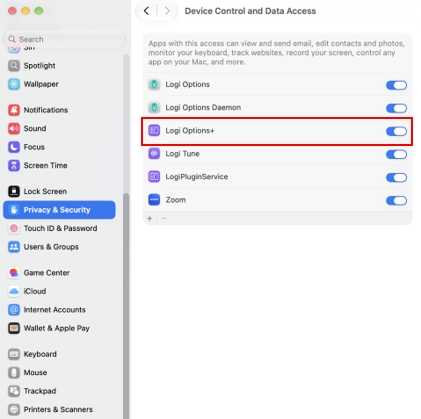
DEVICE CONTROL AND DATA ACCESS
Accessibility has been renamed Device Control and Data Access on macOS 27 (Golden Gate).
This permission is needed for most of the basic features such as scrolling, back and forward actions, gestures, volume control, zoom, and so on.
To provide access:
- Open System Settings > Privacy & Security > Device Control and Data Access.
-
In the right panel, enable Logi Options+ to grant permission.
INPUT MONITORING
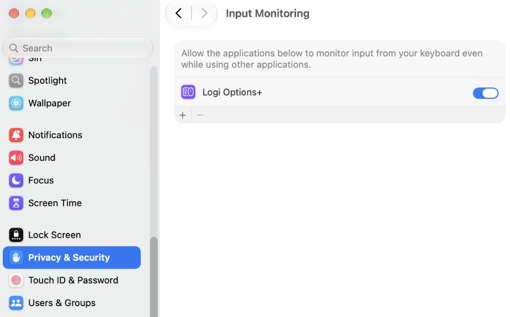
Input monitoring permission is needed for all the features enabled by the app such as scrolling, back and forward, gestures, and so on.
To provide access:
- Open System Settings > Privacy & Security > Input Monitoring.
-
In the right panel, slide the toggle to enable Logi Options+ and select Quit & Reopen when you're prompted to grant permission.
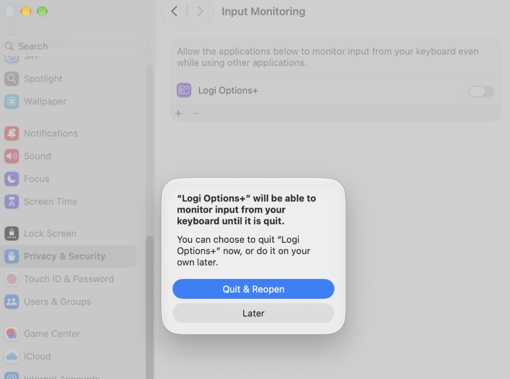
NOTE: If you clicked Later, toggle OFF Logi Options+, toggle it back ON and then click Quit & Reopen when prompted.
From macOS 12.4 onwards, Options+ needs Bluetooth permission to detect a Bluetooth device if it’s not actively connected to that computer. If the app does not have the Bluetooth permission, you will not be able to Flow into that computer as it cannot detect the device. To resolve this issue, follow these instructions to grant Bluetooth permission:
- Open System Settings > Privacy & Security > Bluetooth.
-
In the right panel, slide the toggle to enable Logi Options+ and select Quit & Reopen when you’re prompted to grant permission.
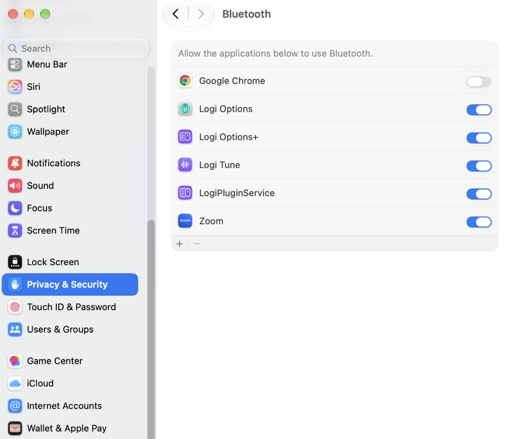
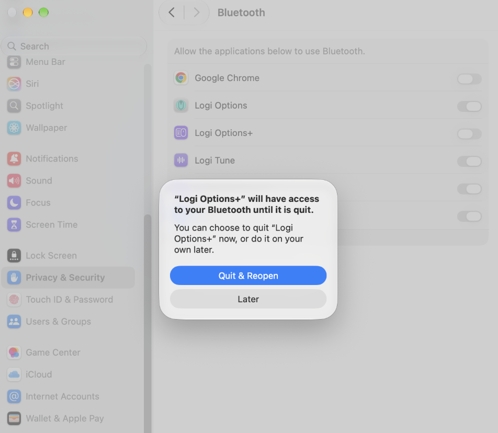
NOTE: If you clicked Later, toggle OFF Logi Options+, toggle it back ON and then click Quit & Reopen when prompted.
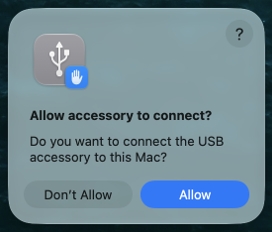
New USB and Thunderbolt accessories require your approval before the accessory can communicate with macOS for connections wired directly to the USB-C port. Therefore, when you connect any Logi receiver, you’ll see the following pop-up appear on your screen.
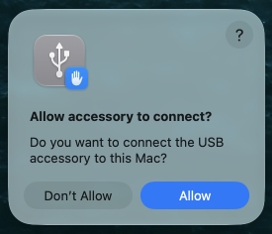
Click on Allow to let your devices connected to the receiver work, and be detected by their respective app.
In case your receiver or devices are not detected, or if you clicked on Ignore, try the following:
- Unplug the receiver.
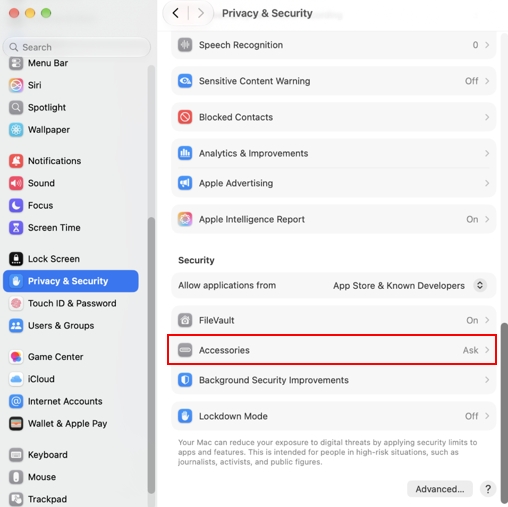
- Go to System Settings > Privacy & Security.
-
In the right panel, scroll down and click Accessories.
-
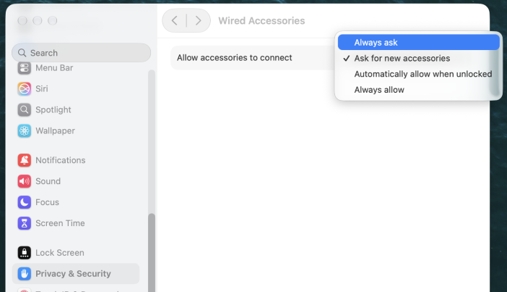
In the dropdown next to Allow accessories to connect, select Always ask.
- Plug in your receiver.
-
When you see the prompt again, remember to click Allow.
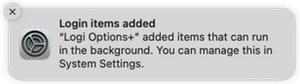
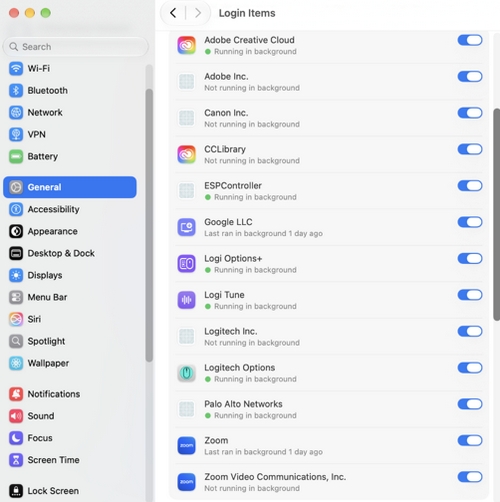
When Options+ is installed, macOS shows a notification to let you know that a background process has been added to Login Items. These processes are needed to detect the devices so they can function properly.
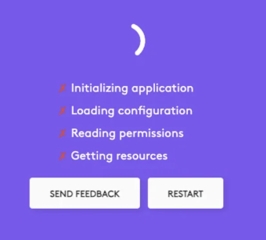
If you disable the Logi application from Login Items, device customization won’t work and Options+ will be stuck on the loading screen (as shown).
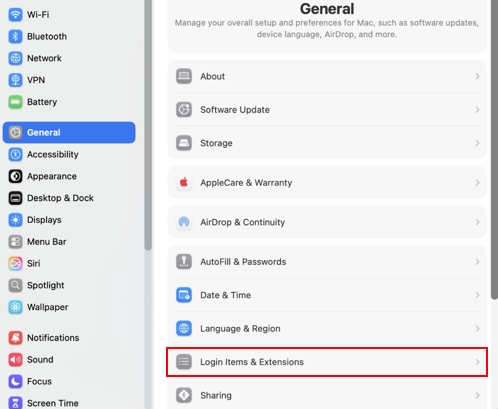
To resolve this issue, do the following:
- Go System Settings > General.
-
Click Login Items & Extensions.
-
Enable the ON toggle for Logi applications.
SCREEN & SYSTEM AUDIO RECORDING
If you press the screenshot key and instead of capturing the intended foreground app, it captures the desktop or background instead, you'll need to allow Logi Options+ access in Screen & System Audio Recording.
To provide access:
- Open System Settings > Privacy & Security > Screen & System Audio Recording.
-
Slide the toggle to grant Logi Options+ permission.
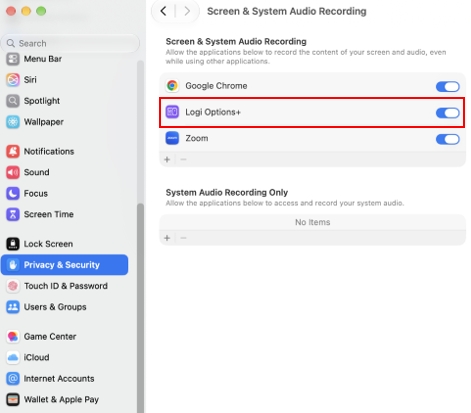
- Select Quit & Reopen when you're prompted to grant permission.
Screen Recording Permissions for Presentation Remotes
Logi Options+ requires screen recording permissions to enable the Start Presentation action, use the Timer feature, and the Magnify effect.
NOTE: Logi Options+ doesn’t store any data related to your screen recording. This permission is only required for certain features to work. You can skip this step if you don’t use any of the mentioned features.
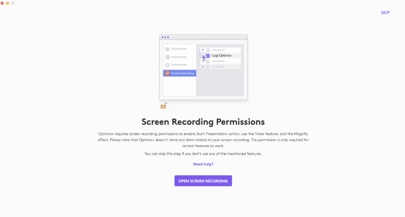
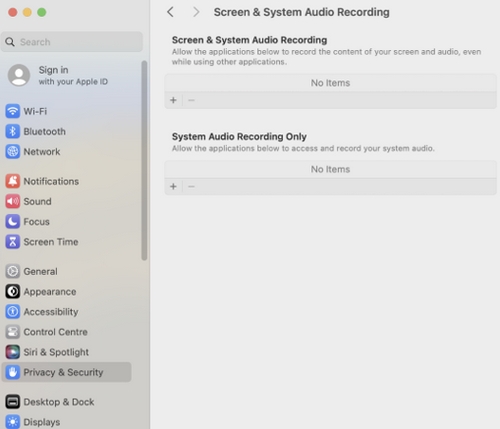
If Logi Options+ isn’t displayed in the right panel when you open System Settings > Privacy & Security > Screen & System Audio Recording, and you see a Keystroke Receiving system prompt, click on Open System Settings to view the Input Monitoring permissions. Then, press the Open Screen Recording button again on the Logi Options+ app.
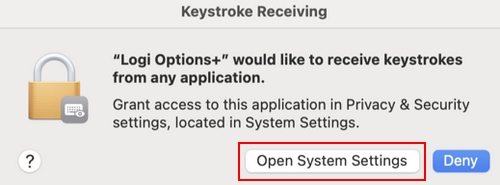
macOS Ventura, Sonoma, Sequoia, and Tahoe
Logi Options+ App requires the following user permissions on macOS 10.15 and later due to some Apple policies to enable the device features:
Accessibility permission is needed for most of the basic features such as scrolling, back and forward actions, gestures, volume control, zoom, and so on.
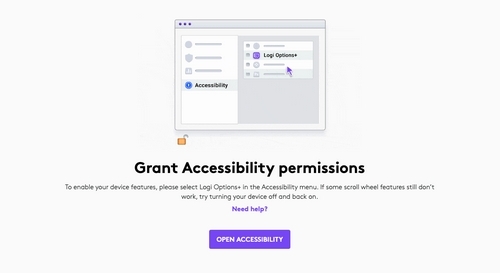
To provide access:
Open System Settings > Privacy & Security > Accessibility. In the right panel, enable Logi Options+ to grant permission.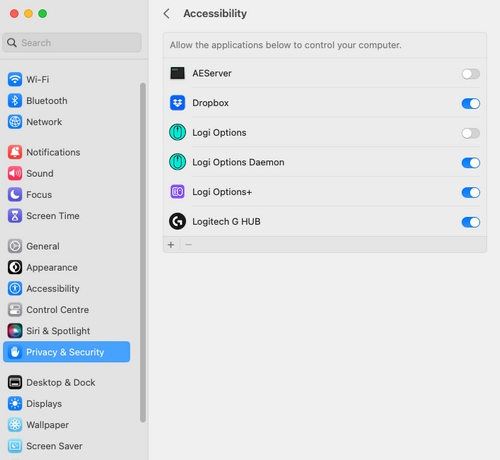
Input monitoring permission is needed for all the features enabled by the app such as scrolling, back and forward, gestures, and so on.

To provide access:
Open System Settings > Privacy & Security > Input Monitoring. In the right panel, enable Logi Options+ and select Quit & Reopen when you’re prompted to grant permission.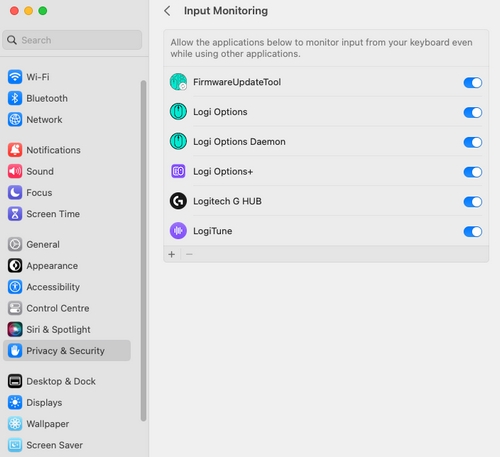
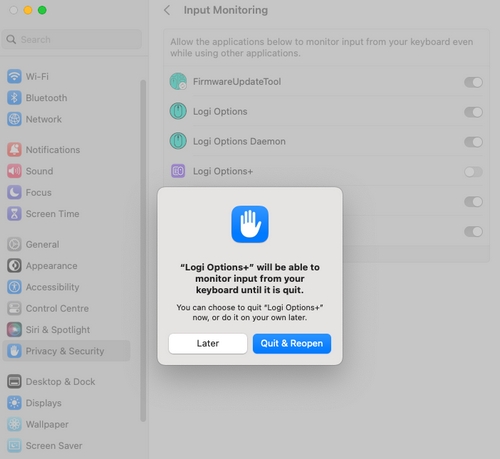
NOTE: If you clicked Later, please uncheck the checkbox for Logi Options+, check it again and press Quit Now when prompted.
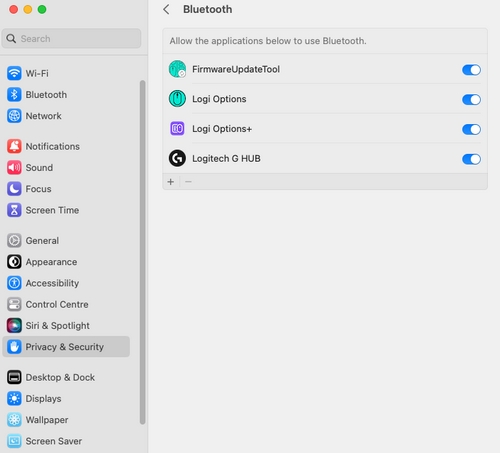
From macOS 12.4 onwards, Options+ needs Bluetooth permission to detect a Bluetooth device if it’s not actively connected to that computer. If the app does not have the Bluetooth permission, you will not be able to Flow into that computer as it cannot detect the device. To resolve this issue, follow these instructions grant Bluetooth permission:
Open System Settings > Privacy & Security > Bluetooth. In the right panel, enable Logi Options+ and select Quit & Reopen when you’re prompted to grant permission.
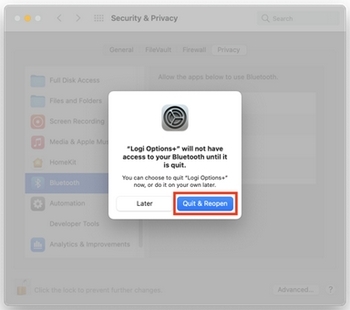
NOTE: If you clicked Later, uncheck the box for Logi Options+, check it again, and press Quit Now when prompted.
USB ACCESSORIES
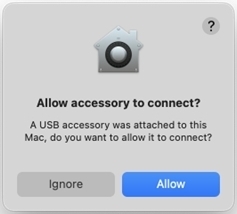
On macOS Ventura, new USB and Thunderbolt accessories require your approval before the accessory can communicate with macOS for connections wired directly to the USB-C port. Therefore, when you connect any Logi receiver, you’ll see the following pop-up appear on your screen.
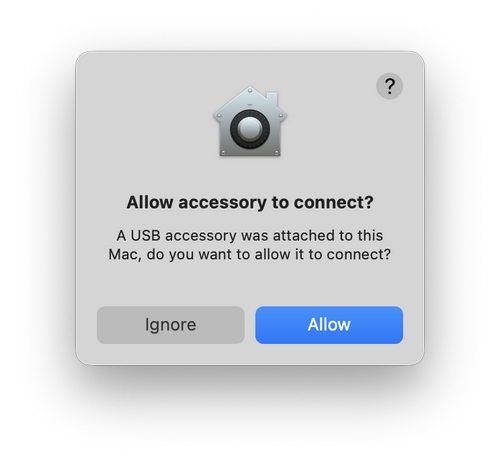
Click on Allow to let your devices connected to the receiver work, and be detected by their respective app.
In case your receiver/devices are not detected, or if you clicked on Ignore, try the following:
- Unplug the receiver.
- Go to System Settings > Privacy & Security. In the right panel, scroll down and in the dropdown next to Allow accessories to connect, select Ask every time.
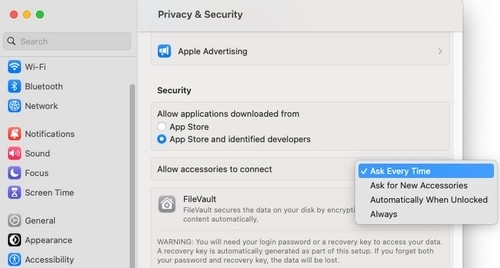
- Plugin your receiver.
- When you see the prompt again, remember to click Allow.
LOGIN ITEMS
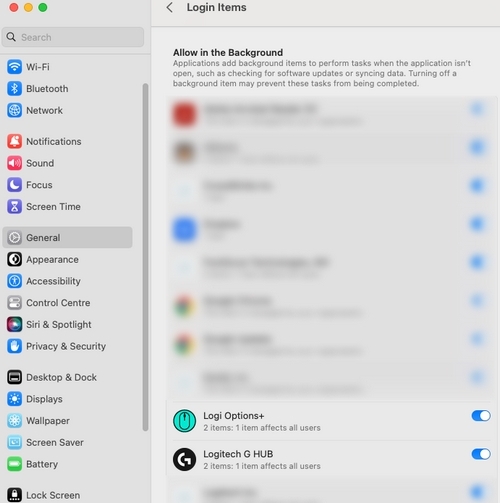
When Options+ is installed, macOS shows a notification that lets you know that a background process has been added to Login Items. These processes are needed to detect the devices and device functionality to function properly.
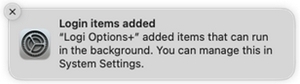
If you disable the Logi application from Login Items, the device customization won’t work and Options+ will be stuck on the loading screen.
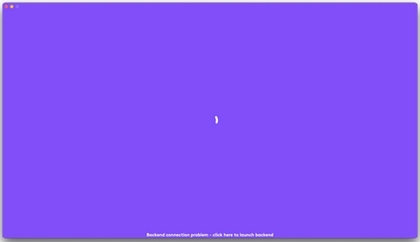
To resolve this issue, please follow these steps:
- Launch System Settings.
- Click on General.
- Click on Login items.
- Enable the on toggle for Logi applications.
SCREEN & SYSTEM AUDIO RECORDING
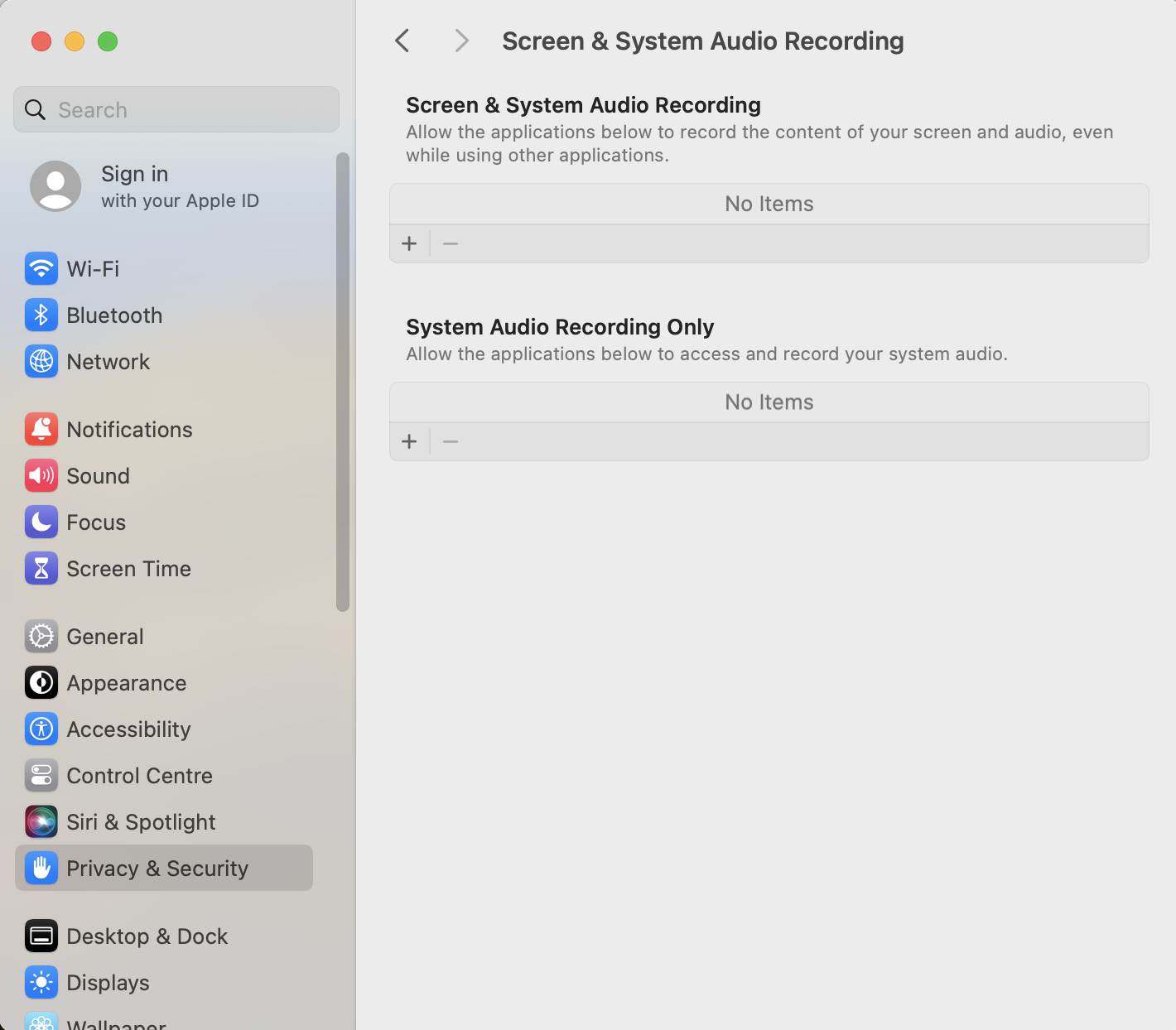
If you press the screenshot key and instead of capturing the intended foreground app, it captures the desktop or background instead, you'll need to allow Logi Options+ access in Screen & System Audio Recording.
To provide access, open System Settings > Privacy & Security > Screen & System Audio Recording. Select Quit & Reopen when you're prompted to grant permission.
Screen Recording Permissions for Presentation Remotes
Logi Options+ requires screen recording permissions to enable the Start Presentation action, use the Timer feature, and the Magnify effect.
NOTE: Logi Options+ doesn’t store any data related to your screen recording. This permission is only required for certain features to work. You can skip this step if you don’t use any of the mentioned features.
If Logi Options+ isn’t displayed in the right panel when you open System Settings > Privacy & Security > Screen & System Audio Recording, and you see a Keystroke Receiving system prompt, click Open System Settings to view the Input Monitoring permissions. Then, press the Open Screen Recording button again on the Logi Options+ app.
The Logi Options+ App requires the following user permissions on macOS 10.15 and later due to some Apple policies to enable the device features:
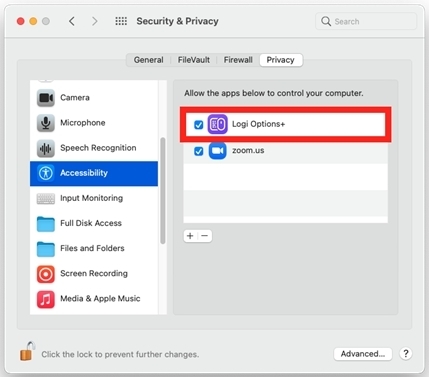
Accessibility permission is needed for most of the basic features such as scrolling, back and forward actions, gestures, volume control, zoom, and so on.
To provide access,
- Click Open Accessibility.
- Click the lock icon at the bottom left corner and enter your password to unlock.
-
In the right panel, check the box for Logi Options+
to grant permission.
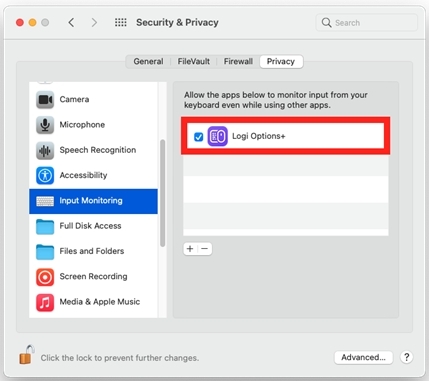
Input monitoring permission is needed for all the features enabled by the app such as scrolling, back and forward, gestures, etc.
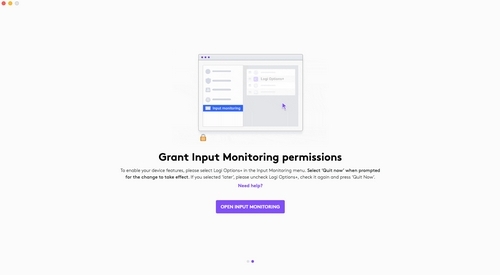
To provide access,
- Click Open Input Monitoring.
- Click the lock icon at the bottom left corner and enter your password to unlock.
-
In the right panel, check the box for Logi Options+
and select Quit & Reopen when prompted to
grant permission.
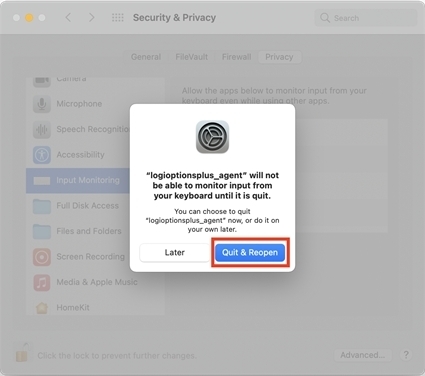
NOTE: If you clicked Later, please uncheck the checkbox for Logi Options+, check it again and press Quit Now when prompted.
From macOS 12.4 onwards, Options+ needs Bluetooth permission to detect a Bluetooth device if it’s not actively connected to that computer. If the app does not have the Bluetooth permission, you will not be able to Flow into that computer as it cannot detect the device. To resolve this issue, please grant Bluetooth permission by following these instructions:
- Open System Preferences > Security & Privacy > Privacy.
- Select Bluetooth from the left menu.
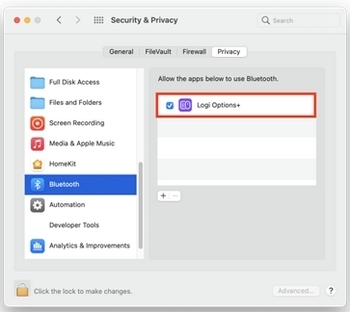
- Click the lock icon at the bottom left corner and enter your password to unlock.
- In the right panel, check the box for Logi Options+ and select Quit & Reopen when prompted to grant permission.
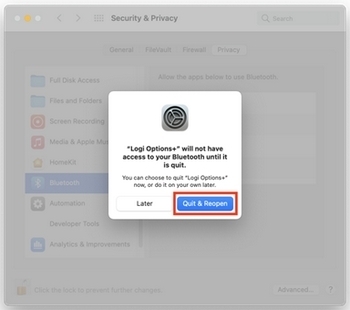
NOTE: If you clicked Later, please uncheck the checkbox for Logi Options+, check it again, and press Quit Now when prompted.
SCREEN & SYSTEM AUDIO RECORDING
Screen Recording Permissions for Presentation Remotes
Logi Options+ requires screen recording permissions to enable the Start Presentation action, use the Timer feature, and the Magnify effect.
NOTE: Logi Options+ doesn’t store any data related to your screen recording. This permission is only required for certain features to work. You can skip this step if you don’t use any of the mentioned features.
If Logi Options+ isn’t displayed in the right panel when you open System Settings > Privacy & Security > Screen & System Audio Recording, and you see a Keystroke Receiving system prompt, click Open System Settings to view the Input Monitoring permissions. Then, press the Open Screen Recording button again on the Logi Options+ app.
Belangrijke mededeling: De firmware-updatetool wordt niet meer ondersteund of onderhouden door Logitech. We raden u ten zeerste aan om Logi Options+ te gebruiken voor ondersteunde Logitech-apparaten. We zijn er om u te helpen tijdens deze overgang.
Belangrijke mededeling: De Logitech Preference Manager wordt niet meer ondersteund of onderhouden door Logitech. We raden u ten zeerste aan om Logi Options+ te gebruiken voor ondersteunde Logitech-apparaten. We zijn er om u te helpen tijdens deze overgang.
Belangrijke mededeling: Het Logitech Control Center wordt niet meer ondersteund of onderhouden door Logitech. We raden u ten zeerste aan om Logi Options+ te gebruiken voor ondersteunde Logitech-apparaten. We zijn er om u te helpen tijdens deze overgang.
Belangrijke mededeling: Het Logitech-verbindingshulpprogramma wordt niet meer ondersteund of onderhouden door Logitech. We raden u ten zeerste aan om Logi Options+ te gebruiken voor ondersteunde Logitech-apparaten. We zijn er om u te helpen tijdens deze overgang.
Belangrijke mededeling: De Unifying-software wordt niet meer ondersteund of onderhouden door Logitech. We raden u ten zeerste aan om Logi Options+ te gebruiken voor ondersteunde Logitech-apparaten. We zijn er om u te helpen tijdens deze overgang.
Belangrijke mededeling: De SetPoint-software wordt niet meer ondersteund of onderhouden door Logitech. We raden u ten zeerste aan om Logi Options+ te gebruiken voor ondersteunde Logitech-apparaten. We zijn er om u te helpen tijdens deze overgang.
Veelgestelde vragen
Er zijn geen producten beschikbaar voor deze sectie
Er zijn geen downloads voor dit product
Er zijn geen downloads voor deze versie.
Compatible Product
