This article provides step-by-step instructions for checking and updating Bluetooth drivers on Windows, macOS, or ChromeOS.
Windows 10 & Windows 11
Windows allows you to check your current driver version directly and update it through built-in tools or official manufacturer downloads.
Step 1: Verify your current Bluetooth driver
- Right-click the Start Button (or press Win + X) and select Device Manager.
- Click the arrow next to Bluetooth to expand the list.
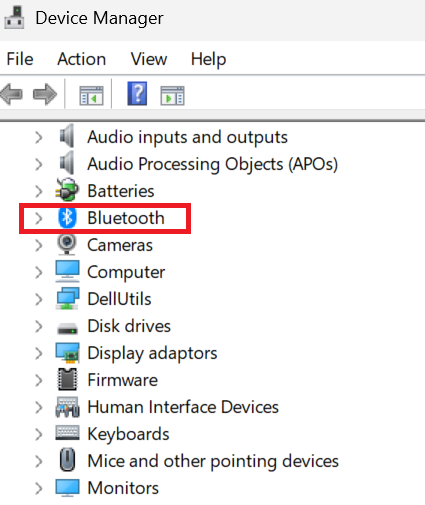
- Right-click your main Bluetooth adapter (Example: Intel Wireless Bluetooth, Realtek Bluetooth Adapter) and select Properties. The Properties window opens.
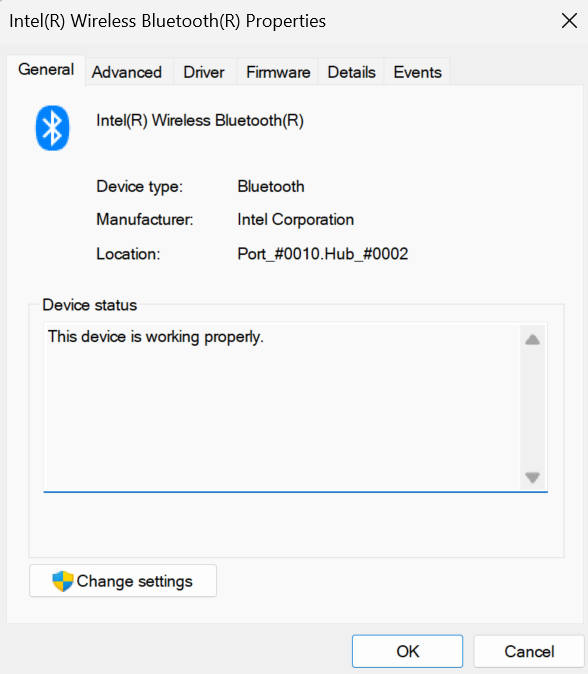
- Switch to the Driver tab to view the Driver Provider, Driver Date, and Driver Version.
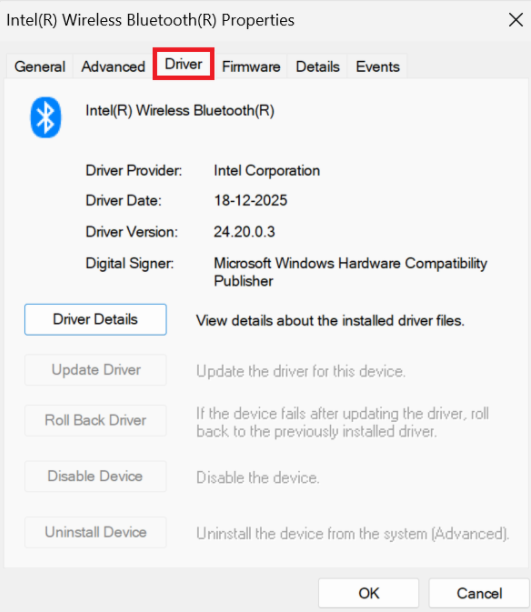
Step 2: Update your Bluetooth driver
Method 1: Windows Update (Recommended)
- Press Win + I to open Settings.
- Go to Windows Update (or Update & Security on Windows 10).
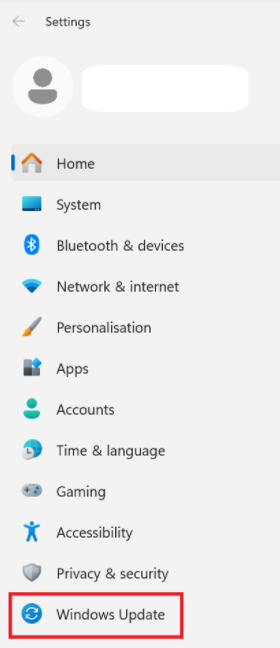
- Click Check for updates.
- Select Advanced options > Optional updates.
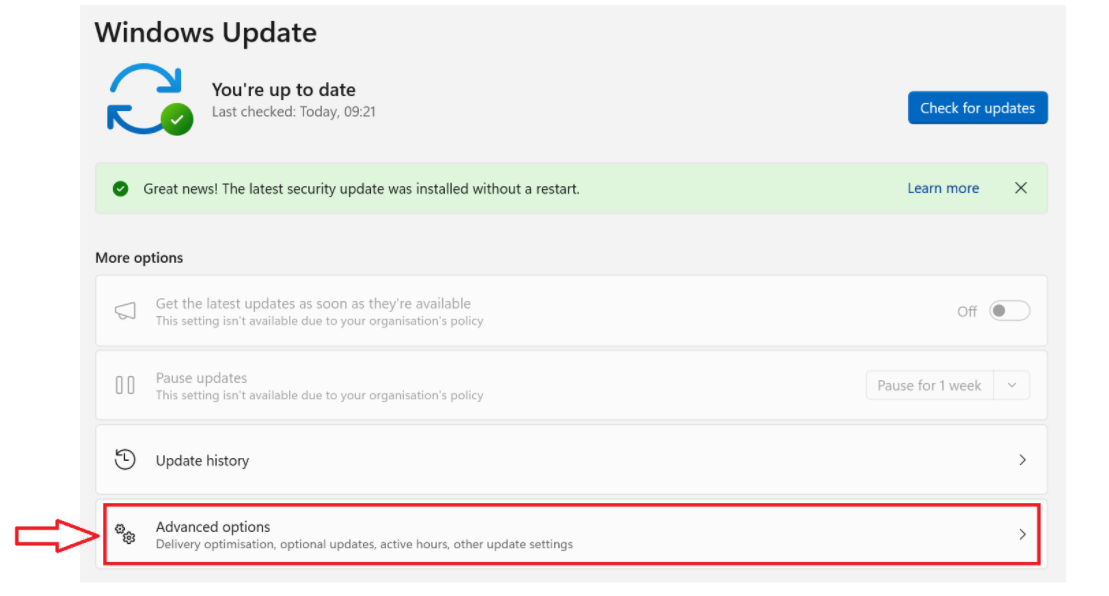
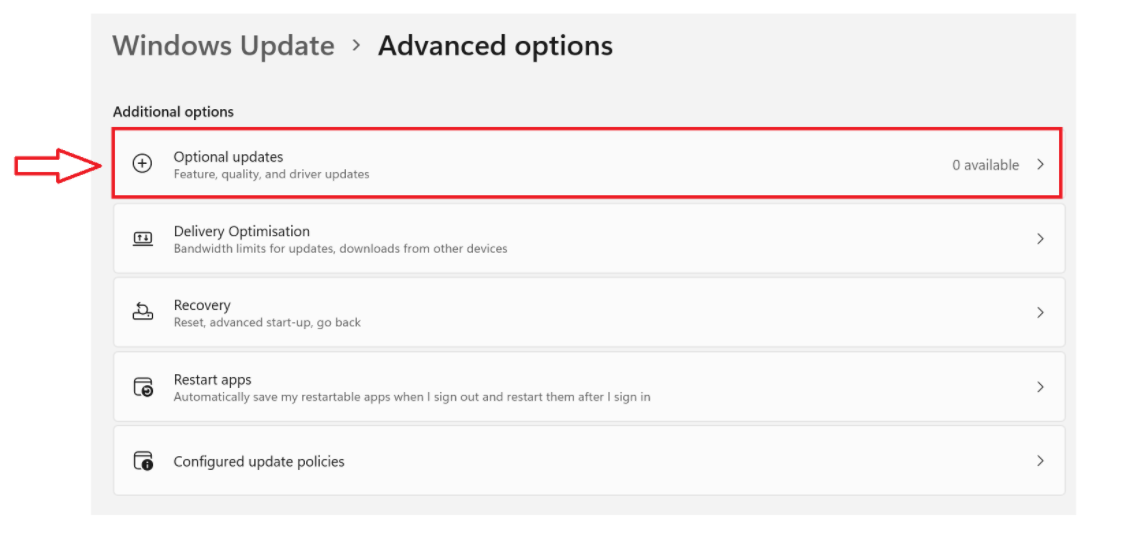
- Expand Driver updates, check any available Bluetooth driver, and click Download & install.
Method 2: Device Manager
- Open Device Manager, expand Bluetooth, right-click your adapter, and choose Update driver.
- Select Search automatically for drivers.
- Follow the prompts if a newer driver is located.
Method 3: Direct Manufacturer Downloads
- Intel: Use the Intel Driver & Support Assistant (DSA) or download directly from Intel's Download Center.
- Dell / HP / Lenovo / ASUS: Visit your device manufacturer's support page, enter your serial number, and download the latest Bluetooth driver package (.exe or .msi).
- Run the installer and restart your PC to complete setup.
macOS
Important: Apple integrates hardware drivers into macOS updates. Standalone driver installation is not supported on Mac devices.
Step 1: Verify Bluetooth hardware info
- Hold the Option (⌥) key and click the Apple Menu in the upper-left corner.
- Select System Information.
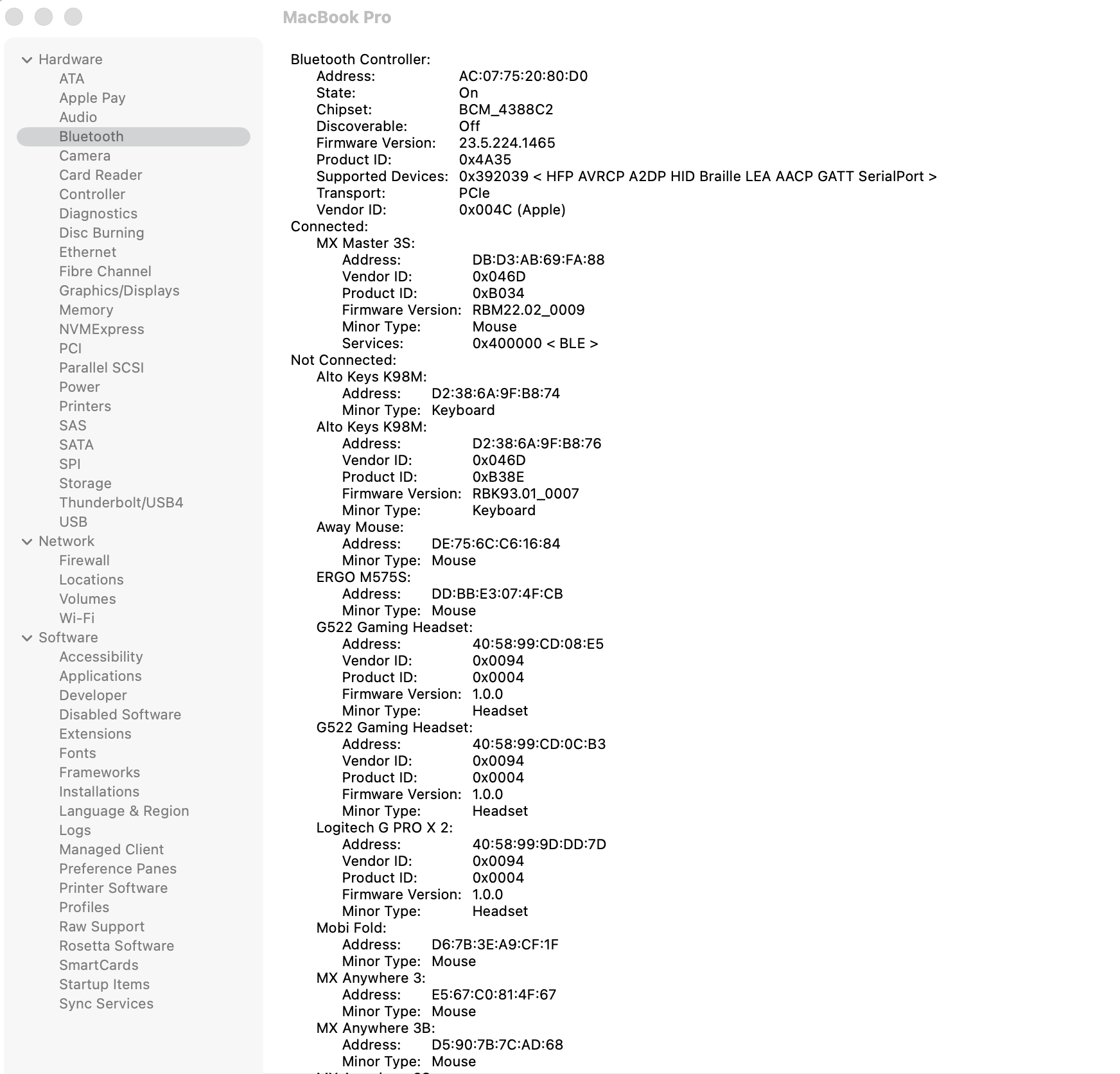
- Under Hardware in the left sidebar, click Bluetooth.
- Review your Bluetooth chipset details, and firmware version.
Step 2: Update Bluetooth drivers and firmware
- Click the Apple Menu in the upper-left corner and select System Settings (or System Preferences).
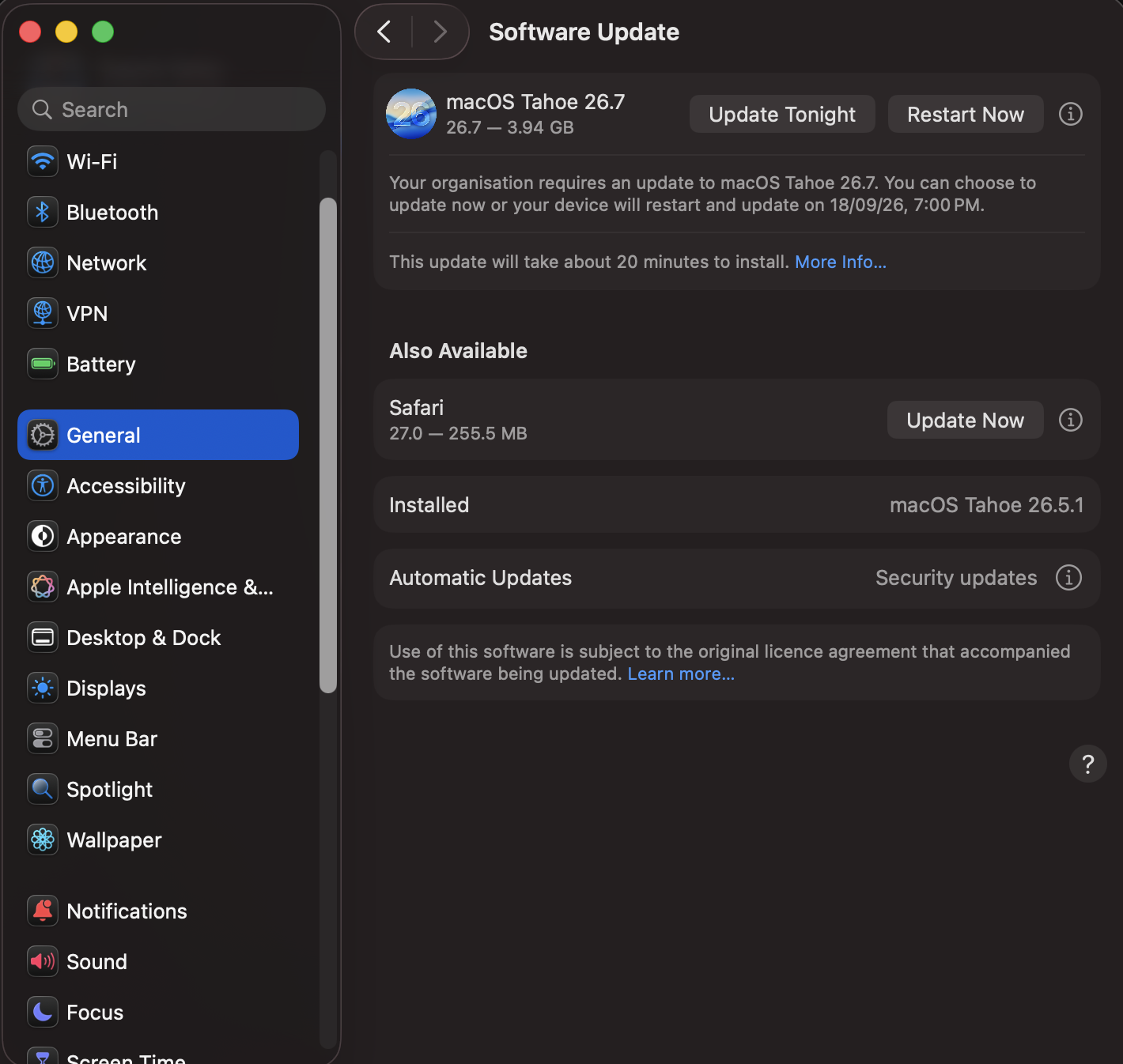
- Click General in the left sidebar, then select Software Update.
- If an update is available, click Update Now or Upgrade Now.
- Restart your Mac to apply system-wide updates.
ChromeOS
Important: ChromeOS handles hardware drivers at the kernel level. Updates are delivered through standard system updates.
Step 1: Verify ChromeOS version
- Click the time indicator in the lower-right corner of the shelf.
- Click Settings (gear icon).
- On the left menu, select About ChromeOS.
- Note the current version number listed.
Step 2: Update ChromeOS drivers
- In the About ChromeOS menu, click Check for updates.
- If an update is available, your Chromebook will automatically download it.
- Click Restart to apply the update.
Viktig anmärkning: Uppdateringsverktyget för inbyggd programvara stöds eller underhålls inte längre av Logitech. Vi rekommenderar starkt att du använder Logi Options+ för dina Logitech-enheter som stöds. Vi finns här om du behöver hjälp under övergången.
Viktig anmärkning: Logitech Preference Manager stöds eller underhålls inte längre av Logitech. Vi rekommenderar starkt att du använder Logi Options+ för dina Logitech-enheter som stöds. Vi finns här om du behöver hjälp under övergången.
Viktig anmärkning: Logitech Control Center stöds eller underhålls inte längre av Logitech. Vi rekommenderar starkt att du använder Logi Options+ för dina Logitech-enheter som stöds. Vi finns här om du behöver hjälp under övergången.
Viktig anmärkning: Logitechs anslutningsverktyg stöds eller underhålls inte längre av Logitech. Vi rekommenderar starkt att du använder Logi Options+ för dina Logitech-enheter som stöds. Vi finns här om du behöver hjälp under övergången.
Viktig anmärkning: Unifying-programvaran stöds eller underhålls inte längre av Logitech. Vi rekommenderar starkt att du använder Logi Options+ för dina Logitech-enheter som stöds. Vi finns här om du behöver hjälp under övergången.
Viktig anmärkning: SetPoint-programvaran stöds eller underhålls inte längre av Logitech. Vi rekommenderar starkt att du använder Logi Options+ för dina Logitech-enheter som stöds. Vi finns här om du behöver hjälp under övergången.
Vanliga frågor
Det finns inga tillgängliga produkter för den här sektionen
Det finns inga nedladdningar för denna produkt
Det finns inga nedladdningar för den här versionen.
Compatible Product
