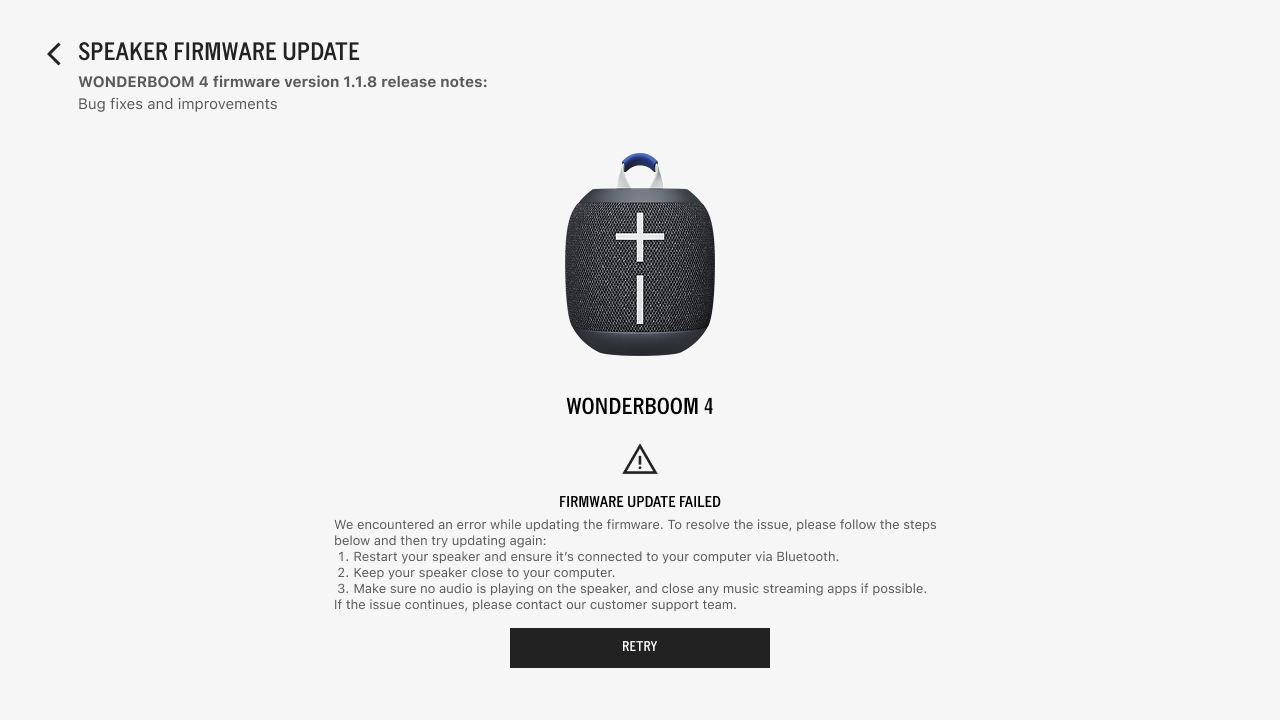
Why did the firmware update stop and fail on my MacBook?
If your firmware update failed on your MacBook, even after trying the troubleshooting steps shown on the screen (restart your speaker, ensure your speaker is near your Macbook, and stop all music streaming apps), you may need to restart your Bluetooth on your Macbook. (Not “Forget This Device”.)
To do this, navigate to your System Settings, and turn Bluetooth off and back on again. Then, reconnect your speaker to your MacBook before attempting the firmware update again.
If the issue persists, please reach out to the Logitech Support, and we’ll be happy to help.
หมายเหตุสำคัญ: Logitech ไม่รองรับหรือบำรุงรักษาเครื่องมืออัปเดตเฟิร์มแวร์อีกต่อไปแล้ว เราขอแนะนำให้ใช้ Logi Options+ สำหรับอุปกรณ์ Logitech ที่รองรับ เราพร้อมให้ความช่วยเหลือคุณในระหว่างการเปลี่ยนแปลงนี้
หมายเหตุสำคัญ: Logitech ไม่รองรับหรือบำรุงรักษา Logitech Preference Manager อีกต่อไปแล้ว เราขอแนะนำให้ใช้ Logi Options+ สำหรับอุปกรณ์ Logitech ที่รองรับ เราพร้อมให้ความช่วยเหลือคุณในระหว่างการเปลี่ยนแปลงนี้
หมายเหตุสำคัญ: Logitech ไม่รองรับหรือบำรุงรักษา Logitech Control Center อีกต่อไปแล้ว เราขอแนะนำให้ใช้ Logi Options+ สำหรับอุปกรณ์ Logitech ที่รองรับ เราพร้อมให้ความช่วยเหลือคุณในระหว่างการเปลี่ยนแปลงนี้
หมายเหตุสำคัญ: Logitech ไม่รองรับหรือบำรุงรักษา Logitech Connection Utility อีกต่อไปแล้ว เราขอแนะนำให้ใช้ Logi Options+ สำหรับอุปกรณ์ Logitech ที่รองรับ เราพร้อมให้ความช่วยเหลือคุณในระหว่างการเปลี่ยนแปลงนี้
หมายเหตุสำคัญ: Logitech ไม่รองรับหรือบำรุงรักษา Unifying Software อีกต่อไปแล้ว เราขอแนะนำให้ใช้ Logi Options+ สำหรับอุปกรณ์ Logitech ที่รองรับ เราพร้อมให้ความช่วยเหลือคุณในระหว่างการเปลี่ยนแปลงนี้
หมายเหตุสำคัญ: ซอฟต์แวร์ SetPoint ไม่รองรับหรือดูแลรักษาโดย Logitech อีกต่อไป เราขอแนะนำให้ใช้ Logi Options+ สำหรับอุปกรณ์ Logitech ที่รองรับ เราพร้อมให้ความช่วยเหลือคุณในระหว่างการเปลี่ยนแปลงนี้
คำถามที่พบบ่อย
ไม่มีสินค้าสำหรับส่วนนี้
ไม่มีรายการดาวน์โหลดสำหรับผลิตภัณฑ์นี้
ไม่มีการดาวน์โหลดสำหรับเวอร์ชันนี้
Compatible Product
