The software support of your Wireless Mouse M170/M171/M172/B170 depends on the mouse model you have. To determine which mouse model you have, please turn the mouse over and look at the bottom for the model number (M/N).
-
MR0099
If you own a mouse with the model number MR0099, your Wireless Mouse M170/M171/M172/B170 is not customizable with software.
-
M-R0060
If you own a mouse with the model number M-R0060, you can use Logitech Options software for Mac or Windows to customize the actions that are performed when you use the buttons on your mouse. You can download Logitech Options from the Downloads page.
Customize M170/M171/B170 mouse buttons with Logitech Options
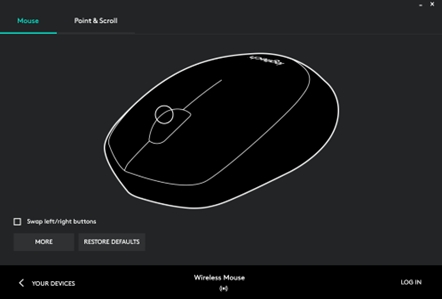
To customize the actions performed by each button click:
- Start the Logitech Options Software:
Windows: Start > All Programs > Logitech > Logitech Options
Mac: Macintosh HD > Applications > Logitech Options - Make sure you’ve selected the Mouse tab in the upper left corner of the window.
- Click on the circle next to the button that you want to configure. A list of options appears.
Change M170/M171/B170 mouse pointer speed with Logitech Options
You can use Logitech Options to change the pointer speed on your mouse. To change the pointer speed:
- Start Logitech Options:
Windows: Start > All Programs > Logitech > Logitech Options
Mac: Macintosh HD > Applications > Logitech Options - Select the Point and scroll tab.
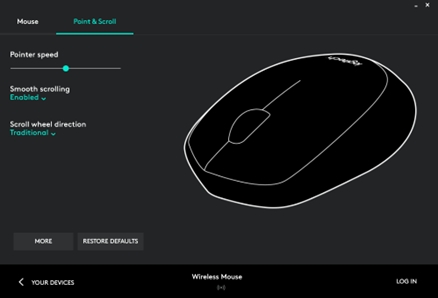
- Under Pointer speed, move the slider to the right to increase the speed and to the left to decrease it. Your changes are automatically saved.
Customize Wireless Mouse M170/M171/B170 gestures with Logitech Options
You can use Logitech Options to customize the action that is triggered when you perform one of the four gestures available on the M170/M171/B170 mouse.
To associate an action with a gesture:
- Start Logitech Options:
Windows: Start > All Programs > Logitech > Logitech Options
Mac: Macintosh HD > Applications > Logitech Options - Select the Mouse tab in the top left corner left of the Logitech Options window.
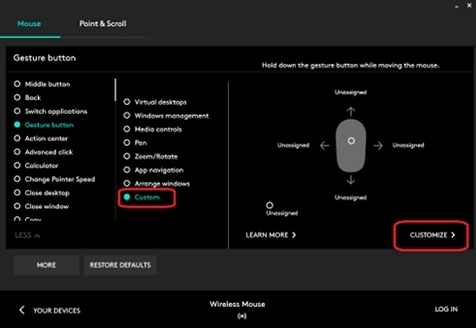
- Select the middle button on the mouse by clicking on the white circle around the middle button. The options list for the button appears.
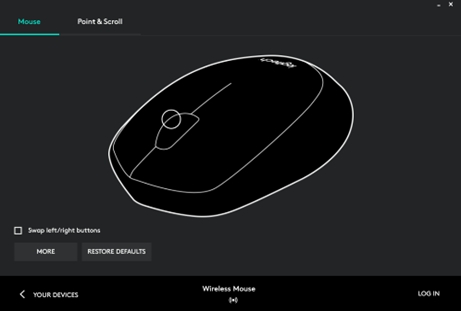
- Select Gesture button.
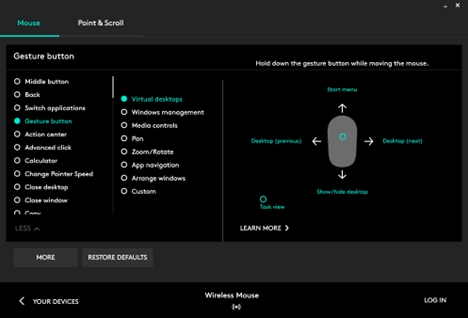
NOTE: By default, the Windows management set of gestures is selected
You can assign individual actions to each of the four gestures. Here’s how:
- In the Gesture button list, select Custom.
- In the lower right pane, click on Customize.
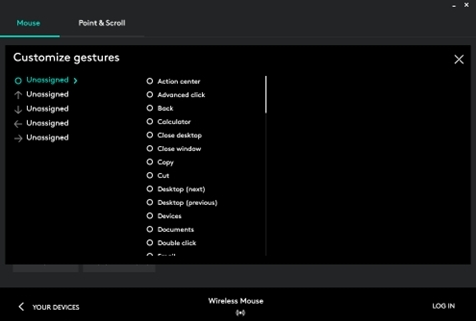
- Click on one of the four gesture arrows and then select an option from the list to assign to it. As soon as you make your selection, it is saved. Click on the “X” in the corner to close the window.
หมายเหตุสำคัญ: Logitech ไม่รองรับหรือบำรุงรักษาเครื่องมืออัปเดตเฟิร์มแวร์อีกต่อไปแล้ว เราขอแนะนำให้ใช้ Logi Options+ สำหรับอุปกรณ์ Logitech ที่รองรับ เราพร้อมให้ความช่วยเหลือคุณในระหว่างการเปลี่ยนแปลงนี้
หมายเหตุสำคัญ: Logitech ไม่รองรับหรือบำรุงรักษา Logitech Preference Manager อีกต่อไปแล้ว เราขอแนะนำให้ใช้ Logi Options+ สำหรับอุปกรณ์ Logitech ที่รองรับ เราพร้อมให้ความช่วยเหลือคุณในระหว่างการเปลี่ยนแปลงนี้
หมายเหตุสำคัญ: Logitech ไม่รองรับหรือบำรุงรักษา Logitech Control Center อีกต่อไปแล้ว เราขอแนะนำให้ใช้ Logi Options+ สำหรับอุปกรณ์ Logitech ที่รองรับ เราพร้อมให้ความช่วยเหลือคุณในระหว่างการเปลี่ยนแปลงนี้
หมายเหตุสำคัญ: Logitech ไม่รองรับหรือบำรุงรักษา Logitech Connection Utility อีกต่อไปแล้ว เราขอแนะนำให้ใช้ Logi Options+ สำหรับอุปกรณ์ Logitech ที่รองรับ เราพร้อมให้ความช่วยเหลือคุณในระหว่างการเปลี่ยนแปลงนี้
หมายเหตุสำคัญ: Logitech ไม่รองรับหรือบำรุงรักษา Unifying Software อีกต่อไปแล้ว เราขอแนะนำให้ใช้ Logi Options+ สำหรับอุปกรณ์ Logitech ที่รองรับ เราพร้อมให้ความช่วยเหลือคุณในระหว่างการเปลี่ยนแปลงนี้
หมายเหตุสำคัญ: ซอฟต์แวร์ SetPoint ไม่รองรับหรือดูแลรักษาโดย Logitech อีกต่อไป เราขอแนะนำให้ใช้ Logi Options+ สำหรับอุปกรณ์ Logitech ที่รองรับ เราพร้อมให้ความช่วยเหลือคุณในระหว่างการเปลี่ยนแปลงนี้
คำถามที่พบบ่อย
ไม่มีสินค้าสำหรับส่วนนี้
ไม่มีรายการดาวน์โหลดสำหรับผลิตภัณฑ์นี้
ไม่มีการดาวน์โหลดสำหรับเวอร์ชันนี้
Compatible Product
