Even though haptic signals have been disabled in your Windows settings, you'll still receive haptic feedback on your MX Master 4 for the Options+ features you have configured or for the haptic-enabled plugins you have installed from the Logi Marketplace. Click here to learn more about MX Master 4 Haptic Feedback.
If you want to disable haptic feedback entirely on your MX Master 4, you'll need to disable haptic feedback both in Windows Settings and in Logi Options+.
-
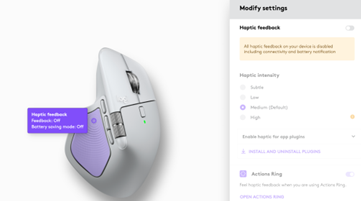
Open Options+, click on Haptic feedback settings and toggle off Haptic feedback.
-
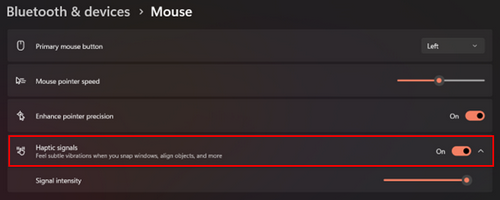
In Windows, open Settings, and in Bluetooth & devices > Mouse, and toggle off Haptic signals.
หมายเหตุสำคัญ: Logitech ไม่รองรับหรือบำรุงรักษาเครื่องมืออัปเดตเฟิร์มแวร์อีกต่อไปแล้ว เราขอแนะนำให้ใช้ Logi Options+ สำหรับอุปกรณ์ Logitech ที่รองรับ เราพร้อมให้ความช่วยเหลือคุณในระหว่างการเปลี่ยนแปลงนี้
หมายเหตุสำคัญ: Logitech ไม่รองรับหรือบำรุงรักษา Logitech Preference Manager อีกต่อไปแล้ว เราขอแนะนำให้ใช้ Logi Options+ สำหรับอุปกรณ์ Logitech ที่รองรับ เราพร้อมให้ความช่วยเหลือคุณในระหว่างการเปลี่ยนแปลงนี้
หมายเหตุสำคัญ: Logitech ไม่รองรับหรือบำรุงรักษา Logitech Control Center อีกต่อไปแล้ว เราขอแนะนำให้ใช้ Logi Options+ สำหรับอุปกรณ์ Logitech ที่รองรับ เราพร้อมให้ความช่วยเหลือคุณในระหว่างการเปลี่ยนแปลงนี้
หมายเหตุสำคัญ: Logitech ไม่รองรับหรือบำรุงรักษา Logitech Connection Utility อีกต่อไปแล้ว เราขอแนะนำให้ใช้ Logi Options+ สำหรับอุปกรณ์ Logitech ที่รองรับ เราพร้อมให้ความช่วยเหลือคุณในระหว่างการเปลี่ยนแปลงนี้
หมายเหตุสำคัญ: Logitech ไม่รองรับหรือบำรุงรักษา Unifying Software อีกต่อไปแล้ว เราขอแนะนำให้ใช้ Logi Options+ สำหรับอุปกรณ์ Logitech ที่รองรับ เราพร้อมให้ความช่วยเหลือคุณในระหว่างการเปลี่ยนแปลงนี้
หมายเหตุสำคัญ: ซอฟต์แวร์ SetPoint ไม่รองรับหรือดูแลรักษาโดย Logitech อีกต่อไป เราขอแนะนำให้ใช้ Logi Options+ สำหรับอุปกรณ์ Logitech ที่รองรับ เราพร้อมให้ความช่วยเหลือคุณในระหว่างการเปลี่ยนแปลงนี้
คำถามที่พบบ่อย
ไม่มีสินค้าสำหรับส่วนนี้
ไม่มีรายการดาวน์โหลดสำหรับผลิตภัณฑ์นี้
ไม่มีการดาวน์โหลดสำหรับเวอร์ชันนี้
Compatible Product
