
- What is KEYCONTROL?
- Which Logitech G Keyboards support KEYCONTROL?
- How to enable KEYCONTROL out of the box?
- Can I change the default KEYCONTROL toggle shortcut to another key on my gaming keyboard?
What is KEYCONTROL?
KEYCONTROL Technology refers to the ability to customize all aspects of a Logitech G Keyboard, including the layout, key mapping, and lighting.
Which Logitech G Keyboards support KEYCONTROL?
- PRO X 60
- G316 X
- G316
- G515 TKL
- G515 LIGHTSPEED TKL
- G515 LIGHTSPEED TKL Kamisato Ayaka special edition
- G515 RAPID TKL
- G517 LIGHTSPEED TKL
- G517 LIGHTSPEED TKL Kamisato Ayaka limited edition
- G915 X
- G915 X LIGHTSPEED
- G915 X LIGHTSPEED TKL
- PRO X TKL RAPID
- G915 X 75
- G915 X 98
- G512 X 75
- G512 X 98
- G316 X 98
- G316 X 75
- G316 X RAPID ARENA Edition
- PRO X2 RAPID
How to enable KEYCONTROL out of the box?
When your gaming keyboard is just out of the box and you have connected it with G HUB, you need to first assign a customization to any of the keys.
This activates KEYCONTROL mode which you can then enable and disable using the below shown shortcut according to your Logitech G Keyboard.
Keyboard(s) with FN+A shortcut:
PRO X 60
Keyboard(s) with FN+1 shortcut:
- G316 X
- G316
- G515 TKL
- G515 LIGHTSPEED TKL
- G515 LIGHTSPEED TKL Kamisato Ayaka special edition
- G515 RAPID TKL
- G517 LIGHTSPEED TKL
- G517 LIGHTSPEED TKL Kamisato Ayaka limited edition
- G915 X
- G915 X LIGHTSPEED
- G915 X LIGHTSPEED TKL
- PRO X TKL RAPID
- G915 X 75
- G915 X 98
- G512 X 75
- G512 X 98
- G316 X 98
- G316 X 75
- G316 X RAPID ARENA Edition
- PRO X2 RAPID
Can I change the default KEYCONTROL toggle shortcut to another key on my gaming keyboard?
Using G HUB, you can change the defaults to any other key.
To assign a different shortcut to enable/disable KEYCONTROL:
-
On the Assignments tab in G HUB, click the + icon at the top right corner.
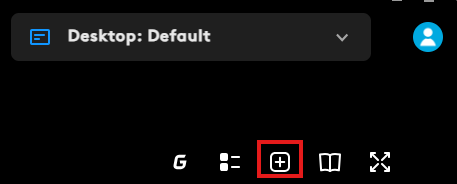
A pop-up menu appears where you can select the combination of your choice. Click Confirm when you're done.
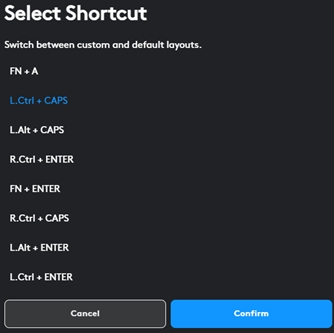
Although your change is controlled by software, the KEYCONTROL LED on the keyboard will still light up the default key for three seconds when it is toggled.
Önemli Not: Ürün Yazılımı Güncelleme Aracı artık Logitech tarafından desteklenen veya bakımı yapılan bir ürün değildir. Desteklenen Logitech cihazlarınız için Logi Options+ kullanmanızı tavsiye ederiz. Bu geçiş sürecinde size yardımcı olmak için buradayız.
Önemli Not: Logitech Preference Manager artık Logitech tarafından desteklenmiyor veya bakımı sağlanmıyor. Desteklenen Logitech cihazlarınız için Logi Options+ kullanmanızı tavsiye ederiz. Bu geçiş sürecinde size yardımcı olmak için buradayız.
Önemli Not: Logitech Control Center, artık Logitech tarafından desteklenmiyor veya bakımı sağlanmıyor. Desteklenen Logitech cihazlarınız için Logi Options+ kullanmanızı tavsiye ederiz. Bu geçiş sürecinde size yardımcı olmak için buradayız.
Önemli Not: Logitech Connection Utility artık Logitech tarafından desteklenmiyor veya bakımı sağlanmıyor. Desteklenen Logitech cihazlarınız için Logi Options+ kullanmanızı tavsiye ederiz. Bu geçiş sürecinde size yardımcı olmak için buradayız.
Önemli Not: Unifying Yazılımı artık Logitech tarafından desteklenmiyor veya bakımı sağlanmıyor. Desteklenen Logitech cihazlarınız için Logi Options+ kullanmanızı tavsiye ederiz. Bu geçiş sürecinde size yardımcı olmak için buradayız.
Önemli Not: SetPoint yazılımı artık Logitech tarafından desteklenmemekte veya bu yazılımın bakımını yapmamaktadır. Desteklenen Logitech cihazlarınız için Logi Options+ kullanmanızı tavsiye ederiz. Bu geçiş sürecinde size yardımcı olmak için buradayız.
Sıkça Sorulan Sorular
Bu bölüme uygun ürün yok
Bu Ürün için Güncelleme yok
Bu Sürüm için İndirme yok.
Compatible Product
