To reconnect the Wireless Gamepad F710 to its receiver:
-
Download the connect utility from F710 Download Page.
-
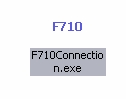
Go to the location where you saved the F710 utility and double-click on the icon.
-
Read and follow the instructions on the Welcome screen before you click continue.
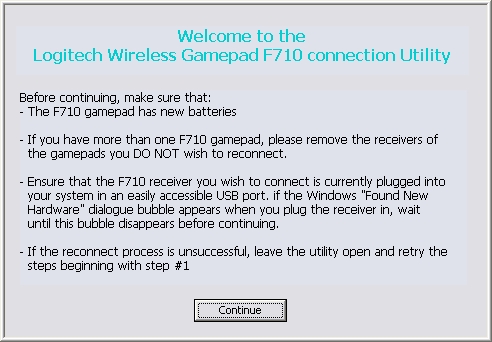
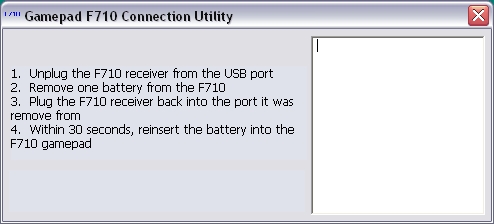
After you click Continue, the main Connection Utility window will display. The screen will look like this for on-screen steps 1 and 2.
-
Complete the on-screen steps.
NOTE: Once you plug the receiver back in for on-screen step 2, the window will update and you'll have 30 seconds to reinsert the battery. Be sure to do this in the time allotted before the on-screen countdown reaches "0".
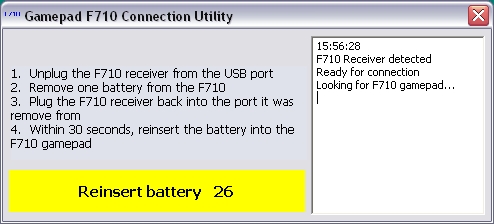
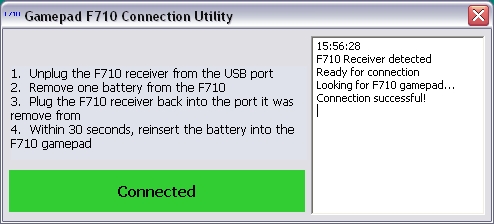
When the gamepad connects successfully, you'll see a green highlighted area that that reads "Connected".
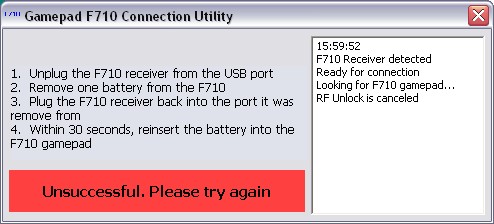
If the reconnect process is not successful, you'll see a window with a red highlighted area at the bottom that reads "Unsuccessful. Please try again.".
If the reconnection process is unsuccessful:
-
Try following the connection steps above again.
-
Try holding the gamepad within three (3) feet of the receiver.
-
Make sure you're using new batteries.
Contact information
If you're unable to reconnect your F710 gamepad, see Knowledge Base article 21368 for how to contact support about this product.
Önemli Not: Ürün Yazılımı Güncelleme Aracı artık Logitech tarafından desteklenen veya bakımı yapılan bir ürün değildir. Desteklenen Logitech cihazlarınız için Logi Options+ kullanmanızı tavsiye ederiz. Bu geçiş sürecinde size yardımcı olmak için buradayız.
Önemli Not: Logitech Preference Manager artık Logitech tarafından desteklenmiyor veya bakımı sağlanmıyor. Desteklenen Logitech cihazlarınız için Logi Options+ kullanmanızı tavsiye ederiz. Bu geçiş sürecinde size yardımcı olmak için buradayız.
Önemli Not: Logitech Control Center, artık Logitech tarafından desteklenmiyor veya bakımı sağlanmıyor. Desteklenen Logitech cihazlarınız için Logi Options+ kullanmanızı tavsiye ederiz. Bu geçiş sürecinde size yardımcı olmak için buradayız.
Önemli Not: Logitech Connection Utility artık Logitech tarafından desteklenmiyor veya bakımı sağlanmıyor. Desteklenen Logitech cihazlarınız için Logi Options+ kullanmanızı tavsiye ederiz. Bu geçiş sürecinde size yardımcı olmak için buradayız.
Önemli Not: Unifying Yazılımı artık Logitech tarafından desteklenmiyor veya bakımı sağlanmıyor. Desteklenen Logitech cihazlarınız için Logi Options+ kullanmanızı tavsiye ederiz. Bu geçiş sürecinde size yardımcı olmak için buradayız.
Önemli Not: SetPoint yazılımı artık Logitech tarafından desteklenmemekte veya bu yazılımın bakımını yapmamaktadır. Desteklenen Logitech cihazlarınız için Logi Options+ kullanmanızı tavsiye ederiz. Bu geçiş sürecinde size yardımcı olmak için buradayız.
Sıkça Sorulan Sorular
Bu bölüme uygun ürün yok
Bu Ürün için Güncelleme yok
Bu Sürüm için İndirme yok.
Compatible Product
