iPad’inizi yerleştirme
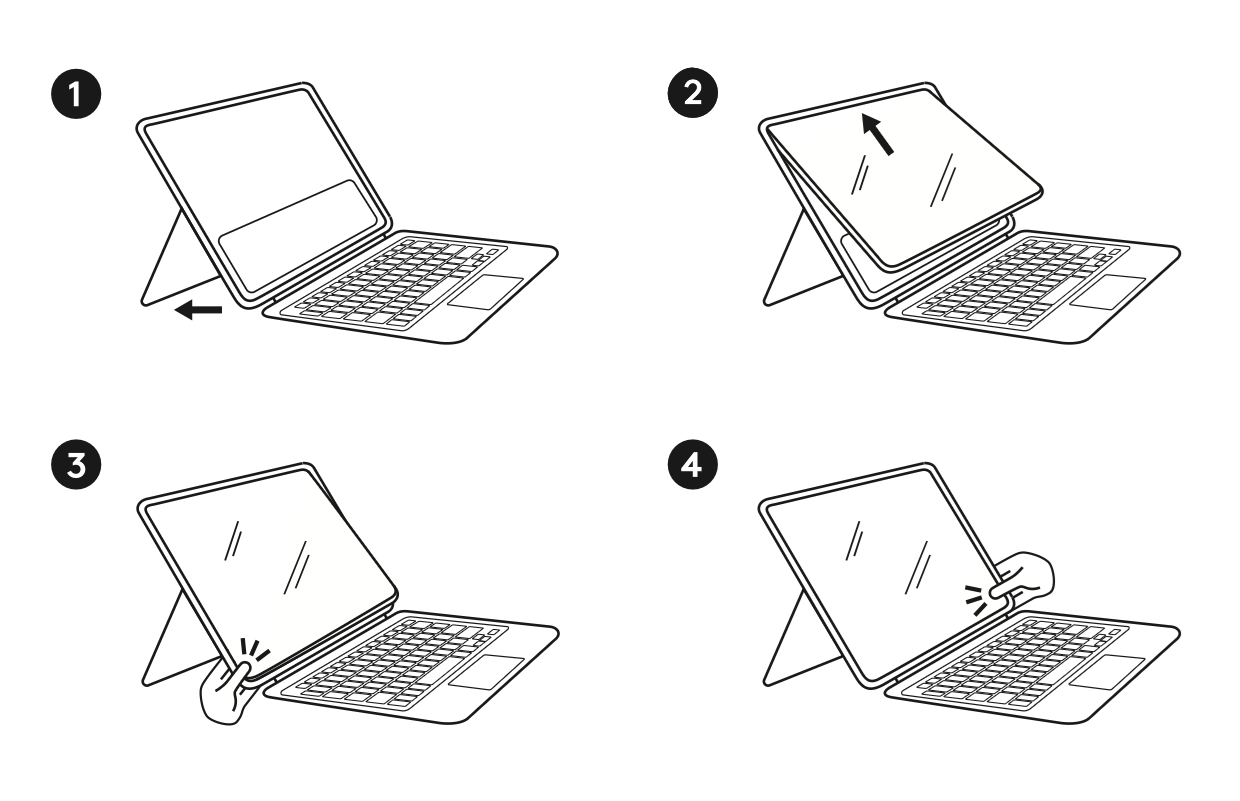
- Destek ayağını açın. Bu, yerleştirme sırasında Rugged Combo tutucusunun daha kolay esnemesini sağlar.
- Önce iPad'in sol üst (güç düğmesi) tarafını, ardından da sağ üst tarafını yerleştirin. iPad'in alt kısmı henüz tutucuya yerleştirilmediğinden bu kısım kolay olacaktır.
- Sol taraftan başlayarak iPad ekranını Rugged Combo'ya doğru itin.
-
Üç köşe yerleştirildikten sonra, alt kenar boyunca ilerleyin ve son olarak sağ alt köşeyi tutucunun kenarına sıkıca itin.
- İpucu: Tutucunun alt köşesini iki elinizle kavrayın ve iki başparmağınızı kullanarak iPad ekranını o köşeye sıkıca bastırın.
- Tutucu kenarının iPad ekranının her tarafında eşit olduğunu kontrol edin.
iPad’inizi Çıkarma
- iPad'i çıkarmak için, tutucuya biraz daha esneklik kazandırmak amacıyla önce destek ayağını açın.
- İki elinizle iPad ekranının sağ alt kenarını kavrayın ve iki başparmağınızı kullanarak Rugged Combo 4'ün yan duvarını geriye doğru iterek iPad kenarını ortaya çıkarın.
- Parmağınızı alt kenar boyunca kaydırarak iPad'i tutucunun alt köşelerinden ayırın.
- Alt iki kenar serbest kaldığında, iPad üstten dışarı kaymalıdır.
Önemli Not: Ürün Yazılımı Güncelleme Aracı artık Logitech tarafından desteklenen veya bakımı yapılan bir ürün değildir. Desteklenen Logitech cihazlarınız için Logi Options+ kullanmanızı tavsiye ederiz. Bu geçiş sürecinde size yardımcı olmak için buradayız.
Önemli Not: Logitech Preference Manager artık Logitech tarafından desteklenmiyor veya bakımı sağlanmıyor. Desteklenen Logitech cihazlarınız için Logi Options+ kullanmanızı tavsiye ederiz. Bu geçiş sürecinde size yardımcı olmak için buradayız.
Önemli Not: Logitech Control Center, artık Logitech tarafından desteklenmiyor veya bakımı sağlanmıyor. Desteklenen Logitech cihazlarınız için Logi Options+ kullanmanızı tavsiye ederiz. Bu geçiş sürecinde size yardımcı olmak için buradayız.
Önemli Not: Logitech Connection Utility artık Logitech tarafından desteklenmiyor veya bakımı sağlanmıyor. Desteklenen Logitech cihazlarınız için Logi Options+ kullanmanızı tavsiye ederiz. Bu geçiş sürecinde size yardımcı olmak için buradayız.
Önemli Not: Unifying Yazılımı artık Logitech tarafından desteklenmiyor veya bakımı sağlanmıyor. Desteklenen Logitech cihazlarınız için Logi Options+ kullanmanızı tavsiye ederiz. Bu geçiş sürecinde size yardımcı olmak için buradayız.
Önemli Not: SetPoint yazılımı artık Logitech tarafından desteklenmemekte veya bu yazılımın bakımını yapmamaktadır. Desteklenen Logitech cihazlarınız için Logi Options+ kullanmanızı tavsiye ederiz. Bu geçiş sürecinde size yardımcı olmak için buradayız.
Sıkça Sorulan Sorular
Bu bölüme uygun ürün yok
Bu Ürün için Güncelleme yok
Bu Sürüm için İndirme yok.
Compatible Product
