Rugged Lite is intentionally designed to pair with a single iPad. The keyboard will forget pairing with the first iPad if paired with a second iPad. The first iPad will still display the Rugged Lite Bluetooth connection; however, the connection will not be established until repaired.
When pairing, the last three digits of the Rugged Lite serial number will be appended to the Bluetooth name that’s shown under iPad Settings. This allows you to confirm pairing with the correct keyboard when in a classroom of many keyboards. The Rugged Lite serial number (or S/N) is etched into the back of the holder, to the right of the compliance information.
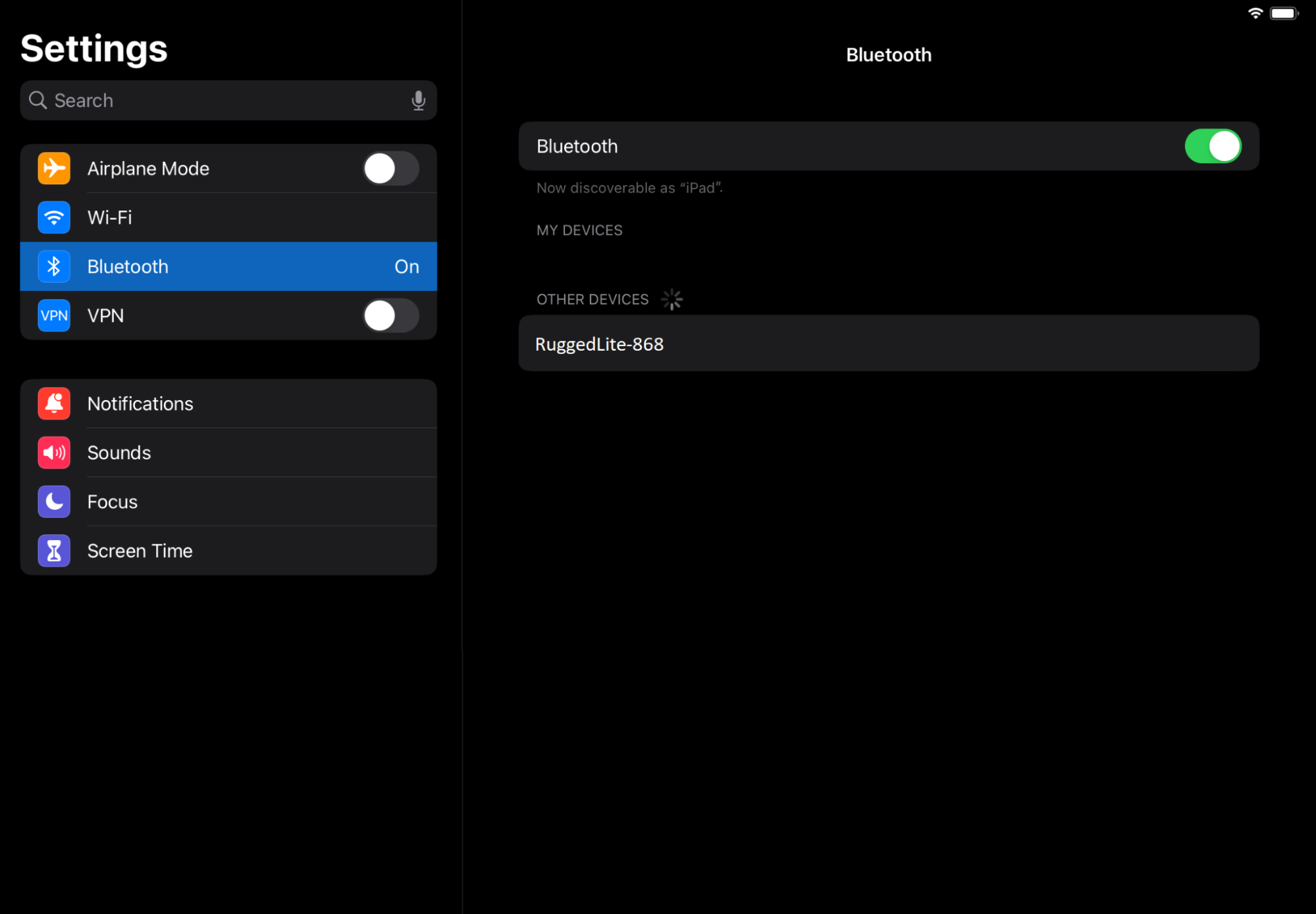
Pairing for the first time: Rugged Lite will automatically go into Bluetooth pairing mode the first time an iPad is inserted and placed into typing mode. Go to iPad Settings > Bluetooth and select Rugged Lite-XXX, then type the prompted digits on the keyboard and hit Enter.
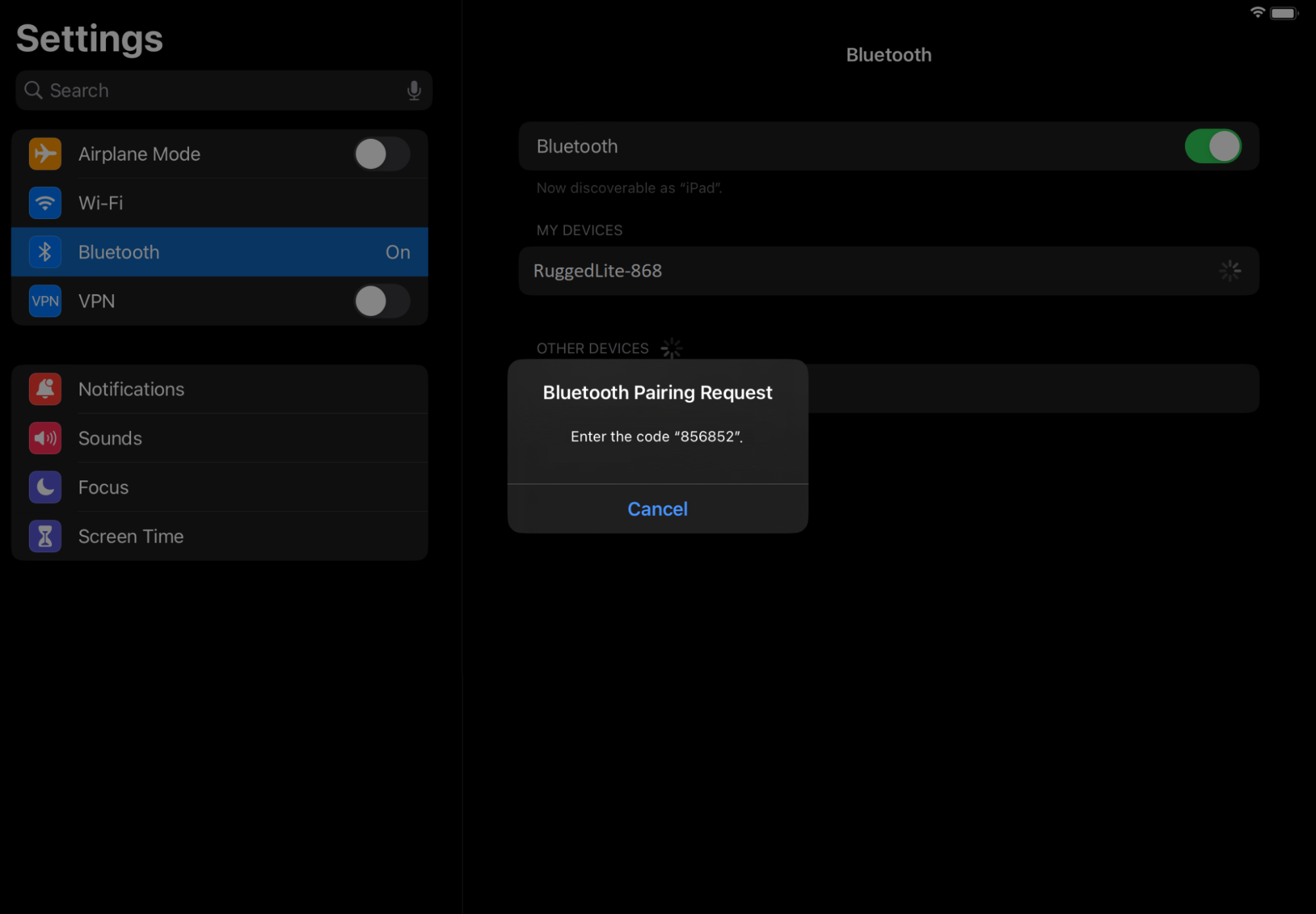
To re-initiate Bluetooth pairing, hold the keyboard Bluetooth button — located in the upper right corner of the keyboard — for two seconds. The LED should blink white quickly to indicate Bluetooth pairing is active.
重要提示:罗技不再对固件更新工具提供支持或维护。强烈推荐您将 Logi Options+ 用于受支持的罗技设备。在此过渡期间,我们将为您提供帮助。
重要提示:罗技不再对 Logitech Preference Manager 提供支持或维护。强烈推荐您将 Logi Options+ 用于受支持的罗技设备。在此过渡期间,我们将为您提供帮助。
重要提示:罗技不再对 Logitech Control Center 提供支持或维护。强烈推荐您将 Logi Options+ 用于受支持的罗技设备。在此过渡期间,我们将为您提供帮助。
重要提示:罗技不再对 Logitech Connection Utility 提供支持或维护。强烈推荐您将 Logi Options+ 用于受支持的罗技设备。在此过渡期间,我们将为您提供帮助。
重要提示:罗技不再对 Unifying 软件提供支持或维护。强烈推荐您将 Logi Options+ 用于受支持的罗技设备。在此过渡期间,我们将为您提供帮助。
重要提示:罗技不再支持或维护 SetPoint 软件。强烈推荐您将 Logi Options+ 用于受支持的罗技设备。在此过渡期间,我们将为您提供帮助。
常问问题
此部分没有可用的产品
没有此产品的相关下载内容
没有此版本的相关下载内容。
Compatible Product
