How do I update my Muse?
- Download the Logi Options+ Mobile App from the Apple Vision Pro App Store.
-
Power on your Muse and make sure it’s paired via Bluetooth.
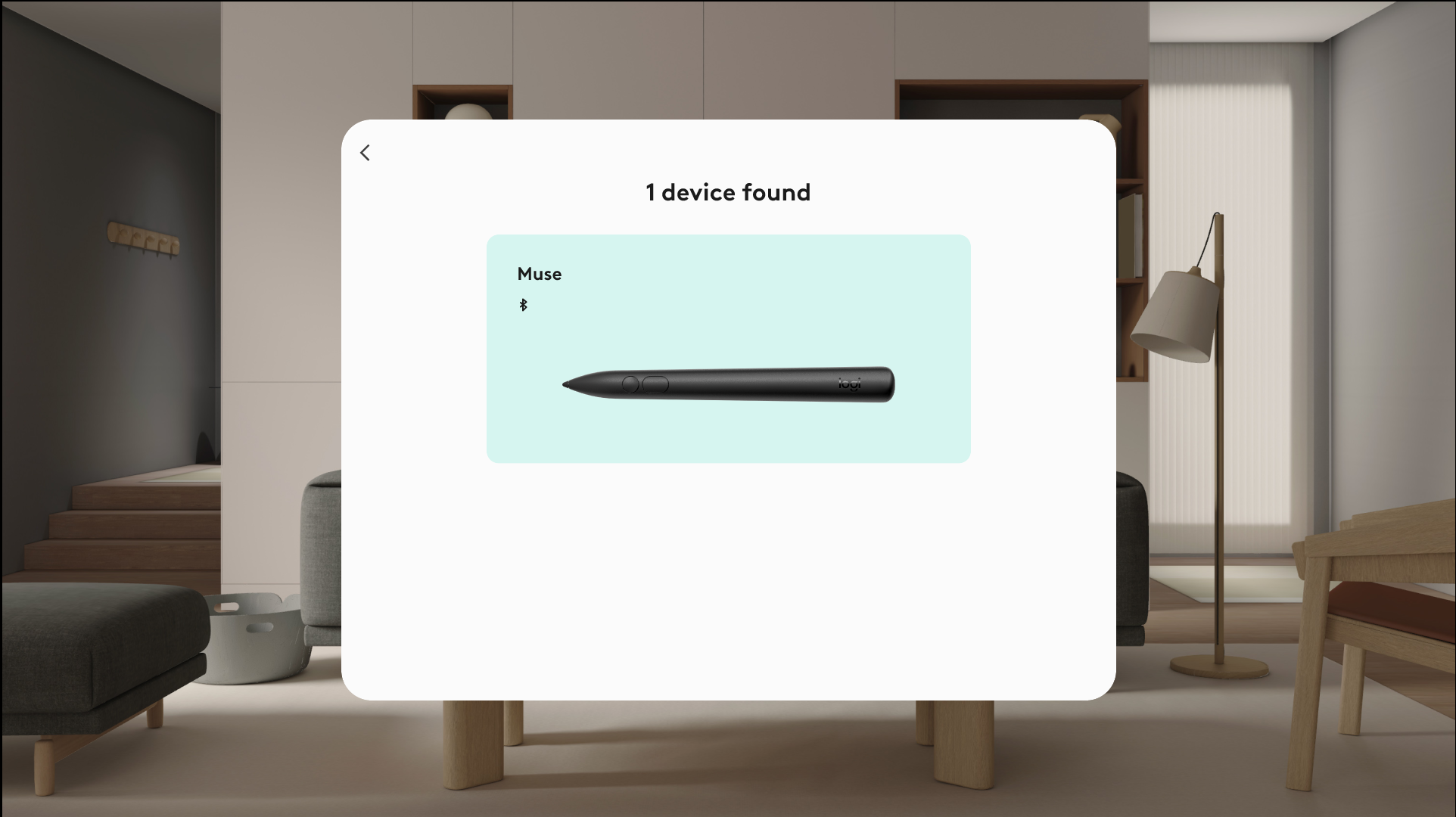
- Open the Options+ app, and it will automatically detect your Muse.
- Follow the on-screen instructions to install the latest firmware.
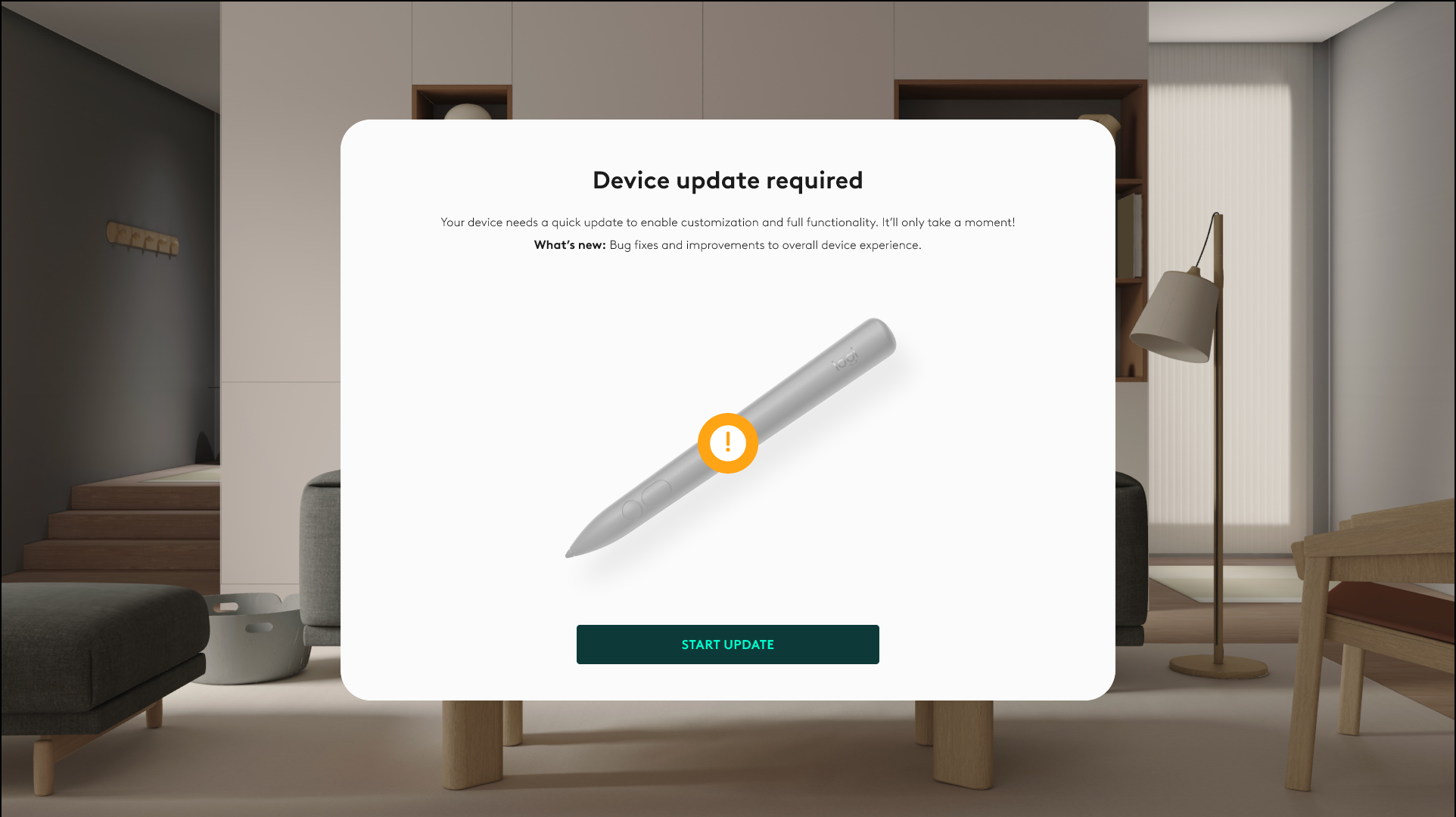
- Keep the device connected and within range during the update.
- Once the firmware is updated, wait for the pen to reboot and reconnect.
How long does the update take?
The firmware update typically takes less than a minute. Keep your Muse powered on and do not exit the app until the process completes.
What happens if the update is interrupted?
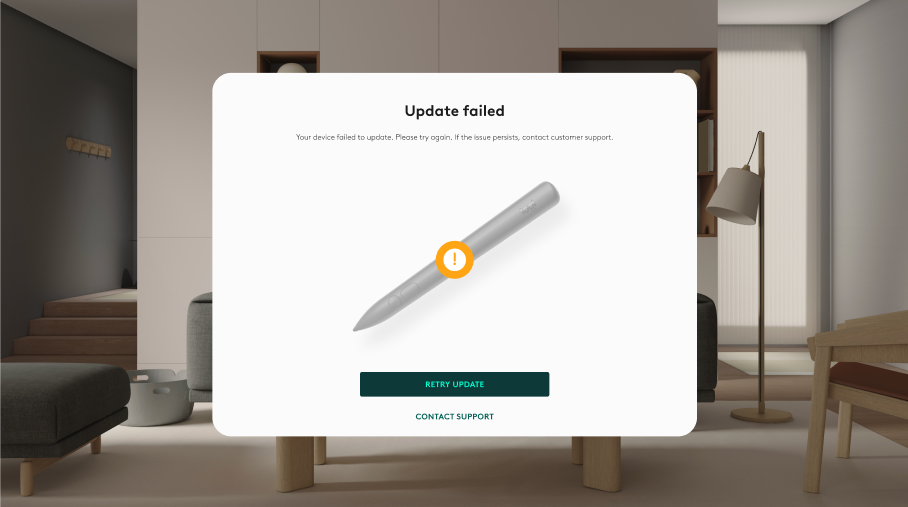
If the update fails or disconnects:
- Re-open the Logi Options+ Mobile App.
- Ensure Muse is on and connected.
- Simply restart the update process.
Do I need to update again in the future?
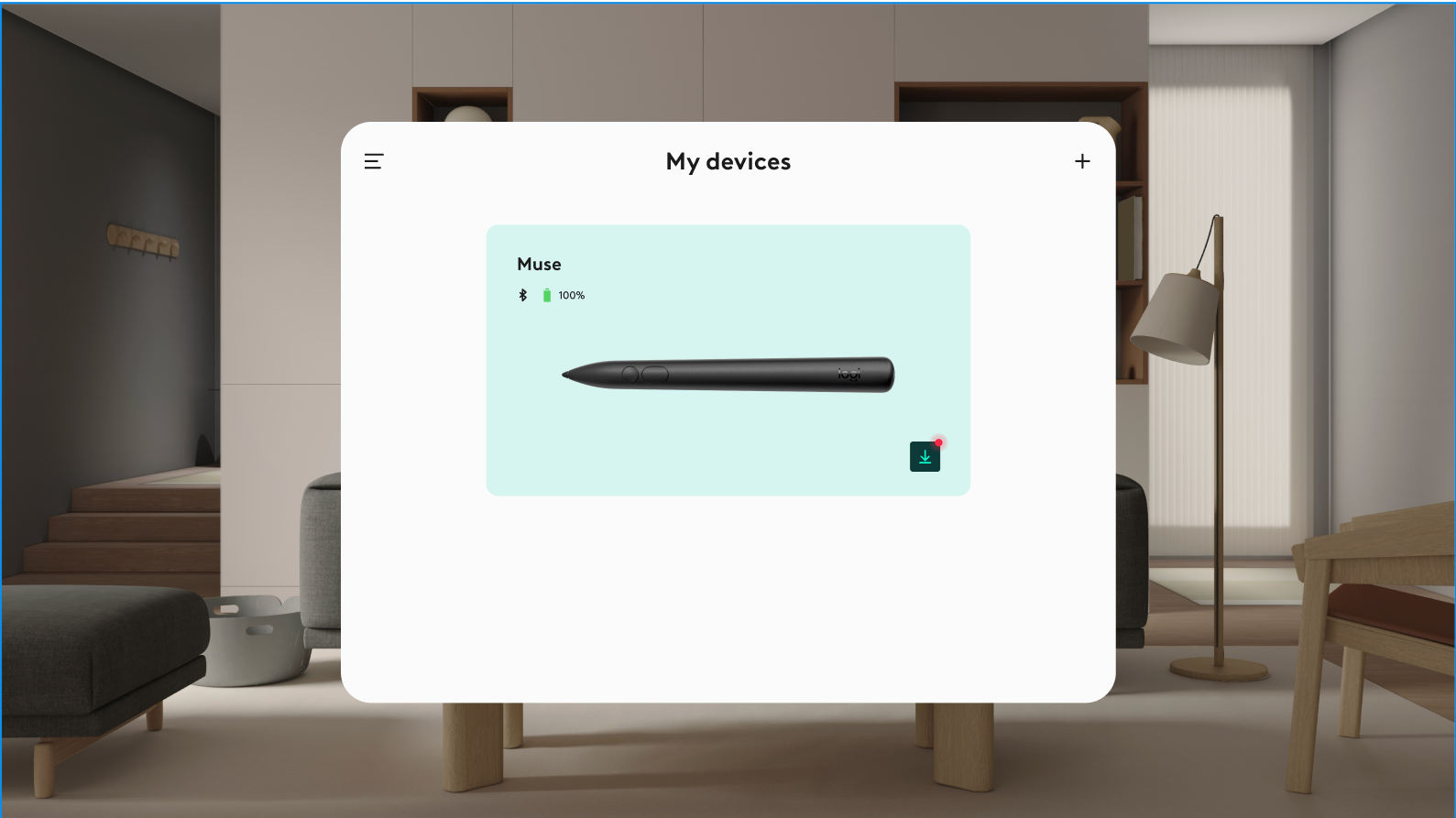
Occasionally, yes. Future updates may include performance improvements and new features. You’ll be notified in the Options+ Mobile App whenever an update is available.
重要提示:罗技不再对固件更新工具提供支持或维护。强烈推荐您将 Logi Options+ 用于受支持的罗技设备。在此过渡期间,我们将为您提供帮助。
重要提示:罗技不再对 Logitech Preference Manager 提供支持或维护。强烈推荐您将 Logi Options+ 用于受支持的罗技设备。在此过渡期间,我们将为您提供帮助。
重要提示:罗技不再对 Logitech Control Center 提供支持或维护。强烈推荐您将 Logi Options+ 用于受支持的罗技设备。在此过渡期间,我们将为您提供帮助。
重要提示:罗技不再对 Logitech Connection Utility 提供支持或维护。强烈推荐您将 Logi Options+ 用于受支持的罗技设备。在此过渡期间,我们将为您提供帮助。
重要提示:罗技不再对 Unifying 软件提供支持或维护。强烈推荐您将 Logi Options+ 用于受支持的罗技设备。在此过渡期间,我们将为您提供帮助。
重要提示:罗技不再支持或维护 SetPoint 软件。强烈推荐您将 Logi Options+ 用于受支持的罗技设备。在此过渡期间,我们将为您提供帮助。
常问问题
此部分没有可用的产品
没有此产品的相关下载内容
没有此版本的相关下载内容。
Compatible Product
