What is MX Master 4?
MX Master 4 is the latest addition to its renowned MX Master series and the most advanced productivity mouse yet. Designed for creative professionals, developers, and business users, the MX Master 4 is the first mouse to introduce haptic feedback and other enhancements on top of its many other advanced capabilities. It delivers a new standard in control, precision, and responsiveness, empowering users to work smarter and faster in a rapidly evolving digital landscape.
What is Haptic Feedback?
Haptic feedback is the tactile vibration felt when you use the device. With MX Master 4, you’ll feel a vibration when you perform specific actions.
What is the Haptic Sense Panel?
The Haptic Sense Panel on your mouse enables intuitive control using haptic feedback. It transforms digital interactions with immersive, tactile feedback tailored to your needs. It offers customizable feedback, letting you choose haptic intensity and actions that trigger haptic feedback, ensuring precision and control.
You can feel haptic feedback on specific actions, shortcuts, notifications, such as switching desktops, slider adjustments, and more. You can also customize haptic intensity with Logi Options+.
What does it mean for the MX Master 4 to have native support for haptics for Windows 11?
Enabling native haptics for Windows 11 means the haptic signals will be controlled and triggered by the operating system, allowing for a smoother integration. It also allows other third-party software companies to develop and integrate haptic signals to their software for Windows 11, bringing immersive precision to many more workflows.
Can I use this feature without any software?
MX users who prefer not to, or cannot install additional software, will now benefit from integrated haptic capabilities in Windows 11.
Are there other mice that can offer this feature?
The MX Master 4 is the world’s first productivity mouse to offer full integration with Windows 11’s native haptic feedback, delivering a high-precision workflow that you can instantly feel without the need to install any additional software.
Does this work on Bluetooth?
Yes. This feature works with Bluetooth as well as the Logi Bolt receiver. However, there are two pre-requisites:
- You need to be on the latest version of the Windows operating system (Windows 11 update from end of March 2026 onwards) that supports haptic and
- You must ensure that your MX Master 4 is running the latest firmware, 27.3.19, via Logi Options+.
What are the prerequisites to benefit from native Windows 11 haptics?
Make sure yourMX Master 4 is running the latest firmware via Logi Options+, or that you have a newer device when they begin shipping in Fall of 2026. Additionally, the system must be updated to the latest version of Windows 11.
What haptics event will the users feel coming from Windows OS?
You’ll be able to feel haptic feedback effects while performing certain actions, such as:
- Aligning objects in PowerPoint
- Window snapping, resizing
- File drag and drop (coming soon)
Source: Announcing Windows 11 Insider Preview Build 26300.8155 (Dev Channel)
What haptics event will the users feel coming from Options+?
Haptic feedback is enabled by default on your MX Master 4. The following supported actions on your mouse will generate haptic feedback:
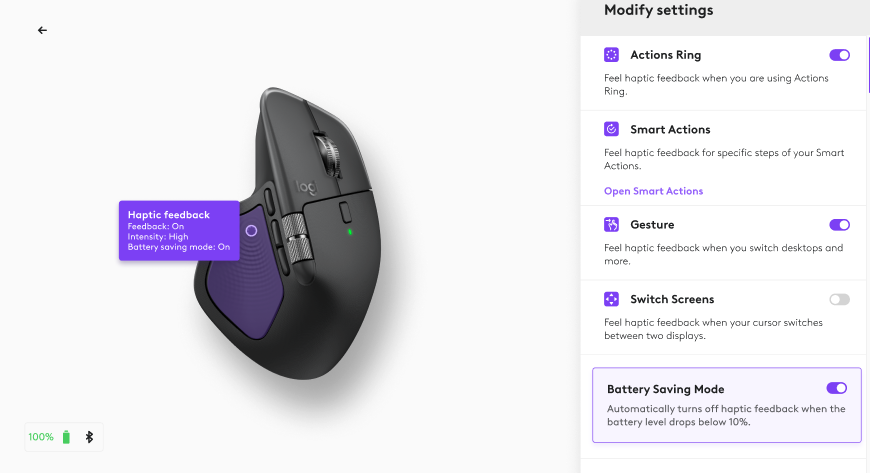
Actions Ring: You will feel haptic feedback when navigating between the action bubbles. You will also receive haptic feedback when you click on an action bubble which triggers the action.
Smart Actions: When you create a new smart action, you can configure receiving haptic feedback for specific steps of your Smart Actions. You will see a “New” tag alongside when adding a step to receive haptic feedback on your MX Master 4.
Gestures: You will feel haptic feedback when Haptic feedback actions are assigned to gestures. Gestures with haptics are limited to the following:
- Hold + Move Left
- Hold + Move Right
- Hold + Move Up
- Hold + Move Down
Gesture Click does NOT support any haptic feedback. Examples of actions include:
- Open ChatGPT
- Screen capture
- Switching desktops
- Emoji
- Navigating between apps (Windows)
- App expose (Mac)
- MIssion Control (Mac), Start Menu (Windows)
Switching Screens: This is disabled by default. When enabled, you will feel haptic feedback when you switch between displays.
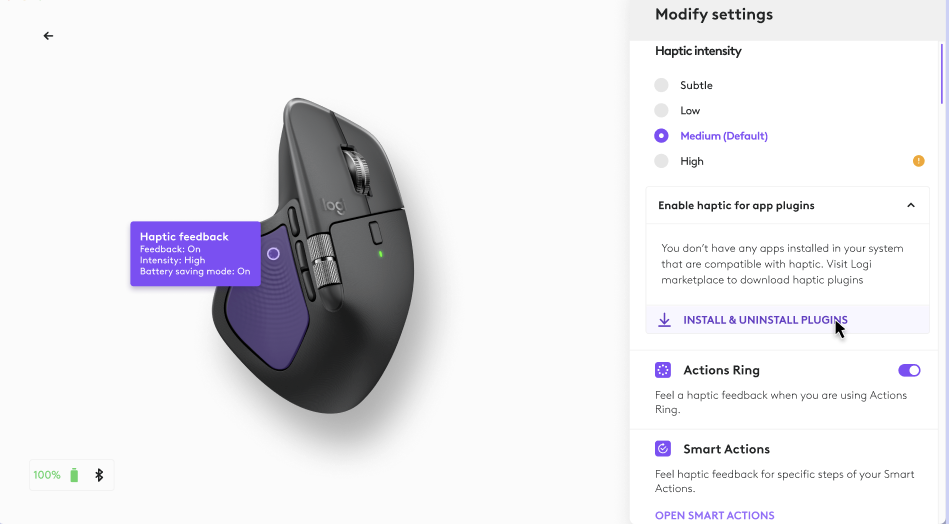
Haptic supported plugins:
You will be able to view all installed plugins that support haptic feedback in this panel. If you want to download any additional plugins, you can explore Logi Marketplace by clicking on INSTALL & UNINSTALL PLUGINS.
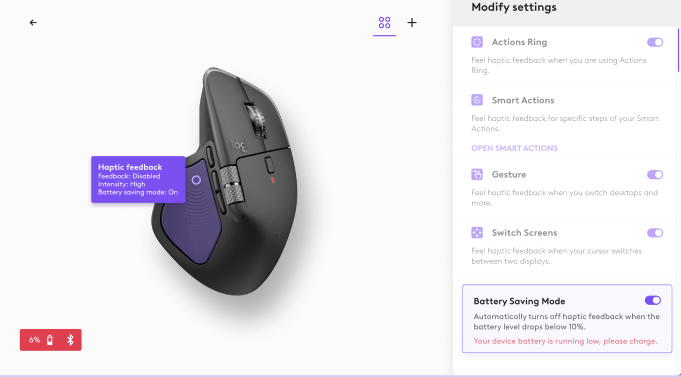
Battery Saving Mode: You will feel haptic feedback when the battery charge level is greater than 10%. When the battery level is 10% or lower, your mouse will automatically turn off haptic feedback to conserve battery.
Connectivity: You will feel haptic feedback when your mouse is searching for a host or when your mouse connects through Bluetooth to a computer for the first time.
Power On: You will feel haptic feedback when you first power on your mouse.
Can haptic feedback be turned off?
Yes. To turn off haptic feedback from your MX Master 4 altogether, you need to disable haptic feedback on Options+. You can navigate to Haptic feedback settings on Options+ and toggle Haptic feedback off.
Can haptics intensity be set to different levels?
Yes. For those haptics received from Windows, you can go to Windows Settings and configure the Signal intensity. For those haptics configured on Options+ you can configure the Haptic Intensity from Haptic feedback settings on Options+.
I am seeing settings about Windows Haptics in Options+, but I do not have haptics support in my Windows settings. Why is that?
You need to be on the latest version of the Windows operating system (Windows 11 update from end of March 2026 onwards) that supports haptics to receive haptic signals. Please ensure you are on the version of Windows that supports Haptic Signals.
I am working at a company that does not allow you to download Options+. How can I get haptics support from Windows?
If you have a personal computer at home, you can download the latest firmware on that computer with Options+. When you return to your work computer, you will have haptics from Windows, as long as that computer is on the latest version of Windows (Windows 11 update from end of March 2026 onwards).
MX Master 4 Firmware Release Notes
How do I get the latest firmware for my Mx Master 4?
Background DFU for MX Master 4
The Background Device Firmware Update (DFU) ensures your MX Master 4 installs the latest necessary firmware updates without interrupting your workflow.
MX Master 4 Firmware Release Notes
Can I update the firmware for my MX Master 4 for Business via Logi Tune?
No, a firmware update is not available in Logi Tune. To enjoy the benefits of native Windows 11 haptics, you will need to download the latest firmware with Options+.
重要提示:罗技不再对固件更新工具提供支持或维护。强烈推荐您将 Logi Options+ 用于受支持的罗技设备。在此过渡期间,我们将为您提供帮助。
重要提示:罗技不再对 Logitech Preference Manager 提供支持或维护。强烈推荐您将 Logi Options+ 用于受支持的罗技设备。在此过渡期间,我们将为您提供帮助。
重要提示:罗技不再对 Logitech Control Center 提供支持或维护。强烈推荐您将 Logi Options+ 用于受支持的罗技设备。在此过渡期间,我们将为您提供帮助。
重要提示:罗技不再对 Logitech Connection Utility 提供支持或维护。强烈推荐您将 Logi Options+ 用于受支持的罗技设备。在此过渡期间,我们将为您提供帮助。
重要提示:罗技不再对 Unifying 软件提供支持或维护。强烈推荐您将 Logi Options+ 用于受支持的罗技设备。在此过渡期间,我们将为您提供帮助。
重要提示:罗技不再支持或维护 SetPoint 软件。强烈推荐您将 Logi Options+ 用于受支持的罗技设备。在此过渡期间,我们将为您提供帮助。
常问问题
此部分没有可用的产品
没有此产品的相关下载内容
没有此版本的相关下载内容。
Compatible Product
