You can update your UE FITS software through the UE FITS app (iOS/Android).
Ensure you have the latest version of the UE FITS app before attempting to update. You can check that your app is up-to-date by visiting the App Store on iOS or the Google Play store on Android.”
To update go to the menu inside the UE FITS app, by selecting the hamburger icon in the top left, and select Support. Make sure you have the latest version of the UE FITS app before attempting to update. You can check that your app is up-to-date by visiting the App Store on iOS or the Google Play store on Android.
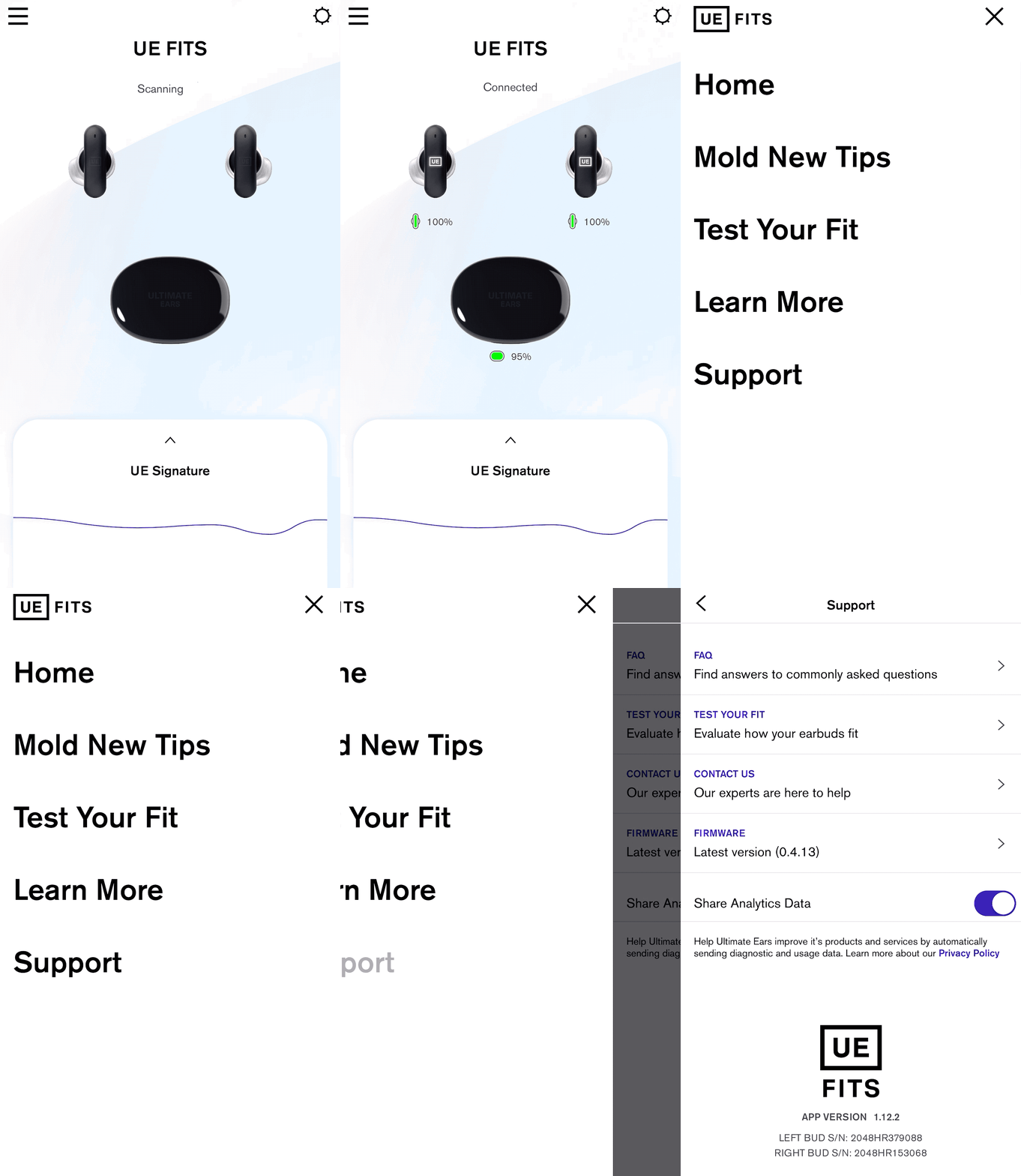
If there is an update available, under Firmware it will say Version (version number) Update Available. If you already have the latest firmware it will say “up to date.” If an update is available click on the arrow to begin the update process.
Once you click update earbuds, follow the instructions, leave the case lid open and the earbuds in the case and let it work its magic. Make sure to leave the app open.
NOTE: Closing the App or the case lid will interrupt the firmware update.
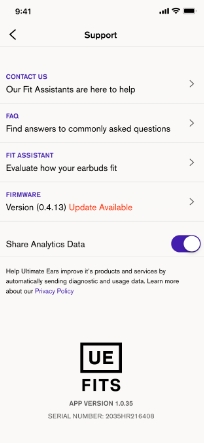
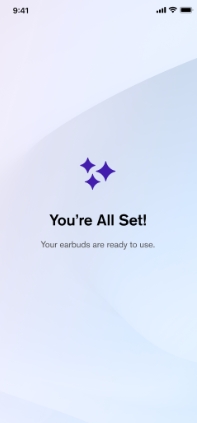
NOTE: If you accidentally close the app while the firmware is updating, simply open the app again and follow the instructions to start the upgrade process again. Once the update is successfully completed, you will be automatically taken back to the Settings screen. The Firmware description should say that you have the Latest Version.
重要須知:韌體更新工具不再由 Logitech 支援或維護。我們強烈建議為支援的 Logitech 裝置使用 Logi Options+。在此過渡期間,我們會隨時為您提供協助。
重要須知:Logitech Preference Manager 已不再由 Logitech 支援或維護。我們強烈建議為支援的 Logitech 裝置使用 Logi Options+。在此過渡期間,我們會隨時為您提供協助。
重要須知:Logitech Control Center 已不再由 Logitech 支援或維護。我們強烈建議為支援的 Logitech 裝置使用 Logi Options+。在此過渡期間,我們會隨時為您提供協助。
重要須知:Logitech Connection Utility 已不再由 Logitech 支援或維護。我們強烈建議為支援的 Logitech 裝置使用 Logi Options+。在此過渡期間,我們會隨時為您提供協助。
重要須知:Unifying Software 已不再由 Logitech 支援或維護。我們強烈建議為支援的 Logitech 裝置使用 Logi Options+。在此過渡期間,我們會隨時為您提供協助。
重要須知:羅技不再支援或維護 SetPoint 軟體。我們強烈建議為支援的 Logitech 裝置使用 Logi Options+。在此過渡期間,我們會隨時為您提供協助。
常見問答集
沒有適用於此區段的產品
沒有適用於此產品的下載項目
沒有適用於此版本的下載項目。
Compatible Product
