In certain cases the plugin’s target application does respond to different sets of keyboard shortcuts for the main actions that you can perform in the application. The ability to use those shortcuts can also sometimes depend on the keyboard layout that you’re using on your computer.
Some of our plugins do offer a different set of keyboard shortcuts that depend on the language of your system or the language of the target app.
To change this, you can select the appropriate plugin, then use the 3-dots menu to open Plugin settings, and look for the Keyboard Shortcut Mapping dropdown.
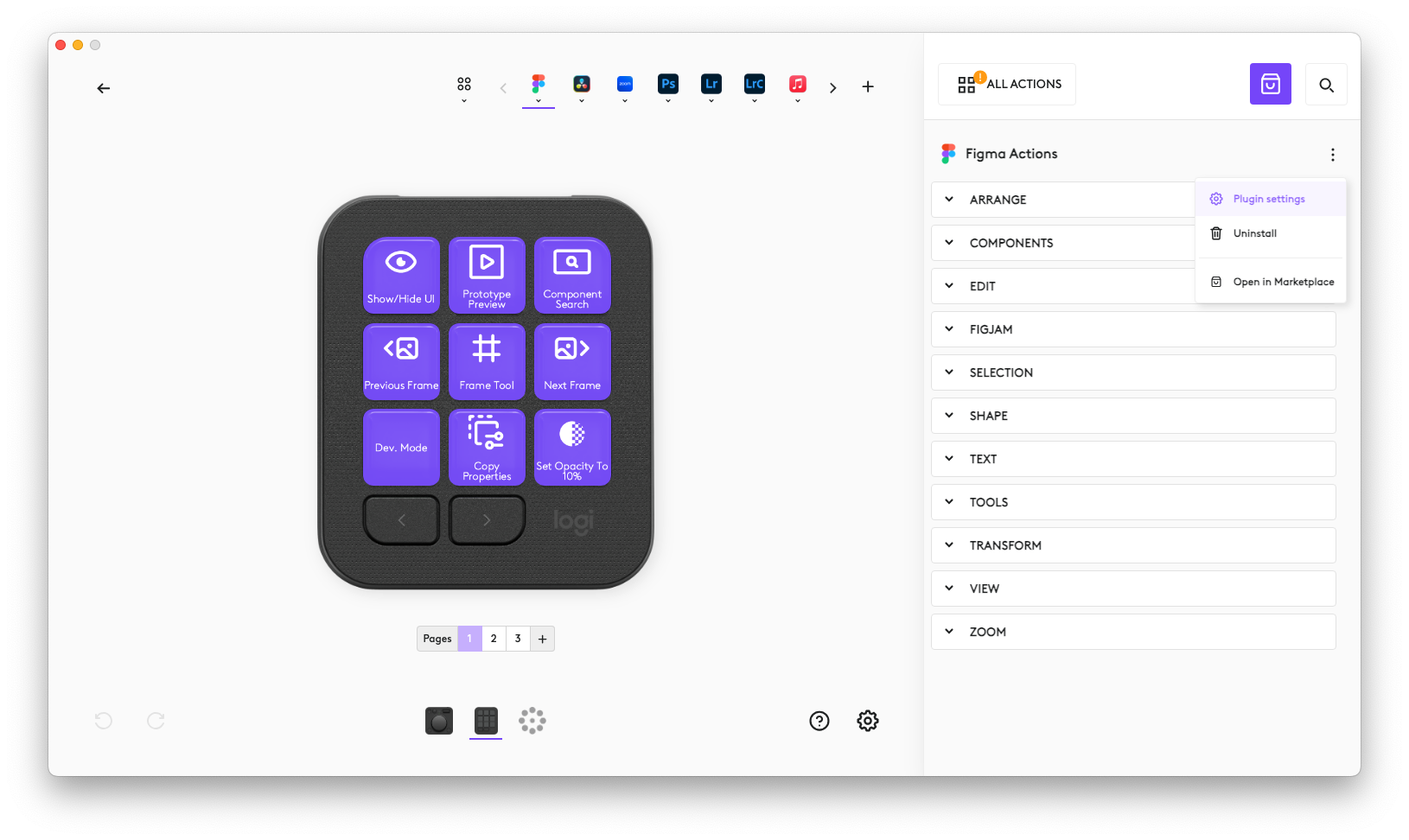
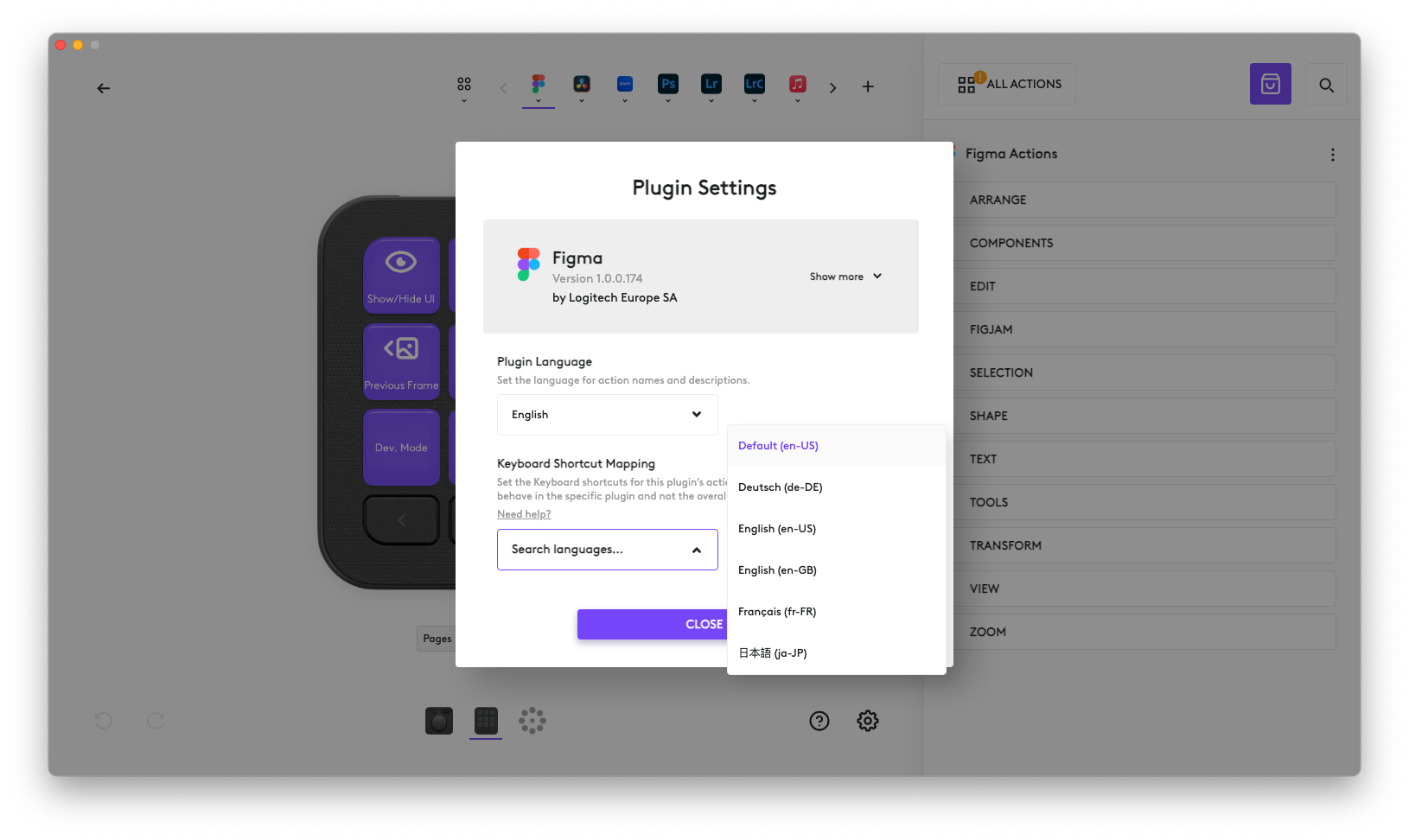
The default setting will be initially using the keyboard shortcut mapping that corresponds to the language of the Options+ language, but you can manually select another mapping from the dropdown.
Note: Not all plugins support many different mappings, but we are constantly updating the plugins to add new mappings over time.
重要須知:韌體更新工具不再由 Logitech 支援或維護。我們強烈建議為支援的 Logitech 裝置使用 Logi Options+。在此過渡期間,我們會隨時為您提供協助。
重要須知:Logitech Preference Manager 已不再由 Logitech 支援或維護。我們強烈建議為支援的 Logitech 裝置使用 Logi Options+。在此過渡期間,我們會隨時為您提供協助。
重要須知:Logitech Control Center 已不再由 Logitech 支援或維護。我們強烈建議為支援的 Logitech 裝置使用 Logi Options+。在此過渡期間,我們會隨時為您提供協助。
重要須知:Logitech Connection Utility 已不再由 Logitech 支援或維護。我們強烈建議為支援的 Logitech 裝置使用 Logi Options+。在此過渡期間,我們會隨時為您提供協助。
重要須知:Unifying Software 已不再由 Logitech 支援或維護。我們強烈建議為支援的 Logitech 裝置使用 Logi Options+。在此過渡期間,我們會隨時為您提供協助。
重要須知:羅技不再支援或維護 SetPoint 軟體。我們強烈建議為支援的 Logitech 裝置使用 Logi Options+。在此過渡期間,我們會隨時為您提供協助。
常見問答集
沒有適用於此區段的產品
沒有適用於此產品的下載項目
沒有適用於此版本的下載項目。
Compatible Product
