To pair your device to a second computer:
- Press and hold the Easy-SwitchTM button (F1-F3) that you will use for the second computer via wireless connectivity for three seconds. This will put your keyboard in pairing mode and the LED light will start blinking fast.
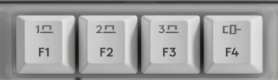
- Choose how you want to connect your keyboard to the second computer.
-
Via Bluetooth
Open the Bluetooth settings on your computer to complete the pairing. You may refer to Bluetooth - Pairing and Troubleshooting. -
Via Logi Bolt receiver
1. Plug the Logi Bolt receiver into the USB port of your computer. Open Logi Options+.
3. Click + ADD DEVICE and select Logi Bolt receiver.
4. Follow the on-screen instructions to pair.
-
Via Bluetooth
- You may also connect to your second computer via corded connectivity. You can trigger this automatically by plugging a cable to the Alto Keys and another side to your second computer.
- Once paired, a short press on the Easy-SwitchTM button will allow you to switch channels and F4 for the corded channel.
重要須知:韌體更新工具不再由 Logitech 支援或維護。我們強烈建議為支援的 Logitech 裝置使用 Logi Options+。在此過渡期間,我們會隨時為您提供協助。
重要須知:Logitech Preference Manager 已不再由 Logitech 支援或維護。我們強烈建議為支援的 Logitech 裝置使用 Logi Options+。在此過渡期間,我們會隨時為您提供協助。
重要須知:Logitech Control Center 已不再由 Logitech 支援或維護。我們強烈建議為支援的 Logitech 裝置使用 Logi Options+。在此過渡期間,我們會隨時為您提供協助。
重要須知:Logitech Connection Utility 已不再由 Logitech 支援或維護。我們強烈建議為支援的 Logitech 裝置使用 Logi Options+。在此過渡期間,我們會隨時為您提供協助。
重要須知:Unifying Software 已不再由 Logitech 支援或維護。我們強烈建議為支援的 Logitech 裝置使用 Logi Options+。在此過渡期間,我們會隨時為您提供協助。
重要須知:羅技不再支援或維護 SetPoint 軟體。我們強烈建議為支援的 Logitech 裝置使用 Logi Options+。在此過渡期間,我們會隨時為您提供協助。
常見問答集
沒有適用於此區段的產品
沒有適用於此產品的下載項目
沒有適用於此版本的下載項目。
顯示所有下載
Compatible Product
