Prepare your Logitech device for Bluetooth pairing Most Logitech products are equipped with a Connect button and will have a Bluetooth Status LED. Usually the pairing sequence is started by holding down the Connect button until the LED starts blinking rapidly. This indicates that the device is ready for pairing.
Select your operating system to learn how to connect your Logitech device:
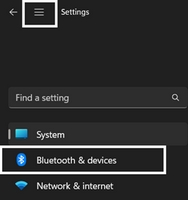
In the top left corner of the Settings window, click the Menu icon, and then select Bluetooth & devices.
Click Add device, select the Logitech device you want to connect to, and then click Pair.
Follow the onscreen instructions to finish pairing.
Windows 10
Select the Windows icon, then select Settings.
Select Devices, then Bluetooth in the left pane.
In the list of Bluetooth devices, select the Logitech device you want to connect to and select Pair.
Follow the onscreen instructions to finish pairing.
Windows 8
Go to Apps, then find and select Control Panel.
Select Devices and Printers.
Select Add a device.
In the list of Bluetooth devices, select the Logitech device you want to connect to and select Next.
Follow the onscreen instructions to finish pairing.
NOTE: It may take up to five minutes for Windows to download and enable all drivers, depending on your computer's specifications and your internet speed. If you have not been able to connect your device, repeat the pairing steps and wait a while before you test the connection.
macOS
Open System Settings and click Bluetooth.
Select the Logitech device you want to connect to from the Devices list and click Connect.
Follow the onscreen instructions to finish pairing.
Upon pairing, the LED light on your Logitech device stops blinking and glows steady for 5 seconds. The light then turns off to save energy.
Chrome OS
Click the status area in the lower right corner of your desktop.
Click Bluetooth enabled or Bluetooth disabled in the pop-up menu. NOTE: If you had to click on Bluetooth disabled, that means the Bluetooth connection on your Chrome device needs to first be enabled.
Select Manage devices... and click Add Bluetooth device.
Select the name of the Logitech device you want to connect to from the list of available devices and click Connect.
Follow the onscreen instructions to finish pairing.
Upon pairing, the LED light on your Logitech device stops blinking and glows steady for 5 seconds. The light then turns off to save energy.
Android
Go to Settings and Networks and select Bluetooth.
Select name of the Logitech device you want to connect from the list of available devices and click Pair.
Follow the onscreen instructions to finish pairing.
Upon pairing, the LED light on the Logitech device stops blinking and glows steady for 5 seconds. The light then turns off to save energy.
iOS / iPadOS
Open Settings and click Bluetooth.
Tap on the Logitech device you want to connect to from the Other Devices list.
The Logitech device will be listed under My Devices when paired successfully.
Upon pairing, the LED light on the Logitech device stops blinking and glows steady for 5 seconds. The light then turns off to save energy.
Bluetooth troubleshooting tips
Try these steps to fix issues with your Logitech Bluetooth device:
Vigtig meddelelse: Logitech Options har nået slutningen på support og vedligeholdes ikke længere. For den bedste oplevelse med dine understøttede Logitech-enheder anbefaler vi, at du skifter til Logi Options+, vores næste generation af tilpasningssoftware. Vores team er klar til at hjælpe dig i denne overgang.
Bemærk! Presentation-softwaren understøttes og vedligeholdes ikke længere af Logitech. Logitech Presentation-enheder understøttes nu af Logi Options+ for at levere en bedre brugeroplevelse. Vi anbefaler i høj grad, at du bruger Logi Options+ med dine fjernbetjeninger til præsentationer. Vi står klar til at hjælpe dig igennem denne overgang.
I takt med at hardware og operativsystemer fortsat udvikler sig, når ældre software på et tidspunkt til et punkt, hvor den ikke længere kan opdateres eller vedligeholdes i henhold til gældende standarder. Logitech Gaming Software (LGS) er siden 2019 blevet erstattet af G HUB til alle nye enheder, og al hardware, der er kompatibel med LGS, er nu uden for garanti.
Med virkning fra 31. oktober 2026 vil alle LGS-installationsfiler, downloadlinks og supportdokumentation blive permanent fjernet fra det officielle Logitech-websted.
Vi forstår, at visse brugere fortsat ønsker adgang til installationsprogrammet i fremtiden. Vi undersøger i øjeblikket alternative muligheder for at gøre dette muligt.
Bemærk! Firmwareopdateringsværktøjet understøttes/vedligeholdes ikke længere af Logitech. Vi anbefaler, at du bruger Logi Options+ til dine understøttede Logitech-enheder. Vi står klar til at hjælpe dig igennem denne overgang.
Bemærk! Logitech Preference Manager understøttes/vedligeholdes ikke længere af Logitech. Vi anbefaler, at du bruger Logi Options+ til dine understøttede Logitech-enheder. Vi står klar til at hjælpe dig igennem denne overgang.
Bemærk! Logitech Control Center understøttes/vedligeholdes ikke længere af Logitech. Vi anbefaler, at du bruger Logi Options+ til dine understøttede Logitech-enheder. Vi står klar til at hjælpe dig igennem denne overgang.
Bemærk! Logitech Connection Utility understøttes/vedligeholdes ikke længere af Logitech. Vi anbefaler, at du bruger Logi Options+ til dine understøttede Logitech-enheder. Vi står klar til at hjælpe dig igennem denne overgang.
Bemærk! Unifying-softwaren understøttes/vedligeholdes ikke længere af Logitech. Vi anbefaler, at du bruger Logi Options+ til dine understøttede Logitech-enheder. Vi står klar til at hjælpe dig igennem denne overgang.
Bemærk! SetPoint-softwaren understøttes eller vedligeholdes ikke længere af Logitech. Vi anbefaler, at du bruger Logi Options+ til dine understøttede Logitech-enheder. Vi står klar til at hjælpe dig igennem denne overgang.
Ofte stillede spørgsmål
Der er ingen tilgængelige produkter til dette afsnit
Der er ingen downloads til dette produkt
Onboard Memory Manager is out of date. Please update to the most recent release.
Select Operating System to show Downloads.
There are no Downloads for Operating Systems not listed.