Prepare your Logitech device for Bluetooth pairing Most Logitech products are equipped with a Connect button and will have a Bluetooth Status LED. Usually the pairing sequence is started by holding down the Connect button until the LED starts blinking rapidly. This indicates that the device is ready for pairing.
Select your operating system to learn how to connect your Logitech device:
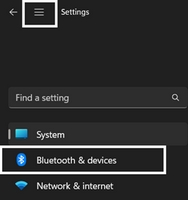
In the top left corner of the Settings window, click the Menu icon, and then select Bluetooth & devices.
Click Add device, select the Logitech device you want to connect to, and then click Pair.
Follow the onscreen instructions to finish pairing.
Windows 10
Select the Windows icon, then select Settings.
Select Devices, then Bluetooth in the left pane.
In the list of Bluetooth devices, select the Logitech device you want to connect to and select Pair.
Follow the onscreen instructions to finish pairing.
Windows 8
Go to Apps, then find and select Control Panel.
Select Devices and Printers.
Select Add a device.
In the list of Bluetooth devices, select the Logitech device you want to connect to and select Next.
Follow the onscreen instructions to finish pairing.
NOTE: It may take up to five minutes for Windows to download and enable all drivers, depending on your computer's specifications and your internet speed. If you have not been able to connect your device, repeat the pairing steps and wait a while before you test the connection.
macOS
Open System Settings and click Bluetooth.
Select the Logitech device you want to connect to from the Devices list and click Connect.
Follow the onscreen instructions to finish pairing.
Upon pairing, the LED light on your Logitech device stops blinking and glows steady for 5 seconds. The light then turns off to save energy.
Chrome OS
Click the status area in the lower right corner of your desktop.
Click Bluetooth enabled or Bluetooth disabled in the pop-up menu. NOTE: If you had to click on Bluetooth disabled, that means the Bluetooth connection on your Chrome device needs to first be enabled.
Select Manage devices... and click Add Bluetooth device.
Select the name of the Logitech device you want to connect to from the list of available devices and click Connect.
Follow the onscreen instructions to finish pairing.
Upon pairing, the LED light on your Logitech device stops blinking and glows steady for 5 seconds. The light then turns off to save energy.
Android
Go to Settings and Networks and select Bluetooth.
Select name of the Logitech device you want to connect from the list of available devices and click Pair.
Follow the onscreen instructions to finish pairing.
Upon pairing, the LED light on the Logitech device stops blinking and glows steady for 5 seconds. The light then turns off to save energy.
iOS / iPadOS
Open Settings and click Bluetooth.
Tap on the Logitech device you want to connect to from the Other Devices list.
The Logitech device will be listed under My Devices when paired successfully.
Upon pairing, the LED light on the Logitech device stops blinking and glows steady for 5 seconds. The light then turns off to save energy.
Bluetooth troubleshooting tips
Try these steps to fix issues with your Logitech Bluetooth device:
Wichtiger Hinweis: Die Unterstützung für Logitech Options wurde eingestellt und es wird nicht mehr gewartet. Für das beste Erlebnis mit Ihren unterstützten Logitech Geräten empfehlen wir Ihnen, zu Logi Options+ zu wechseln, unserer Anpassungssoftware der nächsten Generation. Unser Team unterstützt Sie gerne bei diesem Übergang.
Wichtiger Hinweis: Die Presentation Software wird von Logitech nicht mehr unterstützt oder gewartet. Für eine bessere Benutzererfahrung werden Logitech Presentation-Geräte jetzt von Logi Options+ unterstützt. Wir empfehlen dringend, Logi Options+ in Verbindung mit Ihren Präsentations-Fernsteuerungen zu verwenden. Während dieser Übergangsphase stehen wir Ihnen gern zur Seite.
Mit der Weiterentwicklung von Hardware und Betriebssystemen erreicht ältere Software schliesslich einen Punkt, an dem sie nicht mehr gemäss aktuellen Standards aktualisiert oder gewartet werden kann. Die Logitech Gaming Software (LGS) wurde seit 2019 für alle neuen Geräte durch G HUB abgelöst, und alle mit LGS kompatiblen Geräte befinden sich mittlerweile ausserhalb der Garantie.
Mit Wirkung zum 31. Oktober 2026 werden alle LGS-Installationsdateien, Download-Links und Support-Dokumentationen dauerhaft von der offiziellen Logitech-Website entfernt.
Wir verstehen, dass einige Benutzer möglicherweise auch in Zukunft Zugriff auf das Installationsprogramm wünschen. Wir prüfen derzeit alternative Möglichkeiten, um dies zu ermöglichen.
Wichtiger Hinweis: Das Firmware Update Tool wird von Logitech nicht mehr unterstützt oder gepflegt. Wir empfehlen dringend die Verwendung von Logi Options+ für Ihre unterstützten Logitech-Geräte. Während dieser Übergangsphase stehen wir Ihnen gern zur Seite.
Wichtiger Hinweis: Der Logitech Preference Manager wird nicht mehr von Logitech unterstützt oder gepflegt. Wir empfehlen dringend die Verwendung von Logi Options+ für Ihre unterstützten Logitech-Geräte. Während dieser Übergangsphase stehen wir Ihnen gern zur Seite.
Wichtiger Hinweis: Das Logitech Control Center wird nicht mehr von Logitech unterstützt oder gepflegt. Wir empfehlen dringend die Verwendung von Logi Options+ für Ihre unterstützten Logitech-Geräte. Während dieser Übergangsphase stehen wir Ihnen gern zur Seite.
Wichtiger Hinweis: Logitech Connection Utility wird von Logitech nicht mehr unterstützt oder gepflegt. Wir empfehlen dringend die Verwendung von Logi Options+ für Ihre unterstützten Logitech-Geräte. Während dieser Übergangsphase stehen wir Ihnen gern zur Seite.
Wichtiger Hinweis: Die Unifying-Software wird von Logitech nicht mehr unterstützt oder gepflegt. Wir empfehlen dringend die Verwendung von Logi Options+ für Ihre unterstützten Logitech-Geräte. Während dieser Übergangsphase stehen wir Ihnen gern zur Seite.
Wichtiger Hinweis: Die SetPoint-Software wird von Logitech nicht mehr unterstützt oder gewartet. Wir empfehlen dringend die Verwendung von Logi Options+ für Ihre unterstützten Logitech-Geräte. Während dieser Übergangsphase stehen wir Ihnen gern zur Seite.
Häufig gestellte Fragen – FAQs
Für diesen Abschnitt sind keine Produkte verfügbar
Für dieses Produkt sind keine Downloads vorhanden
Onboard Memory Manager is out of date. Please update to the most recent release.
Select Operating System to show Downloads.
There are no Downloads for Operating Systems not listed.