Quickly connect, troubleshoot, and optimize your Logitech Bluetooth devices.
Select a section below or describe your issue!
▶️ Connect your Logitech device via Bluetooth
Find and hold the Connect button until the Bluetooth LED blinks rapidly (ready to pair).
Choose your operating system:
🖥️ Windows
Windows 11
- Click the Windows icon, then Settings.
- Menu icon → Bluetooth & devices
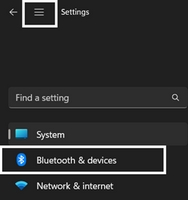
- Add device, select Logitech device, then Pair.
- Follow onscreen instructions to finish pairing.
Windows 10
- Windows icon → Settings.
- Devices → Bluetooth (left pane).
- Select Logitech device, Pair.
- Follow onscreen instructions.
Windows 8
- Apps → Control Panel.
- Devices and Printers.
- Add a device.
- Select Logitech device, Next.
- Follow onscreen instructions.
Note: Driver installation may take up to five minutes. If connection fails, repeat pairing steps and wait.
🍏 macOS
- Open System Settings → Bluetooth.
- Select Logitech device → Connect.
- Follow onscreen instructions.
- LED glows steady for 5 seconds upon pairing, then turns off.
💻 Chrome OS
- Status area → Bluetooth enabled (enable if disabled).
- Manage devices... → Add Bluetooth device.
- Select Logitech device → Connect.
- Follow onscreen instructions.
- LED glows steady for 5 seconds once paired.
📱 Android
- Settings and Networks → Bluetooth.
- Select Logitech device → Pair.
- Follow onscreen instructions.
- LED glows for 5 seconds when paired.
📱 iOS / iPadOS
- Settings → Bluetooth.
- Tap Logitech device under “Other Devices”.
- Once paired, device shows under “My Devices”.
- LED glows for 5 seconds when paired.
🛠️ Bluetooth Troubleshooting Tips
General Checklist:
- Bluetooth is ON on computer
- Device is powered ON and close to computer
- Move away from metal and wireless signal sources (microwaves, WiFi routers, etc.)
- Check and replace batteries if low
- OS is updated
Advanced Help:
💻 OS-Specific Advanced Troubleshooting
macOS:
- Update macOS, ensure Bluetooth ON
- Advanced options: Setup Assistant and Wake settings as needed
- Restart Bluetooth (Off/On)
- Remove and re-pair device
- Disable Handoff
- Reset Bluetooth preferences or plist for persistent problems
Windows:
- Update Windows and device drivers
- Bluetooth ON, restart via Settings
- Remove/re-pair device
- Run Bluetooth troubleshooter
- Device Manager > Adapter > Power Management: disable power-off option
Advanced Help:
⚡ Special Bluetooth Issues
If pressing Easy-Switch rapidly disconnects device, re-pair using Bluetooth preferences. Read more
Device doesn’t work after sleep/wake:
Windows: Device Manager > Bluetooth > Adapter > Properties > Power Management, uncheck “Allow computer to turn off device to save power.”
Mac: System Preferences > Bluetooth > Advanced, enable Setup Assistant and Wake options.
📚 Related Support Articles
Tip: Updating your OS and drivers keeps Bluetooth working at its best!
Important Notice: The Firmware Update Tool is no longer supported or maintained by Logitech. We highly recommend using Logi Options+ for your supported Logitech devices. We are here to assist you during this transition.
Important Notice: The Logitech Preference Manager is no longer supported or maintained by Logitech. We highly recommend using Logi Options+ for your supported Logitech devices. We are here to assist you during this transition.
Important Notice: The Logitech Control Center is no longer supported or maintained by Logitech. We highly recommend using Logi Options+ for your supported Logitech devices. We are here to assist you during this transition.
Important Notice: The Logitech Connection Utility is no longer supported or maintained by Logitech. We highly recommend using Logi Options+ for your supported Logitech devices. We are here to assist you during this transition.
Important Notice: The Unifying Software is no longer supported or maintained by Logitech. We highly recommend using Logi Options+ for your supported Logitech devices. We are here to assist you during this transition.
Important Notice: The SetPoint software is no longer supported or maintained by Logitech. We highly recommend using Logi Options+ for your supported Logitech devices. We are here to assist you during this transition.
Frequently Asked Questions
There are no products available for this section
There are no Downloads for this Product
There are no Downloads for this Version.
Compatible Product
