Prepare your Logitech device for Bluetooth pairing Most Logitech products are equipped with a Connect button and will have a Bluetooth Status LED. Usually the pairing sequence is started by holding down the Connect button until the LED starts blinking rapidly. This indicates that the device is ready for pairing.
Select your operating system to learn how to connect your Logitech device:
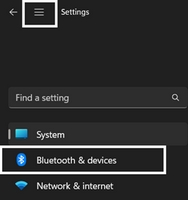
In the top left corner of the Settings window, click the Menu icon, and then select Bluetooth & devices.
Click Add device, select the Logitech device you want to connect to, and then click Pair.
Follow the onscreen instructions to finish pairing.
Windows 10
Select the Windows icon, then select Settings.
Select Devices, then Bluetooth in the left pane.
In the list of Bluetooth devices, select the Logitech device you want to connect to and select Pair.
Follow the onscreen instructions to finish pairing.
Windows 8
Go to Apps, then find and select Control Panel.
Select Devices and Printers.
Select Add a device.
In the list of Bluetooth devices, select the Logitech device you want to connect to and select Next.
Follow the onscreen instructions to finish pairing.
NOTE: It may take up to five minutes for Windows to download and enable all drivers, depending on your computer's specifications and your internet speed. If you have not been able to connect your device, repeat the pairing steps and wait a while before you test the connection.
macOS
Open System Settings and click Bluetooth.
Select the Logitech device you want to connect to from the Devices list and click Connect.
Follow the onscreen instructions to finish pairing.
Upon pairing, the LED light on your Logitech device stops blinking and glows steady for 5 seconds. The light then turns off to save energy.
Chrome OS
Click the status area in the lower right corner of your desktop.
Click Bluetooth enabled or Bluetooth disabled in the pop-up menu. NOTE: If you had to click on Bluetooth disabled, that means the Bluetooth connection on your Chrome device needs to first be enabled.
Select Manage devices... and click Add Bluetooth device.
Select the name of the Logitech device you want to connect to from the list of available devices and click Connect.
Follow the onscreen instructions to finish pairing.
Upon pairing, the LED light on your Logitech device stops blinking and glows steady for 5 seconds. The light then turns off to save energy.
Android
Go to Settings and Networks and select Bluetooth.
Select name of the Logitech device you want to connect from the list of available devices and click Pair.
Follow the onscreen instructions to finish pairing.
Upon pairing, the LED light on the Logitech device stops blinking and glows steady for 5 seconds. The light then turns off to save energy.
iOS / iPadOS
Open Settings and click Bluetooth.
Tap on the Logitech device you want to connect to from the Other Devices list.
The Logitech device will be listed under My Devices when paired successfully.
Upon pairing, the LED light on the Logitech device stops blinking and glows steady for 5 seconds. The light then turns off to save energy.
Bluetooth troubleshooting tips
Try these steps to fix issues with your Logitech Bluetooth device:
Aviso importante: Logitech Options ha llegado al fin de su asistencia y ya no recibe mantenimiento. Para disfrutar de la mejor experiencia con tus dispositivos Logitech compatibles, te recomendamos cambiar a Logi Options+, nuestro software de personalización de última generación. Nuestro equipo está aquí para ayudarte durante esta transición.
Aviso importante: Logitech ya no ofrece asistencia ni mantenimiento para el software Presentation. Los dispositivos Logitech Presentation ahora son compatibles con Logi Options+ para ofrecer una mejor experiencia. Recomendamos usar Logi Options+ con los mandos inalámbricos para presentaciones. Estamos aquí para ayudarle durante esta transición.
A medida que el hardware y los sistemas operativos continúan evolucionando, el software heredado llega a un punto en el que ya no puede actualizarse ni mantenerse conforme a los estándares actuales. Logitech Gaming Software (LGS) ha sido sustituido por G HUB para todos los dispositivos nuevos desde 2019, y todo el hardware compatible con LGS está ahora fuera de garantía.
A partir del 31 de octubre de 2026, todos los archivos de instalación, enlaces de descarga y documentación de soporte de LGS se eliminarán permanentemente del sitio web oficial de Logitech.
Entendemos que algunos usuarios aún deseen acceder al instalador en el futuro. Actualmente estamos explorando alternativas para que esto sea posible.
Aviso importante: Logitech ya no ofrece asistencia ni mantenimiento para la herramienta de actualización de firmware. Le recomendamos usar Logi Options+ para poner al día sus dispositivos Logitech compatibles. Estamos aquí para ayudarle durante esta transición.
Aviso importante: Logitech ya no ofrece asistencia ni mantenimiento para Logitech Preference Manager. Le recomendamos usar Logi Options+ para poner al día sus dispositivos Logitech compatibles. Estamos aquí para ayudarle durante esta transición.
Aviso importante: Logitech ya no ofrece asistencia ni mantenimiento para Logitech Control Center. Le recomendamos usar Logi Options+ para poner al día sus dispositivos Logitech compatibles. Estamos aquí para ayudarle durante esta transición.
Aviso importante: Logitech ya no ofrece asistencia ni mantenimiento para Logitech Connection Utility. Le recomendamos usar Logi Options+ para poner al día sus dispositivos Logitech compatibles. Estamos aquí para ayudarle durante esta transición.
Aviso importante: Logitech ya no ofrece asistencia ni mantenimiento para el software Unifying. Le recomendamos usar Logi Options+ para poner al día sus dispositivos Logitech compatibles. Estamos aquí para ayudarle durante esta transición.
Aviso importante: Logitech ya no ofrece asistencia ni mantenimiento para el software SetPoint. Le recomendamos usar Logi Options+ para poner al día sus dispositivos Logitech compatibles. Estamos aquí para ayudarle durante esta transición.
Preguntas frecuentes
No hay productos disponibles para esta sección
No hay descargas para este producto
Onboard Memory Manager is out of date. Please update to the most recent release.
Select Operating System to show Downloads.
There are no Downloads for Operating Systems not listed.