Prepare your Logitech device for Bluetooth pairing Most Logitech products are equipped with a Connect button and will have a Bluetooth Status LED. Usually the pairing sequence is started by holding down the Connect button until the LED starts blinking rapidly. This indicates that the device is ready for pairing.
Select your operating system to learn how to connect your Logitech device:
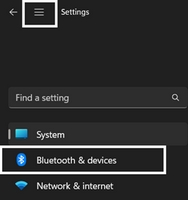
In the top left corner of the Settings window, click the Menu icon, and then select Bluetooth & devices.
Click Add device, select the Logitech device you want to connect to, and then click Pair.
Follow the onscreen instructions to finish pairing.
Windows 10
Select the Windows icon, then select Settings.
Select Devices, then Bluetooth in the left pane.
In the list of Bluetooth devices, select the Logitech device you want to connect to and select Pair.
Follow the onscreen instructions to finish pairing.
Windows 8
Go to Apps, then find and select Control Panel.
Select Devices and Printers.
Select Add a device.
In the list of Bluetooth devices, select the Logitech device you want to connect to and select Next.
Follow the onscreen instructions to finish pairing.
NOTE: It may take up to five minutes for Windows to download and enable all drivers, depending on your computer's specifications and your internet speed. If you have not been able to connect your device, repeat the pairing steps and wait a while before you test the connection.
macOS
Open System Settings and click Bluetooth.
Select the Logitech device you want to connect to from the Devices list and click Connect.
Follow the onscreen instructions to finish pairing.
Upon pairing, the LED light on your Logitech device stops blinking and glows steady for 5 seconds. The light then turns off to save energy.
Chrome OS
Click the status area in the lower right corner of your desktop.
Click Bluetooth enabled or Bluetooth disabled in the pop-up menu. NOTE: If you had to click on Bluetooth disabled, that means the Bluetooth connection on your Chrome device needs to first be enabled.
Select Manage devices... and click Add Bluetooth device.
Select the name of the Logitech device you want to connect to from the list of available devices and click Connect.
Follow the onscreen instructions to finish pairing.
Upon pairing, the LED light on your Logitech device stops blinking and glows steady for 5 seconds. The light then turns off to save energy.
Android
Go to Settings and Networks and select Bluetooth.
Select name of the Logitech device you want to connect from the list of available devices and click Pair.
Follow the onscreen instructions to finish pairing.
Upon pairing, the LED light on the Logitech device stops blinking and glows steady for 5 seconds. The light then turns off to save energy.
iOS / iPadOS
Open Settings and click Bluetooth.
Tap on the Logitech device you want to connect to from the Other Devices list.
The Logitech device will be listed under My Devices when paired successfully.
Upon pairing, the LED light on the Logitech device stops blinking and glows steady for 5 seconds. The light then turns off to save energy.
Bluetooth troubleshooting tips
Try these steps to fix issues with your Logitech Bluetooth device:
Remarque importante : Logitech Options est arrivé en fin de support et n'est plus maintenu. Pour bénéficier de la meilleure expérience avec vos dispositifs Logitech pris en charge, nous vous recommandons de passer à Logi Options+, notre logiciel de personnalisation de nouvelle génération. Notre équipe est là pour vous aider durant cette transition.
Remarque importante : Le logiciel Presentation n'est plus pris en charge ni maintenu par Logitech. Les dispositifs Logitech Presentation sont désormais pris en charge par Logi Options+ pour offrir une meilleure expérience. Nous vous recommandons vivement d'utiliser Logi Options+ avec vos télécommandes de présentation. Nous sommes là pour vous aider pendant cette transition.
À mesure que le matériel et les systèmes d'exploitation évoluent, les anciens logiciels finissent par atteindre un stade où ils ne peuvent plus être mis à jour ou maintenus selon les normes actuelles. L'Assistant pour jeux vidéo de Logitech (LGS) a été remplacé par G HUB pour tous les nouveaux appareils depuis 2019, et tout le matériel compatible avec LGS est désormais hors garantie.
À compter du 31 octobre 2026, tous les fichiers d'installation, liens de téléchargement et documentations d'assistance de LGS seront définitivement supprimés du site Web officiel de Logitech.
Nous comprenons que certains utilisateurs souhaitent encore avoir accès au programme d'installation à l'avenir. Nous étudions actuellement d'autres solutions pour rendre cela possible.
Remarque importante : L’outil de mise à jour du micrologiciel n’est plus pris en charge ni maintenu par Logitech. Nous recommandons vivement d’utiliser Logi Options+ pour les dispositifs Logitech pris en charge. Nous sommes là pour vous aider pendant cette transition.
Remarque importante : Logitech Preference Manager n’est plus pris en charge ni maintenu par Logitech. Nous recommandons vivement d’utiliser Logi Options+ pour les dispositifs Logitech pris en charge. Nous sommes là pour vous aider pendant cette transition.
Remarque importante : Logitech Control Center n’est plus pris en charge ni maintenu par Logitech. Nous recommandons vivement d’utiliser Logi Options+ pour les dispositifs Logitech pris en charge. Nous sommes là pour vous aider pendant cette transition.
Remarque importante : L’utilitaire de connexion Logitech n’est plus pris en charge ni maintenu par Logitech. Nous recommandons vivement d’utiliser Logi Options+ pour les dispositifs Logitech pris en charge. Nous sommes là pour vous aider pendant cette transition.
Remarque importante : Le logiciel Unifying n’est plus pris en charge ni maintenu par Logitech. Nous recommandons vivement d’utiliser Logi Options+ pour les dispositifs Logitech pris en charge. Nous sommes là pour vous aider pendant cette transition.
Remarque importante : Le logiciel SetPoint n’est plus pris en charge ou maintenu par Logitech. Nous recommandons vivement d’utiliser Logi Options+ pour les dispositifs Logitech pris en charge. Nous sommes là pour vous aider pendant cette transition.
Questions fréquentes
Aucun produit n'est disponible pour cette section
Aucun téléchargement n'est associé à ce produit
Onboard Memory Manager is out of date. Please update to the most recent release.
Select Operating System to show Downloads.
There are no Downloads for Operating Systems not listed.
There are no Downloads for this Version.
Aucun téléchargement n’est associé à cette version.