Prepare your Logitech device for Bluetooth pairing Most Logitech products are equipped with a Connect button and will have a Bluetooth Status LED. Usually the pairing sequence is started by holding down the Connect button until the LED starts blinking rapidly. This indicates that the device is ready for pairing.
Select your operating system to learn how to connect your Logitech device:
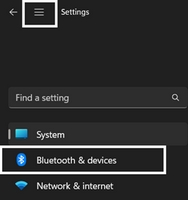
In the top left corner of the Settings window, click the Menu icon, and then select Bluetooth & devices.
Click Add device, select the Logitech device you want to connect to, and then click Pair.
Follow the onscreen instructions to finish pairing.
Windows 10
Select the Windows icon, then select Settings.
Select Devices, then Bluetooth in the left pane.
In the list of Bluetooth devices, select the Logitech device you want to connect to and select Pair.
Follow the onscreen instructions to finish pairing.
Windows 8
Go to Apps, then find and select Control Panel.
Select Devices and Printers.
Select Add a device.
In the list of Bluetooth devices, select the Logitech device you want to connect to and select Next.
Follow the onscreen instructions to finish pairing.
NOTE: It may take up to five minutes for Windows to download and enable all drivers, depending on your computer's specifications and your internet speed. If you have not been able to connect your device, repeat the pairing steps and wait a while before you test the connection.
macOS
Open System Settings and click Bluetooth.
Select the Logitech device you want to connect to from the Devices list and click Connect.
Follow the onscreen instructions to finish pairing.
Upon pairing, the LED light on your Logitech device stops blinking and glows steady for 5 seconds. The light then turns off to save energy.
Chrome OS
Click the status area in the lower right corner of your desktop.
Click Bluetooth enabled or Bluetooth disabled in the pop-up menu. NOTE: If you had to click on Bluetooth disabled, that means the Bluetooth connection on your Chrome device needs to first be enabled.
Select Manage devices... and click Add Bluetooth device.
Select the name of the Logitech device you want to connect to from the list of available devices and click Connect.
Follow the onscreen instructions to finish pairing.
Upon pairing, the LED light on your Logitech device stops blinking and glows steady for 5 seconds. The light then turns off to save energy.
Android
Go to Settings and Networks and select Bluetooth.
Select name of the Logitech device you want to connect from the list of available devices and click Pair.
Follow the onscreen instructions to finish pairing.
Upon pairing, the LED light on the Logitech device stops blinking and glows steady for 5 seconds. The light then turns off to save energy.
iOS / iPadOS
Open Settings and click Bluetooth.
Tap on the Logitech device you want to connect to from the Other Devices list.
The Logitech device will be listed under My Devices when paired successfully.
Upon pairing, the LED light on the Logitech device stops blinking and glows steady for 5 seconds. The light then turns off to save energy.
Bluetooth troubleshooting tips
Try these steps to fix issues with your Logitech Bluetooth device:
Fontos figyelmeztetés: A Logitech Options szoftver támogatása megszűnt, és a karbantartását leállítottuk. A támogatott Logitech eszközökkel kapcsolatos legjobb élmény érdekében javasoljuk, hogy váltson a Logi Options+ nevű következő generációs testreszabó szoftverünkre. Csapatunk készséggel áll rendelkezésére az átállás során.
Fontos figyelmeztetés: A Logitech már nem támogatja a Presentation szoftvert, és frissítéseket sem ad ki hozzá. A Logitech bemutatóeszközöket a jobb felhasználói élmény érdekében mostantól a Logi Options+ támogatja. Bemutató-távirányítóihoz javasoljuk a Logi Options+ használatát. Szívesen segítünk Önnek az átmenet során.
A hardver és az operációs rendszerek folyamatos fejlődésével a korábbi szoftverek végül elérnek egy olyan pontot, ahol már nem frissíthetők vagy tarthatók karban a jelenlegi szabványoknak megfelelően. A Logitech Gaming Software (LGS) szoftvert 2019 óta minden új eszköz esetében a G HUB váltotta fel, és az LGS-sel kompatibilis összes hardver garanciaideje lejárt.
2026. október 31-i hatállyal az összes LGS telepítőfájl, letöltési hivatkozás és támogatási dokumentáció véglegesen eltávolításra kerül a Logitech hivatalos webhelyéről.
Megértjük, hogy néhány felhasználó a jövőben is szeretne hozzáférni a telepítőhöz. Jelenleg alternatív megoldásokat vizsgálunk ennek lehetővé tételére.
Fontos figyelmeztetés: A Logitech már nem támogatja a Firmware Update Tool alkalmazást, és frissítéseket sem ad ki hozzá. Erősen javasoljuk a Logi Options+ használatát atámogatott Logitech-eszközeihez Szívesen segítünk Önnek az átmenet során.
Fontos figyelmeztetés: A Logitech már nem támogatja a Preference Manager alkalmazást, és frissítéseket sem ad ki hozzá. Erősen javasoljuk a Logi Options+ használatát atámogatott Logitech-eszközeihez Szívesen segítünk Önnek az átmenet során.
Fontos figyelmeztetés: A Logitech már nem támogatja a Control Center alkalmazást, és frissítéseket sem ad ki hozzá. Erősen javasoljuk a Logi Options+ használatát atámogatott Logitech-eszközeihez Szívesen segítünk Önnek az átmenet során.
Fontos figyelmeztetés: A Logitech már nem támogatja a Connection Utility alkalmazást, és frissítéseket sem ad ki hozzá. Erősen javasoljuk a Logi Options+ használatát atámogatott Logitech-eszközeihez Szívesen segítünk Önnek az átmenet során.
Fontos figyelmeztetés: A Logitech már nem támogatja a Unifying szoftvert, és frissítéseket sem ad ki hozzá. Erősen javasoljuk a Logi Options+ használatát atámogatott Logitech-eszközeihez Szívesen segítünk Önnek az átmenet során.
Fontos figyelmeztetés: A Logitech már nem támogatja és nem tartja karban a SetPoint szoftvert. Erősen javasoljuk a Logi Options+ használatát atámogatott Logitech-eszközeihez Szívesen segítünk Önnek az átmenet során.
Gyakori kérdések
Ehhez a szakaszhoz nincsenek elérhető termékek
Nincs letöltés ehhez a termékhez
Onboard Memory Manager is out of date. Please update to the most recent release.
Select Operating System to show Downloads.
There are no Downloads for Operating Systems not listed.