Prepare your Logitech device for Bluetooth pairing Most Logitech products are equipped with a Connect button and will have a Bluetooth Status LED. Usually the pairing sequence is started by holding down the Connect button until the LED starts blinking rapidly. This indicates that the device is ready for pairing.
Select your operating system to learn how to connect your Logitech device:
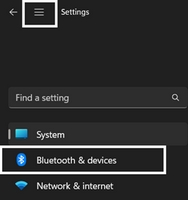
In the top left corner of the Settings window, click the Menu icon, and then select Bluetooth & devices.
Click Add device, select the Logitech device you want to connect to, and then click Pair.
Follow the onscreen instructions to finish pairing.
Windows 10
Select the Windows icon, then select Settings.
Select Devices, then Bluetooth in the left pane.
In the list of Bluetooth devices, select the Logitech device you want to connect to and select Pair.
Follow the onscreen instructions to finish pairing.
Windows 8
Go to Apps, then find and select Control Panel.
Select Devices and Printers.
Select Add a device.
In the list of Bluetooth devices, select the Logitech device you want to connect to and select Next.
Follow the onscreen instructions to finish pairing.
NOTE: It may take up to five minutes for Windows to download and enable all drivers, depending on your computer's specifications and your internet speed. If you have not been able to connect your device, repeat the pairing steps and wait a while before you test the connection.
macOS
Open System Settings and click Bluetooth.
Select the Logitech device you want to connect to from the Devices list and click Connect.
Follow the onscreen instructions to finish pairing.
Upon pairing, the LED light on your Logitech device stops blinking and glows steady for 5 seconds. The light then turns off to save energy.
Chrome OS
Click the status area in the lower right corner of your desktop.
Click Bluetooth enabled or Bluetooth disabled in the pop-up menu. NOTE: If you had to click on Bluetooth disabled, that means the Bluetooth connection on your Chrome device needs to first be enabled.
Select Manage devices... and click Add Bluetooth device.
Select the name of the Logitech device you want to connect to from the list of available devices and click Connect.
Follow the onscreen instructions to finish pairing.
Upon pairing, the LED light on your Logitech device stops blinking and glows steady for 5 seconds. The light then turns off to save energy.
Android
Go to Settings and Networks and select Bluetooth.
Select name of the Logitech device you want to connect from the list of available devices and click Pair.
Follow the onscreen instructions to finish pairing.
Upon pairing, the LED light on the Logitech device stops blinking and glows steady for 5 seconds. The light then turns off to save energy.
iOS / iPadOS
Open Settings and click Bluetooth.
Tap on the Logitech device you want to connect to from the Other Devices list.
The Logitech device will be listed under My Devices when paired successfully.
Upon pairing, the LED light on the Logitech device stops blinking and glows steady for 5 seconds. The light then turns off to save energy.
Bluetooth troubleshooting tips
Try these steps to fix issues with your Logitech Bluetooth device:
Pemberitahuan Penting: Dukungan untuk Logitech Options telah berakhir dan tidak lagi dikelola. Untuk pengalaman terbaik dengan perangkat Logitech yang didukung, kami sarankan beralih ke Logi Options+, perangkat lunak penyesuaian generasi berikutnya. Tim kami siap membantu Anda selama masa transisi ini.
Pemberitahuan Penting: Perangkat lunak Presentation tidak lagi didukung atau dikelola oleh Logitech. Perangkat Logitech Presentation kini didukung oleh Logi Options+ untuk memberikan pengalaman yang lebih baik. Kami sangat merekomendasikan penggunaan Logi Options+ dengan remote presentasi Anda. Kami siap membantu Anda selama masa transisi ini.
Seiring dengan terus berkembangnya perangkat keras dan sistem operasi, perangkat lunak lama pada akhirnya mencapai titik di mana perangkat lunak tersebut tidak lagi dapat diperbarui atau dipelihara sesuai standar saat ini. Logitech Gaming Software (LGS) telah digantikan oleh G HUB untuk semua perangkat baru sejak 2019, dan semua perangkat keras yang kompatibel dengan LGS kini telah habis masa garansinya.
Mulai 31 Oktober 2026, semua file penginstalan, tautan unduhan, dan dokumentasi dukungan LGS akan dihapus secara permanen dari situs web resmi Logitech.
Kami memahami bahwa beberapa pengguna mungkin masih memerlukan akses ke penginstal di masa mendatang. Saat ini kami sedang mencari sumber daya alternatif untuk memungkinkan hal tersebut.
Pemberitahuan Penting: Alat Pembaruan Firmware tidak lagi didukung atau dikelola oleh Logitech. Kami sangat merekomendasikan penggunaan Logi Options+ untuk perangkat Logitech yang didukung. Kami siap membantu Anda selama masa transisi ini.
Pemberitahuan Penting: Manajer Preferensi Logitech tidak lagi didukung atau dikelola oleh Logitech. Kami sangat merekomendasikan penggunaan Logi Options+ untuk perangkat Logitech yang didukung. Kami siap membantu Anda selama masa transisi ini.
Pemberitahuan Penting: Logitech Control Center tidak lagi didukung atau dikelola oleh Logitech. Kami sangat merekomendasikan penggunaan Logi Options+ untuk perangkat Logitech yang didukung. Kami siap membantu Anda selama masa transisi ini.
Pemberitahuan Penting: Utilitas Koneksi Logitech tidak lagi didukung atau dikelola oleh Logitech. Kami sangat merekomendasikan penggunaan Logi Options+ untuk perangkat Logitech yang didukung. Kami siap membantu Anda selama masa transisi ini.
Pemberitahuan Penting: Perangkat Lunak Unifying tidak lagi didukung atau dipelihara oleh Logitech. Kami sangat merekomendasikan penggunaan Logi Options+ untuk perangkat Logitech yang didukung. Kami siap membantu Anda selama masa transisi ini.
Pemberitahuan Penting: Perangkat lunak SetPoint tidak lagi didukung atau dipelihara oleh Logitech. Kami sangat merekomendasikan penggunaan Logi Options+ untuk perangkat Logitech yang didukung. Kami siap membantu Anda selama masa transisi ini.
Frequently Asked Questions
Tidak ada produk yang tersedia untuk bagian ini
Tidak ada Unduhan untuk Produk ini
Onboard Memory Manager is out of date. Please update to the most recent release.
Select Operating System to show Downloads.
There are no Downloads for Operating Systems not listed.