Prepare your Logitech device for Bluetooth pairing Most Logitech products are equipped with a Connect button and will have a Bluetooth Status LED. Usually the pairing sequence is started by holding down the Connect button until the LED starts blinking rapidly. This indicates that the device is ready for pairing.
Select your operating system to learn how to connect your Logitech device:
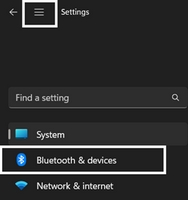
In the top left corner of the Settings window, click the Menu icon, and then select Bluetooth & devices.
Click Add device, select the Logitech device you want to connect to, and then click Pair.
Follow the onscreen instructions to finish pairing.
Windows 10
Select the Windows icon, then select Settings.
Select Devices, then Bluetooth in the left pane.
In the list of Bluetooth devices, select the Logitech device you want to connect to and select Pair.
Follow the onscreen instructions to finish pairing.
Windows 8
Go to Apps, then find and select Control Panel.
Select Devices and Printers.
Select Add a device.
In the list of Bluetooth devices, select the Logitech device you want to connect to and select Next.
Follow the onscreen instructions to finish pairing.
NOTE: It may take up to five minutes for Windows to download and enable all drivers, depending on your computer's specifications and your internet speed. If you have not been able to connect your device, repeat the pairing steps and wait a while before you test the connection.
macOS
Open System Settings and click Bluetooth.
Select the Logitech device you want to connect to from the Devices list and click Connect.
Follow the onscreen instructions to finish pairing.
Upon pairing, the LED light on your Logitech device stops blinking and glows steady for 5 seconds. The light then turns off to save energy.
Chrome OS
Click the status area in the lower right corner of your desktop.
Click Bluetooth enabled or Bluetooth disabled in the pop-up menu. NOTE: If you had to click on Bluetooth disabled, that means the Bluetooth connection on your Chrome device needs to first be enabled.
Select Manage devices... and click Add Bluetooth device.
Select the name of the Logitech device you want to connect to from the list of available devices and click Connect.
Follow the onscreen instructions to finish pairing.
Upon pairing, the LED light on your Logitech device stops blinking and glows steady for 5 seconds. The light then turns off to save energy.
Android
Go to Settings and Networks and select Bluetooth.
Select name of the Logitech device you want to connect from the list of available devices and click Pair.
Follow the onscreen instructions to finish pairing.
Upon pairing, the LED light on the Logitech device stops blinking and glows steady for 5 seconds. The light then turns off to save energy.
iOS / iPadOS
Open Settings and click Bluetooth.
Tap on the Logitech device you want to connect to from the Other Devices list.
The Logitech device will be listed under My Devices when paired successfully.
Upon pairing, the LED light on the Logitech device stops blinking and glows steady for 5 seconds. The light then turns off to save energy.
Bluetooth troubleshooting tips
Try these steps to fix issues with your Logitech Bluetooth device:
Viktig melding: Logitech Options har nådd slutten av kundestøtten og vedlikeholdes ikke lenger. For den beste opplevelsen med de støttede Logitech-enhetene dine anbefaler vi å bytte til Logi Options+, vår neste generasjons tilpasningsprogramvare. Teamet vårt er her for å hjelpe deg i denne overgangen.
Viktig melding: Presentation-programvaren støttes eller vedlikeholdes ikke lenger av Logitech. Logitech Presentation-enheter støttes nå av Logi Options+ for en bedre opplevelse. Vi anbefaler på det sterkeste at du bruker Logi Options+ med presentasjonsfjernkontrollene. Vi hjelper deg gjerne under denne overgangen.
I takt med at maskinvare og operativsystemer fortsetter å utvikle seg, når eldre programvare til slutt et punkt der den ikke lenger kan oppdateres eller vedlikeholdes etter gjeldende standarder. Logitech Gaming Software (LGS) har siden 2019 blitt erstattet av G HUB for alle nye enheter, og all maskinvare som er kompatibel med LGS, er nå utenfor garantitiden.
Med virkning fra 31. oktober 2026 vil alle LGS-installasjonsfiler, nedlastingslenker og støttedokumentasjon bli permanent fjernet fra det offisielle Logitech-nettstedet.
Vi forstår at enkelte brukere fortsatt kan ønske tilgang til installasjonsprogrammet i fremtiden. Vi undersøker for øyeblikket alternative ressurser for å gjøre dette mulig.
Viktig melding: Firmware Update Tool støttes eller vedlikeholdes ikke lenger av Logitech. Vi anbefaler at du bruker Logi Options+ for støttede Logitech-enheter. Vi hjelper deg gjerne under denne overgangen.
Viktig melding: Logitech Preference Manager støttes eller vedlikeholdes ikke lenger av Logitech. Vi anbefaler at du bruker Logi Options+ for støttede Logitech-enheter. Vi hjelper deg gjerne under denne overgangen.
Viktig melding: Logitech Control Center støttes eller vedlikeholdes ikke lenger av Logitech. Vi anbefaler at du bruker Logi Options+ for støttede Logitech-enheter. Vi hjelper deg gjerne under denne overgangen.
Viktig melding: Logitech Connection Utility støttes eller vedlikeholdes ikke lenger av Logitech. Vi anbefaler at du bruker Logi Options+ for støttede Logitech-enheter. Vi hjelper deg gjerne under denne overgangen.
Viktig melding: Unifying Software støttes eller vedlikeholdes ikke lenger av Logitech. Vi anbefaler at du bruker Logi Options+ for støttede Logitech-enheter. Vi hjelper deg gjerne under denne overgangen.
Viktig melding: SetPoint-programvaren støttes eller vedlikeholdes ikke lenger av Logitech. Vi anbefaler at du bruker Logi Options+ for støttede Logitech-enheter. Vi hjelper deg gjerne under denne overgangen.
Vanlige spørsmål
Det er ingen tilgjengelige produkter for denne seksjonen
Det finnes ingen nedlastinger for dette produktet
Onboard Memory Manager is out of date. Please update to the most recent release.
Select Operating System to show Downloads.
There are no Downloads for Operating Systems not listed.
There are no Downloads for this Version.
Det finnes ikke noen Nedlastinger for denne versjonen.