Prepare your Logitech device for Bluetooth pairing Most Logitech products are equipped with a Connect button and will have a Bluetooth Status LED. Usually the pairing sequence is started by holding down the Connect button until the LED starts blinking rapidly. This indicates that the device is ready for pairing.
Select your operating system to learn how to connect your Logitech device:
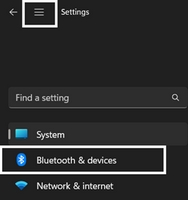
In the top left corner of the Settings window, click the Menu icon, and then select Bluetooth & devices.
Click Add device, select the Logitech device you want to connect to, and then click Pair.
Follow the onscreen instructions to finish pairing.
Windows 10
Select the Windows icon, then select Settings.
Select Devices, then Bluetooth in the left pane.
In the list of Bluetooth devices, select the Logitech device you want to connect to and select Pair.
Follow the onscreen instructions to finish pairing.
Windows 8
Go to Apps, then find and select Control Panel.
Select Devices and Printers.
Select Add a device.
In the list of Bluetooth devices, select the Logitech device you want to connect to and select Next.
Follow the onscreen instructions to finish pairing.
NOTE: It may take up to five minutes for Windows to download and enable all drivers, depending on your computer's specifications and your internet speed. If you have not been able to connect your device, repeat the pairing steps and wait a while before you test the connection.
macOS
Open System Settings and click Bluetooth.
Select the Logitech device you want to connect to from the Devices list and click Connect.
Follow the onscreen instructions to finish pairing.
Upon pairing, the LED light on your Logitech device stops blinking and glows steady for 5 seconds. The light then turns off to save energy.
Chrome OS
Click the status area in the lower right corner of your desktop.
Click Bluetooth enabled or Bluetooth disabled in the pop-up menu. NOTE: If you had to click on Bluetooth disabled, that means the Bluetooth connection on your Chrome device needs to first be enabled.
Select Manage devices... and click Add Bluetooth device.
Select the name of the Logitech device you want to connect to from the list of available devices and click Connect.
Follow the onscreen instructions to finish pairing.
Upon pairing, the LED light on your Logitech device stops blinking and glows steady for 5 seconds. The light then turns off to save energy.
Android
Go to Settings and Networks and select Bluetooth.
Select name of the Logitech device you want to connect from the list of available devices and click Pair.
Follow the onscreen instructions to finish pairing.
Upon pairing, the LED light on the Logitech device stops blinking and glows steady for 5 seconds. The light then turns off to save energy.
iOS / iPadOS
Open Settings and click Bluetooth.
Tap on the Logitech device you want to connect to from the Other Devices list.
The Logitech device will be listed under My Devices when paired successfully.
Upon pairing, the LED light on the Logitech device stops blinking and glows steady for 5 seconds. The light then turns off to save energy.
Bluetooth troubleshooting tips
Try these steps to fix issues with your Logitech Bluetooth device:
Ważna uwaga: Wsparcie dla oprogramowania Logitech Options dobiegło końca i nie jest ono dłużej utrzymywane. W celu uzyskania najlepszego komfortu pracy z obsługiwanymi urządzeniami Logitech zalecamy przejście na Logi Options+, czyli nasze oprogramowanie do personalizacji nowej generacji. Nasz zespół jest do Twojej dyspozycji, aby pomóc w tym przejściowym okresie.
Ważna uwaga: Firma Logitech nie wspiera już ani nie utrzymuje oprogramowania Presentation do prezentacji. Przeznaczone do prezentacji urządzenia Presentation firmy Logitech są teraz obsługiwane przez aplikację Logi Options+, co zapewnia lepsze wrażenia użytkownika. Zdecydowanie zalecamy używanie Logi Options+ ze swoimi pilotami do prezentacji. Chętnie służymy pomocą w tym okresie przejściowym.
Wraz z ciągłym rozwojem sprzętu i systemów operacyjnych, starsze oprogramowanie ostatecznie osiąga punkt, w którym nie może być już aktualizowane ani utrzymywane zgodnie z obecnymi standardami. Oprogramowanie Logitech Gaming Software (LGS) zostało od 2019 roku zastąpione przez G HUB dla wszystkich nowych urządzeń, a cały sprzęt zgodny z LGS jest obecnie po okresie gwarancji.
Od 31 października 2026 r. wszystkie pliki instalacyjne LGS, łącza do pobierania oraz dokumentacja pomocy technicznej zostaną trwale usunięte z oficjalnej witryny firmy Logitech.
Rozumiemy, że niektórzy użytkownicy mogą nadal chcieć mieć dostęp do instalatora w przyszłości. Obecnie badamy alternatywne rozwiązania, aby to umożliwić.
Ważna uwaga: Narzędzie do aktualizacji oprogramowania układowego nie jest już objęte wsparciem firmy Logitech ani nie jest przez nią utrzymywane. Zdecydowanie zalecamy korzystanie z aplikacji Logi Options+ w przypadku wspieranych urządzeń firmy Logitech. Chętnie służymy pomocą w tym okresie przejściowym.
Ważna uwaga: Oprogramowanie Logitech Preference Manager nie jest już objęte wsparciem firmy Logitech ani nie jest przez nią utrzymywane. Zdecydowanie zalecamy korzystanie z aplikacji Logi Options+ w przypadku wspieranych urządzeń firmy Logitech. Chętnie służymy pomocą w tym okresie przejściowym.
Ważna uwaga: Oprogramowanie Logitech Control Center nie jest już objęte wsparciem firmy Logitech ani nie jest przez nią utrzymywane. Zdecydowanie zalecamy korzystanie z aplikacji Logi Options+ w przypadku wspieranych urządzeń firmy Logitech. Chętnie służymy pomocą w tym okresie przejściowym.
Ważna uwaga: Oprogramowanie Logitech Connection Utility nie jest już objęte wsparciem firmy Logitech ani nie jest przez nią utrzymywane. Zdecydowanie zalecamy korzystanie z aplikacji Logi Options+ w przypadku wspieranych urządzeń firmy Logitech. Chętnie służymy pomocą w tym okresie przejściowym.
Ważna uwaga: Oprogramowanie Unifying nie jest już objęte wsparciem firmy Logitech ani nie jest przez nią utrzymywane. Zdecydowanie zalecamy korzystanie z aplikacji Logi Options+ w przypadku wspieranych urządzeń firmy Logitech. Chętnie służymy pomocą w tym okresie przejściowym.
Ważna uwaga: Oprogramowanie SetPoint nie jest już obsługiwane ani obsługiwane przez firmę Logitech. Zdecydowanie zalecamy korzystanie z aplikacji Logi Options+ w przypadku wspieranych urządzeń firmy Logitech. Chętnie służymy pomocą w tym okresie przejściowym.
Często zadawane pytania
Brak produktów dostępnych dla tej sekcji
Dla tego produktu nie są dostępne żadne pliki do pobrania
Onboard Memory Manager is out of date. Please update to the most recent release.
Select Operating System to show Downloads.
There are no Downloads for Operating Systems not listed.