Prepare your Logitech device for Bluetooth pairing Most Logitech products are equipped with a Connect button and will have a Bluetooth Status LED. Usually the pairing sequence is started by holding down the Connect button until the LED starts blinking rapidly. This indicates that the device is ready for pairing.
Select your operating system to learn how to connect your Logitech device:
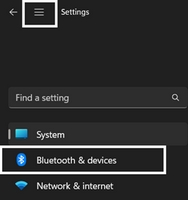
In the top left corner of the Settings window, click the Menu icon, and then select Bluetooth & devices.
Click Add device, select the Logitech device you want to connect to, and then click Pair.
Follow the onscreen instructions to finish pairing.
Windows 10
Select the Windows icon, then select Settings.
Select Devices, then Bluetooth in the left pane.
In the list of Bluetooth devices, select the Logitech device you want to connect to and select Pair.
Follow the onscreen instructions to finish pairing.
Windows 8
Go to Apps, then find and select Control Panel.
Select Devices and Printers.
Select Add a device.
In the list of Bluetooth devices, select the Logitech device you want to connect to and select Next.
Follow the onscreen instructions to finish pairing.
NOTE: It may take up to five minutes for Windows to download and enable all drivers, depending on your computer's specifications and your internet speed. If you have not been able to connect your device, repeat the pairing steps and wait a while before you test the connection.
macOS
Open System Settings and click Bluetooth.
Select the Logitech device you want to connect to from the Devices list and click Connect.
Follow the onscreen instructions to finish pairing.
Upon pairing, the LED light on your Logitech device stops blinking and glows steady for 5 seconds. The light then turns off to save energy.
Chrome OS
Click the status area in the lower right corner of your desktop.
Click Bluetooth enabled or Bluetooth disabled in the pop-up menu. NOTE: If you had to click on Bluetooth disabled, that means the Bluetooth connection on your Chrome device needs to first be enabled.
Select Manage devices... and click Add Bluetooth device.
Select the name of the Logitech device you want to connect to from the list of available devices and click Connect.
Follow the onscreen instructions to finish pairing.
Upon pairing, the LED light on your Logitech device stops blinking and glows steady for 5 seconds. The light then turns off to save energy.
Android
Go to Settings and Networks and select Bluetooth.
Select name of the Logitech device you want to connect from the list of available devices and click Pair.
Follow the onscreen instructions to finish pairing.
Upon pairing, the LED light on the Logitech device stops blinking and glows steady for 5 seconds. The light then turns off to save energy.
iOS / iPadOS
Open Settings and click Bluetooth.
Tap on the Logitech device you want to connect to from the Other Devices list.
The Logitech device will be listed under My Devices when paired successfully.
Upon pairing, the LED light on the Logitech device stops blinking and glows steady for 5 seconds. The light then turns off to save energy.
Bluetooth troubleshooting tips
Try these steps to fix issues with your Logitech Bluetooth device:
Observação Importante: O Logitech Options atingiu o fim do suporte e não é mais mantido. Para ter a melhor experiência com os dispositivos Logitech compatíveis, recomendamos mudar para o Logi Options+, nosso software de personalização de próxima geração. Nossa equipe está à disposição para ajudar você durante essa transição.
Observação Importante: O software Presentation não é mais suportado ou mantido pela Logitech. Para garantir uma melhor experiência, agora os dispositivos Logitech Presentation são compatíveis com o Logi Options+. É altamente recomendável usar o Logi Options+ com os controles remotos para apresentação. Estamos à sua disposição para ajudar com qualquer situação durante esta transição.
À medida que o hardware e os sistemas operacionais continuam a evoluir, softwares legados eventualmente chegam a um ponto em que não podem mais ser atualizados ou mantidos de acordo com os padrões atuais. O Logitech Gaming Software (LGS) foi substituído pelo G HUB para todos os novos dispositivos desde 2019, e todo o hardware compatível com o LGS está agora fora da garantia.
A partir de 31 de outubro de 2026, todos os arquivos de instalação, links de download e documentação de suporte do LGS serão removidos permanentemente do site oficial da Logitech.
Entendemos que alguns usuários ainda possam desejar acesso ao instalador no futuro. No momento, estamos explorando recursos alternativos para viabilizar isso.
Observação Importante: A ferramenta de atualização de firmware não é mais suportada ou mantida pela Logitech. É altamente recomendável usar o Logi Options+ para seus dispositivos Logitech compatíveis. Estamos à sua disposição para ajudar com qualquer situação durante esta transição.
Observação Importante: O Logitech Preference Manager não é mais suportado ou mantido pela Logitech. É altamente recomendável usar o Logi Options+ para seus dispositivos Logitech compatíveis. Estamos à sua disposição para ajudar com qualquer situação durante esta transição.
Observação Importante: O Logitech Control Center não é mais suportado ou mantido pela Logitech. É altamente recomendável usar o Logi Options+ para seus dispositivos Logitech compatíveis. Estamos à sua disposição para ajudar com qualquer situação durante esta transição.
Observação Importante: O Logitech Connection Utility não é mais suportado ou mantido pela Logitech. É altamente recomendável usar o Logi Options+ para seus dispositivos Logitech compatíveis. Estamos à sua disposição para ajudar com qualquer situação durante esta transição.
Observação Importante: O Software Unifying não é mais suportado ou mantido pela Logitech. É altamente recomendável usar o Logi Options+ para seus dispositivos Logitech compatíveis. Estamos à sua disposição para ajudar com qualquer situação durante esta transição.
Observação Importante: O software SetPoint não é mais suportado ou mantido pela Logitech. É altamente recomendável usar o Logi Options+ para seus dispositivos Logitech compatíveis. Estamos à sua disposição para ajudar com qualquer situação durante esta transição.
PERGUNTAS FREQUENTES
Não há produtos disponíveis para esta seção
Não há Downloads para este produto
Onboard Memory Manager is out of date. Please update to the most recent release.
Select Operating System to show Downloads.
There are no Downloads for Operating Systems not listed.