Prepare your Logitech device for Bluetooth pairing Most Logitech products are equipped with a Connect button and will have a Bluetooth Status LED. Usually the pairing sequence is started by holding down the Connect button until the LED starts blinking rapidly. This indicates that the device is ready for pairing.
Select your operating system to learn how to connect your Logitech device:
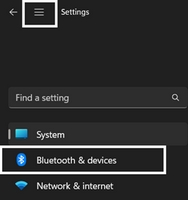
In the top left corner of the Settings window, click the Menu icon, and then select Bluetooth & devices.
Click Add device, select the Logitech device you want to connect to, and then click Pair.
Follow the onscreen instructions to finish pairing.
Windows 10
Select the Windows icon, then select Settings.
Select Devices, then Bluetooth in the left pane.
In the list of Bluetooth devices, select the Logitech device you want to connect to and select Pair.
Follow the onscreen instructions to finish pairing.
Windows 8
Go to Apps, then find and select Control Panel.
Select Devices and Printers.
Select Add a device.
In the list of Bluetooth devices, select the Logitech device you want to connect to and select Next.
Follow the onscreen instructions to finish pairing.
NOTE: It may take up to five minutes for Windows to download and enable all drivers, depending on your computer's specifications and your internet speed. If you have not been able to connect your device, repeat the pairing steps and wait a while before you test the connection.
macOS
Open System Settings and click Bluetooth.
Select the Logitech device you want to connect to from the Devices list and click Connect.
Follow the onscreen instructions to finish pairing.
Upon pairing, the LED light on your Logitech device stops blinking and glows steady for 5 seconds. The light then turns off to save energy.
Chrome OS
Click the status area in the lower right corner of your desktop.
Click Bluetooth enabled or Bluetooth disabled in the pop-up menu. NOTE: If you had to click on Bluetooth disabled, that means the Bluetooth connection on your Chrome device needs to first be enabled.
Select Manage devices... and click Add Bluetooth device.
Select the name of the Logitech device you want to connect to from the list of available devices and click Connect.
Follow the onscreen instructions to finish pairing.
Upon pairing, the LED light on your Logitech device stops blinking and glows steady for 5 seconds. The light then turns off to save energy.
Android
Go to Settings and Networks and select Bluetooth.
Select name of the Logitech device you want to connect from the list of available devices and click Pair.
Follow the onscreen instructions to finish pairing.
Upon pairing, the LED light on the Logitech device stops blinking and glows steady for 5 seconds. The light then turns off to save energy.
iOS / iPadOS
Open Settings and click Bluetooth.
Tap on the Logitech device you want to connect to from the Other Devices list.
The Logitech device will be listed under My Devices when paired successfully.
Upon pairing, the LED light on the Logitech device stops blinking and glows steady for 5 seconds. The light then turns off to save energy.
Bluetooth troubleshooting tips
Try these steps to fix issues with your Logitech Bluetooth device:
Thông báo quan trọng: Logitech Options đã kết thúc hỗ trợ và không còn được bảo trì nữa. Để có trải nghiệm tốt nhất với các thiết bị Logitech được hỗ trợ của bạn, chúng tôi khuyên bạn nên chuyển sang Logi Options+, phần mềm tùy chỉnh thế hệ tiếp theo của chúng tôi. Đội ngũ của chúng tôi luôn sẵn sàng hỗ trợ bạn trong quá trình chuyển đổi này.
Thông báo quan trọng: Phần mềm Presentation không còn được Logitech hỗ trợ hay duy trì nữa. Các thiết bị Logitech Presentation hiện được hỗ trợ bởi Logi Options+ để mang lại trải nghiệm tốt hơn. Chúng tôi khuyến khích bạn nên sử dụng Logi Options+ với điều khiển thuyết trình. Chúng tôi luôn sẵn sàng để hỗ trợ bạn trong quá trình chuyển đổi này.
Khi phần cứng và hệ điều hành không ngừng phát triển, các phần mềm cũ sẽ đến lúc không còn có thể cập nhật hoặc duy trì theo các tiêu chuẩn hiện tại. Logitech Gaming Software (LGS) đã được thay thế bởi G HUB cho tất cả các thiết bị mới từ năm 2019, và toàn bộ phần cứng tương thích với LGS hiện đã hết hạn bảo hành.
Có hiệu lực từ ngày 31 tháng 10 năm 2026, tất cả các tệp cài đặt, liên kết tải xuống và tài liệu hỗ trợ của LGS sẽ bị xóa vĩnh viễn khỏi trang web chính thức của Logitech.
Chúng tôi hiểu rằng một số người dùng vẫn có thể muốn tiếp cận trình cài đặt trong tương lai. Chúng tôi hiện đang tìm kiếm các giải pháp thay thế để hỗ trợ điều này.
Thông báo quan trọng: Công cụ cập nhật Firmware hiện không còn được Logitech hỗ trợ hay duy trì. Bạn nên sử dụng Logi Options+ cho các thiết bị Logitech được hỗ trợ của mình. Chúng tôi luôn sẵn sàng để hỗ trợ bạn trong quá trình chuyển đổi này.
Thông báo quan trọng: Logitech Preference Manager hiện không còn được Logitech hỗ trợ hay duy trì. Bạn nên sử dụng Logi Options+ cho các thiết bị Logitech được hỗ trợ của mình. Chúng tôi luôn sẵn sàng để hỗ trợ bạn trong quá trình chuyển đổi này.
Thông báo quan trọng: Logitech Control Center hiện không còn được Logitech hỗ trợ hay duy trì. Bạn nên sử dụng Logi Options+ cho các thiết bị Logitech được hỗ trợ của mình. Chúng tôi luôn sẵn sàng để hỗ trợ bạn trong quá trình chuyển đổi này.
Thông báo quan trọng: Tiện ích Logitech Connection hiện không còn được Logitech hỗ trợ hay duy trì. Bạn nên sử dụng Logi Options+ cho các thiết bị Logitech được hỗ trợ của mình. Chúng tôi luôn sẵn sàng để hỗ trợ bạn trong quá trình chuyển đổi này.
Thông báo quan trọng: Phần mềm Unifying hiện không còn được Logitech hỗ trợ hay duy trì. Bạn nên sử dụng Logi Options+ cho các thiết bị Logitech được hỗ trợ của mình. Chúng tôi luôn sẵn sàng để hỗ trợ bạn trong quá trình chuyển đổi này.
Thông báo quan trọng: Phần mềm SetPoint không còn được Logitech hỗ trợ hoặc duy trì. Bạn nên sử dụng Logi Options+ cho các thiết bị Logitech được hỗ trợ của mình. Chúng tôi luôn sẵn sàng để hỗ trợ bạn trong quá trình chuyển đổi này.
Câu hỏi thường gặp
Không có sản phẩm nào cho phần này
Không có Bản tải về nào có sẵn cho Sản phẩm này
Onboard Memory Manager is out of date. Please update to the most recent release.
Select Operating System to show Downloads.
There are no Downloads for Operating Systems not listed.